# Settings overview

The dashboard's **Settings** page (sidebar) is where every server-wide setting lives. Per-panel and per-option settings are configured in the panel editor. Everything here applies to the whole server.

This section indexes every server-wide setting group so you can jump to the one you need.

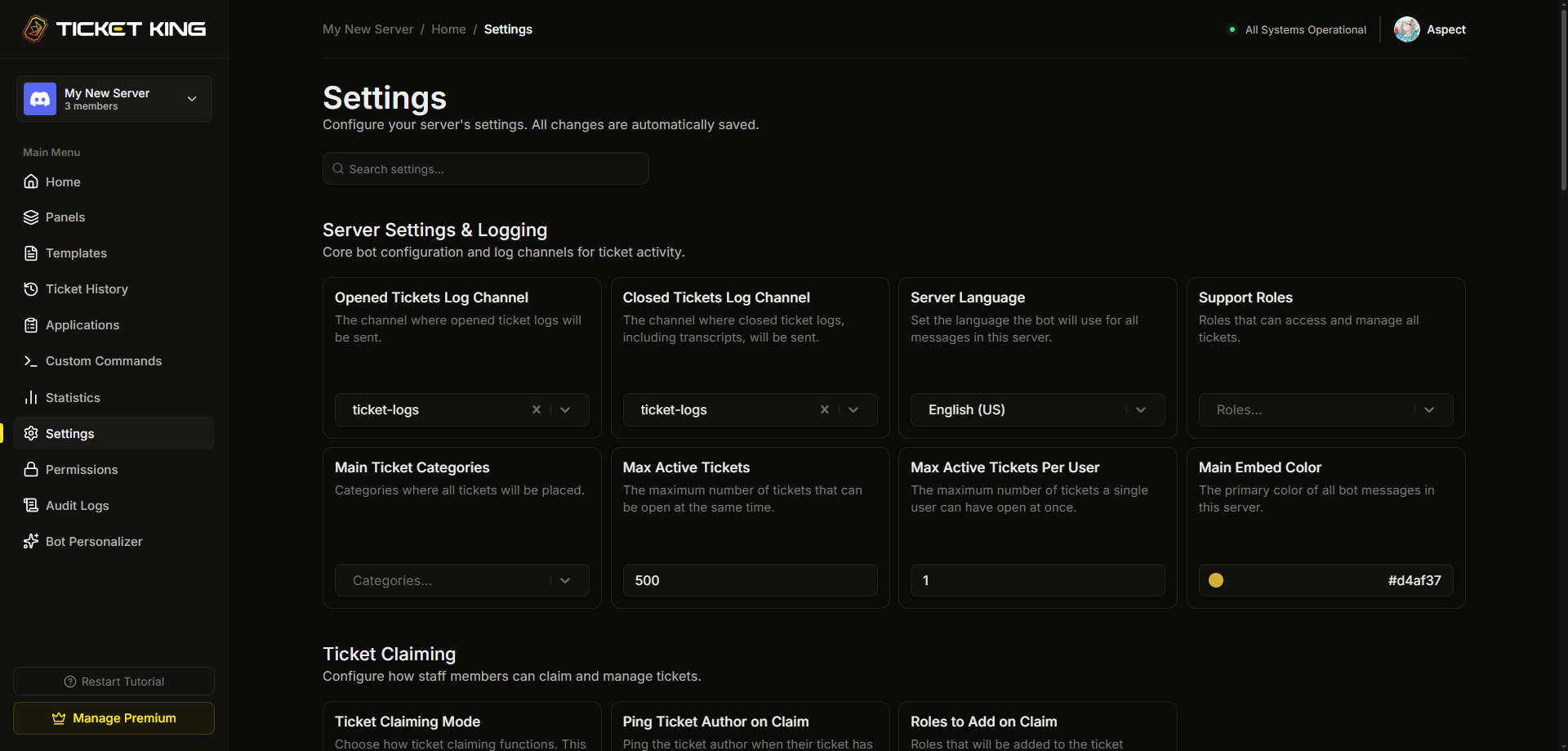
<figure><img src="/files/UliIUF1zMPvwcqj4jWzb" alt="The Settings page with the sidebar visible and the page scrolled to show several setting groups (Server Settings &#x26; Loggi"><figcaption></figcaption></figure>

## The setting groups

These are the groups on the Settings page, in the order they appear.

<table data-view="cards"><thead><tr><th></th><th></th><th></th></tr></thead><tbody><tr><td><i class="fa-gear">:gear:</i> <strong>Server Settings &#x26; Logging</strong></td><td>Opened and closed log channels, server language, server embed color, support roles, ticket categories, and active-ticket limits.</td><td><a href="/pages/xJxyw78ypk7xPkK63scP">Server Settings &#x26; Logging</a></td></tr><tr><td><i class="fa-hand">:hand:</i> <strong>Ticket Claiming</strong></td><td>Claim mode, ping the author on claim, and roles added on claim.</td><td><a href="/pages/C07zR78TUNqDlo5SFARz">Ticket Style and Claiming</a></td></tr><tr><td><i class="fa-sliders">:sliders:</i> <strong>Ticket Style and Claiming Settings</strong></td><td>Manual ticket style, thread close behavior, ticket numbering, ping support roles, and staff threads.</td><td><a href="/pages/C07zR78TUNqDlo5SFARz">Ticket Style and Claiming</a></td></tr><tr><td><i class="fa-lock">:lock:</i> <strong>Ticket Close &#x26; Transcript Settings</strong></td><td>Requirements at close time, the default close reason, and transcript visibility.</td><td><a href="/pages/Sv2oy3WuSgDnexhaSxXq">Ticket messages</a></td></tr><tr><td><i class="fa-clock">:clock:</i> <strong>Ticket Autoclose Settings</strong></td><td>Close-on-leave and timed inactivity rules.</td><td><a href="/pages/IF5BZ0r8Id5ZekK1gryx">Inactivity rules</a></td></tr><tr><td><i class="fa-crown">:crown:</i> <strong>Ticket Rating Settings</strong></td><td>Premium post-close rating prompts.</td><td><a href="/pages/ZJP01LC6EVKd946UMthw">What ticket ratings are</a></td></tr><tr><td><i class="fa-crown">:crown:</i> <strong>Steam Linking Settings</strong></td><td>Premium Steam-account integration.</td><td><a href="/pages/xl8ZOlixZa4z69uy07g9">What Steam Linking does</a></td></tr><tr><td><i class="fa-ban">:ban:</i> <strong>Blocked Roles</strong></td><td>Roles blocked from opening tickets or using the bot.</td><td><a href="/pages/SpzCJl4syoST8cpRvZH3">Blocked Roles</a></td></tr><tr><td><i class="fa-triangle-exclamation">:triangle-exclamation:</i> <strong>Danger Zone</strong></td><td>Edit ticket counters and reset all ticket counters.</td><td><a href="/pages/BwHP8YE82Gy9PEJ2Y0iV">Danger Zone</a></td></tr></tbody></table>

## Save behavior

The Settings page header reads "Configure your server's settings. All changes are automatically saved." You do not click a Save button. Each change you make to a setting saves on its own.

## Who can edit settings

You need the **Manage Settings** dashboard permission, or be the server owner, or have Discord Administrator or Manage Server.

→ [The dashboard permission areas](/docs/permissions-and-your-support-team/permission-areas.md)


---

# Agent Instructions: Querying This Documentation

If you need additional information that is not directly available in this page, you can query the documentation dynamically by asking a question.

Perform an HTTP GET request on the current page URL with the `ask` query parameter:

```
GET https://ticketking.xyz/docs/settings/overview.md?ask=<question>
```

The question should be specific, self-contained, and written in natural language.
The response will contain a direct answer to the question and relevant excerpts and sources from the documentation.

Use this mechanism when the answer is not explicitly present in the current page, you need clarification or additional context, or you want to retrieve related documentation sections.