> For the complete documentation index, see [llms.txt](https://ticketking.xyz/docs/llms.txt). Markdown versions of documentation pages are available by appending `.md` to page URLs; this page is available as [Markdown](https://ticketking.xyz/docs/tickets/claiming-a-ticket.md).
# Claiming a ticket
How claiming works, the four modes, and which to pick.
When a staff member claims a ticket, it marks them as the person handling it so the rest of the team knows not to work on it at the same time. That part is the same across all claim modes. What else claiming does to channel permissions depends on the mode you choose.
## How to claim
In a ticket channel:
```
/claim
```
Ticket King confirms the claim and applies the permission changes for your mode.
To release a claim:
```
/unclaim
```
To transfer a claim to someone else:
```
/transfer @user
```
Only one staff member can hold a claim on a ticket at a time. There is no multi-claim.
{% hint style="info" %}
The `/claim`, `/unclaim`, and `/transfer` commands inside Discord are free. Claiming, unclaiming, and transferring from the dashboard ticket view is :crown: Premium.
{% endhint %}
## The four claim modes
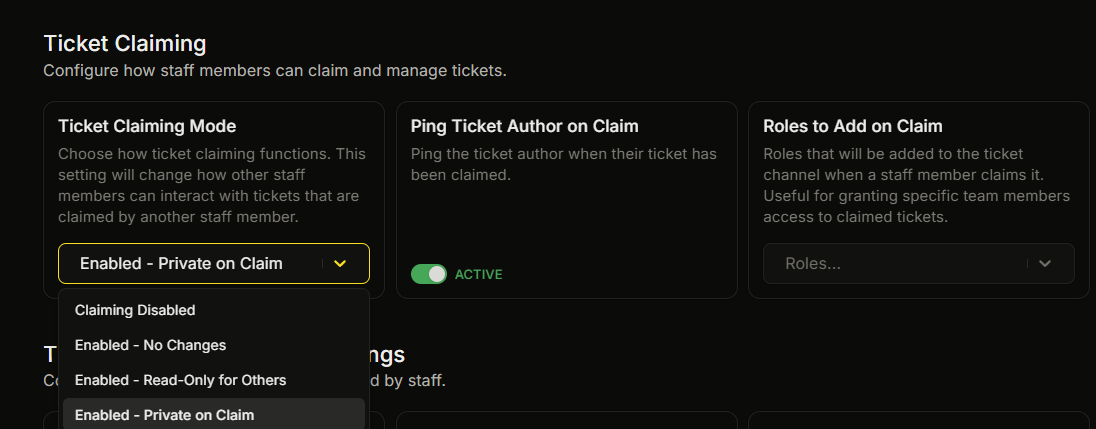
Set in **Settings, Ticket Claiming, Ticket Claiming Mode**. You pick one.
The default is **Enabled - Private on Claim**.
| Mode | What `/claim` does |
| ---------------------------------------- | --------------------------------------------------------------------------------------------------------------------------------------------------- |
| **Claiming Disabled** | The Claim button is hidden and `/claim` reports that claiming is off. Channel access does not change. |
| **Enabled - No Changes** | Records the claimer and adds any configured roles to add on claim, but does not change existing channel permissions. Other staff keep their access. |
| **Enabled - Read-Only for Others** | Removes Send Messages from every role except the author, the claimer, and the bot. Other staff can still read the ticket. |
| **Enabled - Private on Claim** (default) | @everyone loses View Channel. Only the bot, the author, the claimer, and any configured roles to add on claim can see the ticket. |
## Related claim settings
In **Settings, Ticket Claiming**:
| Setting | Type | Default | Behavior |
| ------------------------------- | ------------------- | ------- | --------------------------------------------------------------------------------------------------------------------------------------------------------------------- |
| **Ping Ticket Author on Claim** | toggle | on | Pings the ticket author when someone claims. This works only when claiming is enabled. |
| **Roles to Add on Claim** | multi-role (max 25) | empty | These roles are added to the ticket channel when someone claims, in addition to the claimer. For example, you can add a senior-mod role whenever a junior mod claims. |
## What `/transfer` does
`/transfer @user` moves the claim from the current claimer to someone else. The ticket must already be claimed for this to work.
The person you transfer to must be a support team member: they need to be the server owner or hold one of your support roles. A member whose only access comes from Discord's Manage Channels or Manage Server permission cannot be a transfer target, so transfer to people who are on your support roles.
After a transfer, the new claimer is treated as if they had claimed it. The previous claimer is no longer the claimer.
## Bot permissions required
For the **Enabled - Read-Only for Others** and **Enabled - Private on Claim** modes, the bot needs Discord's **Manage Roles** permission in the channel so it can change who can see and send messages. Ticket King checks this when you run `/claim`. If the bot lacks the permission, the claim fails with a permission error and channel access stays the same.
The recommended invite already includes Manage Roles, so all of the claim modes work without extra setup.
## Common questions
{% hint style="info" %}
**Can I auto-claim tickets as I respond?** Not currently. You run `/claim` yourself.
{% endhint %}
{% hint style="info" %}
**What if the staff member who claimed leaves the server?** The claim does not release on its own. Another staff member who can manage the ticket can run `/transfer` to take it over, or run `/unclaim` if they were the previous claimer.
{% endhint %}
## On the website
* [Ticket claiming guide](https://ticketking.xyz/learn/ticket-claiming) — the four modes side by side, with guidance on which to pick.
## Related
{% content-ref url="/pages/4SsQb4kKyrteyIm8EKUq" %}
[/transfer](/docs/bot-commands/transfer.md)
{% endcontent-ref %}
{% content-ref url="/pages/0PyHViOuXmoK0zVX0Ukd" %}
[The ticket lifecycle](/docs/tickets/lifecycle.md)
{% endcontent-ref %}
{% content-ref url="/pages/UIA35ZwZnGsgiE5BmK60" %}
[Support roles](/docs/permissions-and-your-support-team/support-roles.md)
{% endcontent-ref %}
---
# Agent Instructions
This documentation is published with GitBook. GitBook is the documentation platform designed so that both humans and AI agents can read, navigate, and reason over technical content effectively. Learn more at gitbook.com.
## Querying This Documentation
If you need additional information that is not directly available in this page, you can query the documentation dynamically by asking a question.
Perform an HTTP GET request on the current page URL with the `ask` query parameter, and the optional `goal` query parameter:
```
GET https://ticketking.xyz/docs/tickets/claiming-a-ticket.md?ask=&goal=
```
`ask` is the immediate question: it should be specific, self-contained, and written in natural language.
`goal` is optional and describes the broader end goal you are ultimately trying to accomplish on behalf of the user. GitBook uses it to tailor the answer towards what is most useful for that goal.
The response will contain a direct answer to the question and relevant excerpts and sources from the documentation.
Use this mechanism when the answer is not explicitly present in the current page, you need clarification or additional context, or you want to retrieve related documentation sections.