> For the complete documentation index, see [llms.txt](https://ticketking.xyz/docs/llms.txt). Markdown versions of documentation pages are available by appending `.md` to page URLs; this page is available as [Markdown](https://ticketking.xyz/docs/steam-linking/what-members-see.md).
# What members see
The Steam linking flow from the member's point of view.
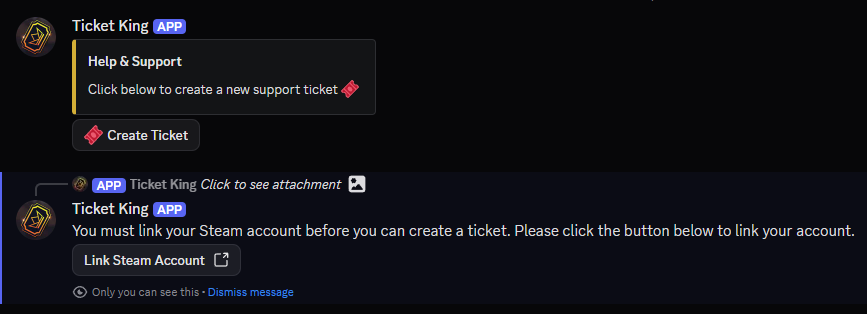
:crown: **Premium feature.** When a member clicks a panel option that requires Steam linking, this is what they see.
## Step 1. The link prompt
Instead of the usual ticket form, the bot replies with a **Link Steam Account** button. The button text is shown in your server's language.
## Step 2. They click the button
The button opens a link in a new browser tab. The link is unique to that member, so only the member who clicked it can use it. It stops working about ten minutes after it is created.
## Step 3. Sign in to Steam
The page sends the member to Steam's own sign-in. They sign in with their Steam account on Steam's site. Steam handles the sign-in, so Ticket King never sees their password.
## Step 4. The link is saved
After Steam confirms the sign-in, the page saves the link between the member's Discord account and their Steam account.
## Step 5. The result page
The member lands on a result page.
### Success
> **Successfully Linked Steam Account**
>
> You have successfully linked your account! You can now close this page and create a ticket in discord.
### Invalid Token
> **Invalid Token**
>
> This link is invalid, please try creating another ticket to get a new link.
This shows when the link has expired or was already used.
### Error
> **Unexpected Error**
>
> Sorry, something went wrong when linking your account, please try again.
This shows when the sign-in could not be completed.
## Step 6. Back to Discord
The member closes the tab and returns to Discord. The next time they click the panel option, the bot sees that they are linked and opens the ticket form as normal.
## Re-linking
When the link duration ends (see [The link duration setting](/docs/steam-linking/link-duration.md)), or when a member wants to switch Steam accounts, they can:
* Run `/unlinksteam` to clear their current link.
* Click any option that requires Steam to start the link flow again with a fresh link.
## What the member needs
* To be signed in to ticketking.xyz with Discord. This is a one-click sign-in.
* To be able to sign in to Steam.
The member does not need any dashboard permission. They never see your dashboard. They only see the link flow and the result page.
## Related
{% content-ref url="/pages/xl8ZOlixZa4z69uy07g9" %}
[What Steam Linking does](/docs/steam-linking/overview.md)
{% endcontent-ref %}
{% content-ref url="/pages/fsVZpDhUPIhDnOhX0o54" %}
[The link duration setting](/docs/steam-linking/link-duration.md)
{% endcontent-ref %}
---
# Agent Instructions
This documentation is published with GitBook. GitBook is the documentation platform designed so that both humans and AI agents can read, navigate, and reason over technical content effectively. Learn more at gitbook.com.
## Querying This Documentation
If you need additional information that is not directly available in this page, you can query the documentation dynamically by asking a question.
Perform an HTTP GET request on the current page URL with the `ask` query parameter, and the optional `goal` query parameter:
```
GET https://ticketking.xyz/docs/steam-linking/what-members-see.md?ask=&goal=
```
`ask` is the immediate question: it should be specific, self-contained, and written in natural language.
`goal` is optional and describes the broader end goal you are ultimately trying to accomplish on behalf of the user. GitBook uses it to tailor the answer towards what is most useful for that goal.
The response will contain a direct answer to the question and relevant excerpts and sources from the documentation.
Use this mechanism when the answer is not explicitly present in the current page, you need clarification or additional context, or you want to retrieve related documentation sections.