> For the complete documentation index, see [llms.txt](https://ticketking.xyz/docs/llms.txt). Markdown versions of documentation pages are available by appending `.md` to page URLs; this page is available as [Markdown](https://ticketking.xyz/docs/steam-linking/link-duration.md).
# The link duration setting
How long a member's Steam link stays valid before re-linking is required.
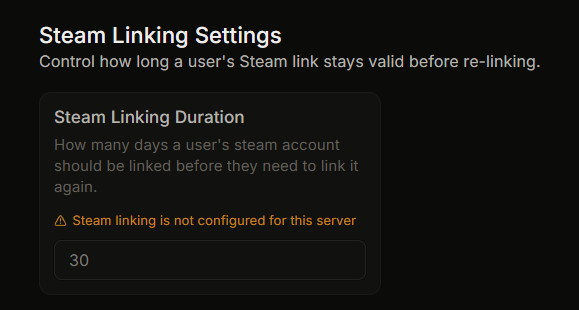
:crown: **Premium feature.** Open Settings, then the **Steam Linking Settings** group, then **Steam Linking Duration**.
This sets how many days a member's Steam-to-Discord link stays valid before they have to link again.
## Configuration
| Field | Type | Range | Default |
| -------------------------- | -------------- | -------- | ------- |
| **Steam Linking Duration** | number of days | 1 to 365 | 30 |
Until your server has premium, this field is disabled with the reason *"Steam linking is not configured for this server"*.
## What the duration means
When a member links their Steam account, the time of the link is saved. Once the set number of days has passed since that time:
* The next time the member tries to open an option that requires Steam, the bot treats them as not linked.
* They must link again before the ticket can open.
The count starts from the time the member first linked, not from the last time they used the link. A member who linked on day 0 with a 30-day duration is asked to link again on day 30, no matter how recently they were active.
## Why set a duration
* Members sometimes switch Steam accounts, so an old link can become out of date.
* Linking again from time to time reduces the impact of a compromised account.
* Some communities prefer not to keep links indefinitely.
## Picking a duration
| Days | Good for |
| ---- | -------------------------------------------------------- |
| 7 | Communities that want frequent re-checks |
| 30 | Most servers |
| 90 | Communities that use the Steam ID mainly for convenience |
| 365 | Communities with stable membership |
There is no permanent option. The minimum is 1 day and the maximum is 365.
## Re-linking before the duration ends
A member can re-link sooner by running `/unlinksteam` to clear their current link, then opening any option that requires Steam, which starts the link flow again.
A server manager (the owner, or someone with Administrator or Manage Server) can also unlink a member from the dashboard Steam Linking page, using the Unlink button next to the entry.
## Related
{% content-ref url="/pages/xl8ZOlixZa4z69uy07g9" %}
[What Steam Linking does](/docs/steam-linking/overview.md)
{% endcontent-ref %}
{% content-ref url="/pages/HmqWXSbQjBSwLCeqqD8B" %}
[Turning Steam Linking on](/docs/steam-linking/turning-it-on.md)
{% endcontent-ref %}
---
# Agent Instructions
This documentation is published with GitBook. GitBook is the documentation platform designed so that both humans and AI agents can read, navigate, and reason over technical content effectively. Learn more at gitbook.com.
## Querying This Documentation
If you need additional information that is not directly available in this page, you can query the documentation dynamically by asking a question.
Perform an HTTP GET request on the current page URL with the `ask` query parameter, and the optional `goal` query parameter:
```
GET https://ticketking.xyz/docs/steam-linking/link-duration.md?ask=&goal=
```
`ask` is the immediate question: it should be specific, self-contained, and written in natural language.
`goal` is optional and describes the broader end goal you are ultimately trying to accomplish on behalf of the user. GitBook uses it to tailor the answer towards what is most useful for that goal.
The response will contain a direct answer to the question and relevant excerpts and sources from the documentation.
Use this mechanism when the answer is not explicitly present in the current page, you need clarification or additional context, or you want to retrieve related documentation sections.