> For the complete documentation index, see [llms.txt](https://ticketking.xyz/docs/llms.txt). Markdown versions of documentation pages are available by appending `.md` to page URLs; this page is available as [Markdown](https://ticketking.xyz/docs/pt-br/vinculacao-com-a-steam/turning-it-on.md).
# Ativando a vinculação com a Steam
Como ativar a vinculação com a Steam no seu servidor.
:crown: **Recurso Premium.** O Steam Linking tem duas etapas.
{% stepper %}
{% step %}
### Etapa 1. Tenha o Premium
O Steam Linking faz parte do Premium. Assim que seu servidor tiver o Premium, o Steam Linking ficará disponível em alguns minutos.
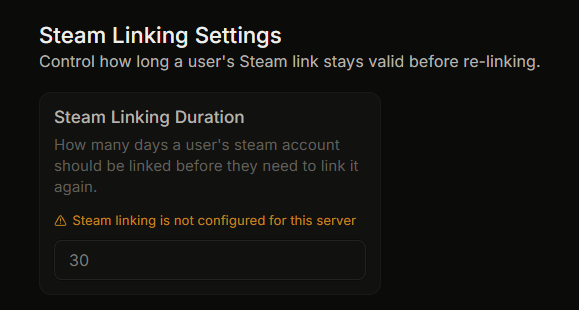
Até lá, o **Duração da vinculação com Steam** campo na página de Configurações fica desativado com o motivo *"O Steam Linking não está configurado para este servidor"*.
{% endstep %}
{% step %}
### Etapa 2. Exija-o em cada opção que você deseja restringir
Mesmo com o Premium, nenhuma opção do painel exige vinculação por padrão. Você a ativa para cada opção que escolher.
Para cada opção do painel que você deseja restringir por meio do Steam Linking:
1. Abra o editor do painel.
2. Clique no botão ou na opção.
3. Vá para o **Aba Avançado**.
4. Localize **Integração com ID da Steam**.
5. Ative o **Exigir Steam Linking** botão de ativação.
6. Salve.
Você também pode definir isso como padrão do painel em **Padrões do Painel**, em **Integração padrão do Steam ID**. Opções individuais podem então substituir o padrão.
{% endstep %}
{% endstepper %}
## O que acontece depois que você ativá-lo
* Quando um membro clica na opção do painel, o bot primeiro verifica se ele tem um Steam link válido.
* Se não tiverem, o bot pede que façam a vinculação por meio de um botão. Eles só podem abrir o ticket depois de vincular.
* O Steam ID deles fica disponível como um `{STEAM_ID}` placeholder. Você pode usá-lo em:
* O nome personalizado do ticket, por exemplo `bug-{TICKET_NUMBER}-{STEAM_ID}`.
* O conteúdo do embed do ticket.
* A mensagem da thread da equipe.
## Desativando-o
Ative o **Exigir Steam Linking** desative-o na opção ou nos padrões do painel. Novos tickets não exigirão vinculação. Os membros que já vincularam mantêm sua vinculação.
## Se o Premium terminar
Se o seu servidor sair do Premium e voltar para a versão gratuita:
* O Steam Linking para de funcionar.
* Os membros que já vincularam mantêm o Steam ID armazenado.
* O `{STEAM_ID}` o placeholder deixa de ser preenchido.
* A página do painel do Steam Linking fica bloqueada.
Quando o Premium voltar, as vinculações anteriores funcionarão novamente.
## Relacionado
{% content-ref url="/pages/c6d560344185a9b9225e215e6c61afaf42ffe301" %}
[O que a vinculação com a Steam faz](/docs/pt-br/vinculacao-com-a-steam/overview.md)
{% endcontent-ref %}
{% content-ref url="/pages/f6823caf3bb66601ac8faed6b763ea00d71ee23e" %}
[A configuração de duração do link](/docs/pt-br/vinculacao-com-a-steam/link-duration.md)
{% endcontent-ref %}
---
# Agent Instructions
This documentation is published with GitBook. GitBook is the documentation platform designed so that both humans and AI agents can read, navigate, and reason over technical content effectively. Learn more at gitbook.com.
## Querying This Documentation
If you need additional information that is not directly available in this page, you can query the documentation dynamically by asking a question.
Perform an HTTP GET request on the current page URL with the `ask` query parameter, and the optional `goal` query parameter:
```
GET https://ticketking.xyz/docs/pt-br/vinculacao-com-a-steam/turning-it-on.md?ask=&goal=
```
`ask` is the immediate question: it should be specific, self-contained, and written in natural language.
`goal` is optional and describes the broader end goal you are ultimately trying to accomplish on behalf of the user. GitBook uses it to tailor the answer towards what is most useful for that goal.
The response will contain a direct answer to the question and relevant excerpts and sources from the documentation.
Use this mechanism when the answer is not explicitly present in the current page, you need clarification or additional context, or you want to retrieve related documentation sections.