> For the complete documentation index, see [llms.txt](https://ticketking.xyz/docs/llms.txt). Markdown versions of documentation pages are available by appending `.md` to page URLs; this page is available as [Markdown](https://ticketking.xyz/docs/pt-br/permissoes-e-sua-equipe-de-suporte/temporary-dashboard-access.md).
# Acesso temporário ao painel
Um link de curta duração que dá a uma pessoa confiável acesso ao painel no nível de proprietário.
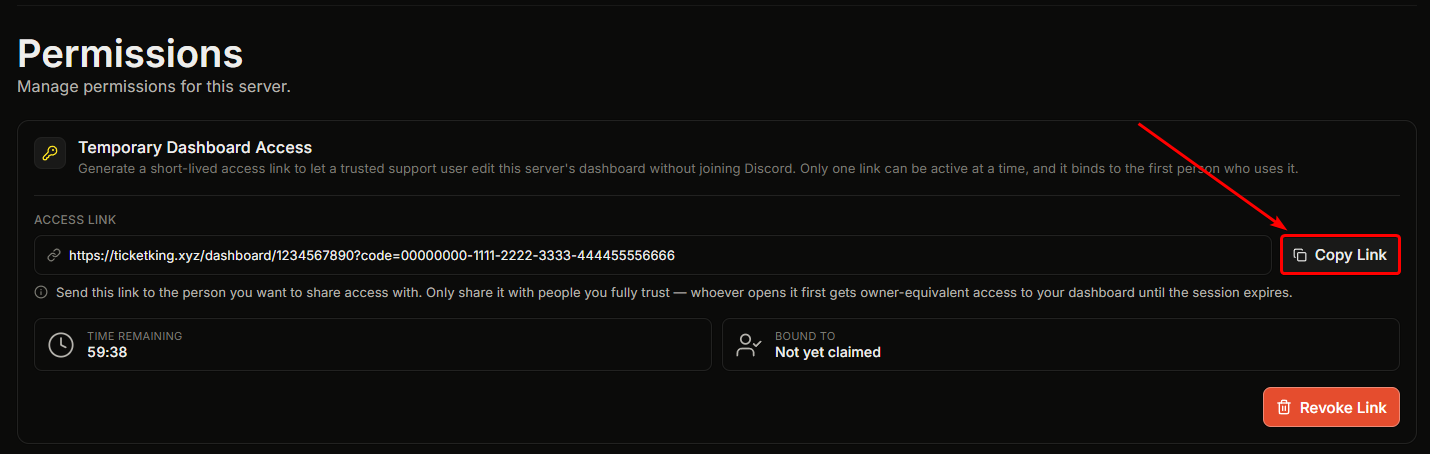
O Acesso Temporário ao Painel permite criar um link de curta duração que concede acesso ao painel no nível de proprietário à primeira pessoa que o abrir. É útil quando você quer que um amigo de confiança ou um ajudante da comunidade Ticket King faça uma configuração rápida ou conserte algo no seu painel, sem adicioná-lo permanentemente a uma função.
## O que saber primeiro
* Apenas um link pode estar ativo por vez. Tentar criar um segundo mostrará um erro.
* O link fica vinculado à primeira pessoa que o abrir. Depois disso, mais ninguém poderá usá-lo.
* O usuário vinculado não pode alterar as permissões do painel, mesmo com acesso total. Isso impede que um visitante temporário torne seu acesso permanente.
## Como gerar um link
Na **Permissões** página, no **Acesso temporário ao painel** cartão:
{% stepper %}
{% step %}
### Escolha uma duração
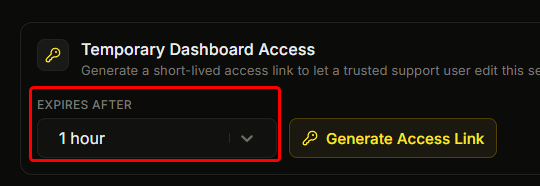
Escolha uma duração em **Expira após** menu suspenso.
{% endstep %}
{% step %}
### Gere o link
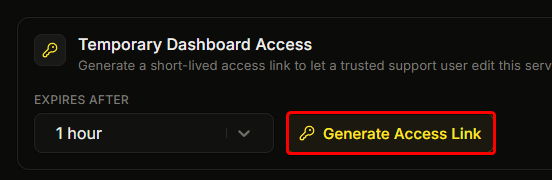
Clique em **Gerar link de acesso**.
{% endstep %}
{% step %}
### Confirmar
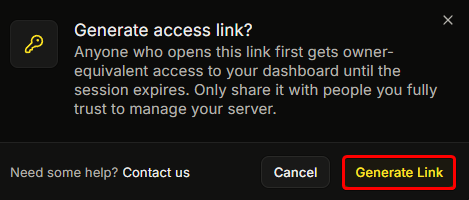
Confirme no pop-up que aparecer.
{% endstep %}
{% step %}
### Copie o link
O link é criado e copiado para a sua área de transferência.
{% endstep %}
{% endstepper %}
## Opções de duração
| Opção | |
| ---------- | ------ |
| 30 minutos | |
| 1 hora | Padrão |
| 3 horas | |
| 6 horas | |
Escolha a duração mais curta que resolva o problema.
## Compartilhando o link
Envie o link em uma DM do Discord, nunca em um canal público. Qualquer pessoa que tiver o link pode reivindicá-lo até ele expirar ou você revogá-lo, então trate-o como uma senha.
## Após ser reivindicado
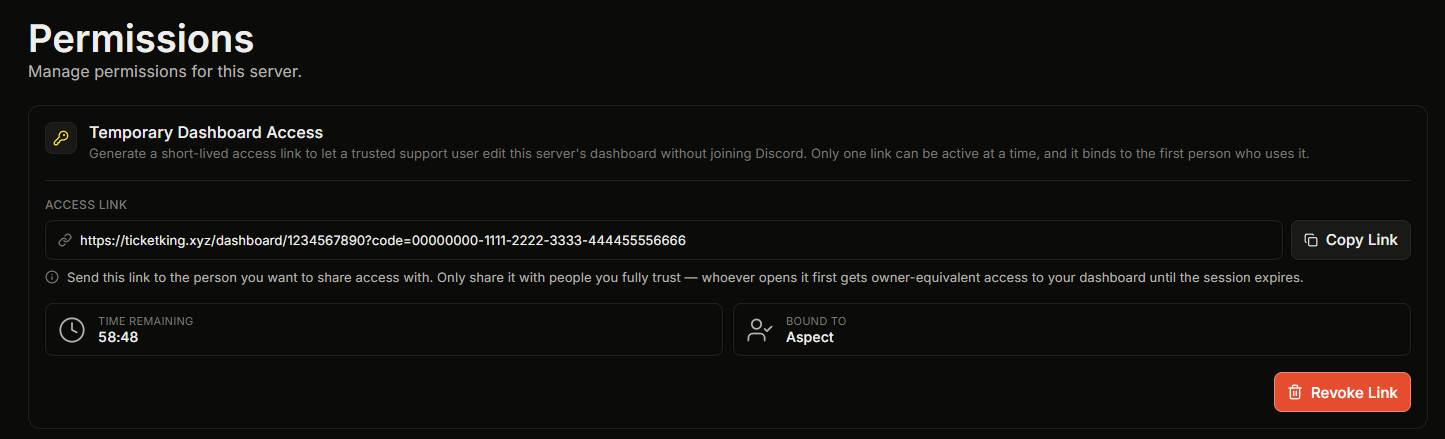
O bloco "Vinculado a" muda de "Ainda não reivindicado" para o nome da pessoa, e o link não pode mais ser reivindicado por mais ninguém. O usuário vinculado agora pode usar seu painel com acesso de nível de proprietário, exceto por não poder alterar as permissões do painel.
## Revogação
Clique em **Revogar link** no cartão de link ativo e confirme. A revogação é imediata. Se a pessoa estiver no meio de usar o painel, a próxima ação dela encerrará o acesso.
## Quando expirar
Quando o tempo acabar, o acesso dela termina automaticamente e ela precisará de um novo link para continuar.
## Quem pode gerar um link
Somente o proprietário do servidor, um Administrador do Discord ou uma função com Acesso Total podem gerar um link. Se você não puder, verá: "Somente o proprietário do servidor ou uma função com acesso total pode gerar um link de acesso."
## Registrado no log de auditoria
Gerar, reivindicar e revogar um link temporário de acesso são todos registrados no seu log de auditoria.
## Boa prática
* Use a duração mais curta que funcione.
* Envie o link somente por DM.
* Revogue-o quando o trabalho terminar.
* Verifique se o bloco "Vinculado a" mostra a pessoa para quem você o enviou. Caso contrário, alguém mais o abriu primeiro, então revogue-o imediatamente.
## Relacionado
{% content-ref url="/pages/c0582c61c2c2b8019d4ef87b5d81f7d1c8e4b25a" %}
[Conceder acesso ao painel a uma função](https://ticketking.xyz/docs/pt-br/permissoes-e-sua-equipe-de-suporte/giving-a-role-dashboard-access.md)
{% endcontent-ref %}
{% content-ref url="/pages/541e38190bdf7b1dc52ac8af053d9216fce10f7a" %}
[O que o registro de auditoria captura](https://ticketking.xyz/docs/pt-br/registros-de-auditoria/what-it-captures.md)
{% endcontent-ref %}
---
# Agent Instructions
This documentation is published with GitBook. GitBook is the documentation platform designed so that both humans and AI agents can read, navigate, and reason over technical content effectively. Learn more at gitbook.com.
## Querying This Documentation
If you need additional information that is not directly available in this page, you can query the documentation by asking a question.
Perform an HTTP GET request on the following URL with the `ask` and `goal` query parameters:
```
GET https://ticketking.xyz/docs/pt-br/permissoes-e-sua-equipe-de-suporte/temporary-dashboard-access.md?ask=&goal=
```
`ask` is the immediate question: it should be specific, self-contained, and written in natural language.
`goal` is what the user is ultimately trying to achieve, the reason they need the answer. Sharing it helps GitBook give you a better, more relevant answer. A goal is most helpful when it describes the outcome the user wants rather than restating the question. For example, with `ask=how do I create an API token`, a goal like `automate deployments from our CI pipeline` lets GitBook tailor the answer to that use case.
The response will contain a direct answer to the question and relevant excerpts and sources from the documentation.
Use this mechanism when the answer is not explicitly present in the current page, you need clarification or additional context, or you want to retrieve related documentation sections.