> For the complete documentation index, see [llms.txt](https://ticketking.xyz/docs/llms.txt). Markdown versions of documentation pages are available by appending `.md` to page URLs; this page is available as [Markdown](https://ticketking.xyz/docs/permissions-and-your-support-team/temporary-dashboard-access.md).
# Temporary Dashboard Access
A short-lived link that gives one trusted person owner-level dashboard access.
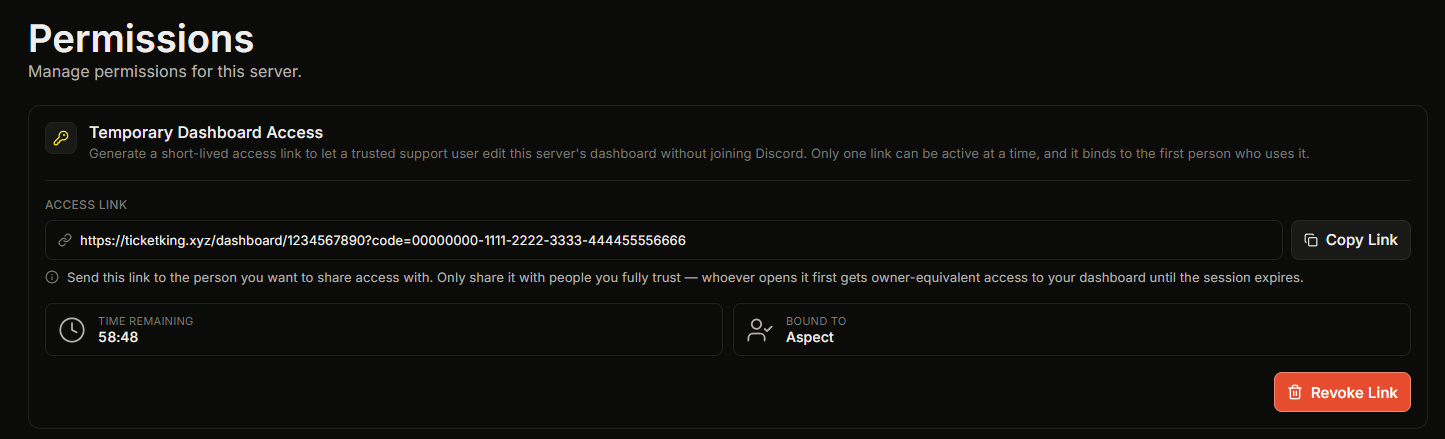
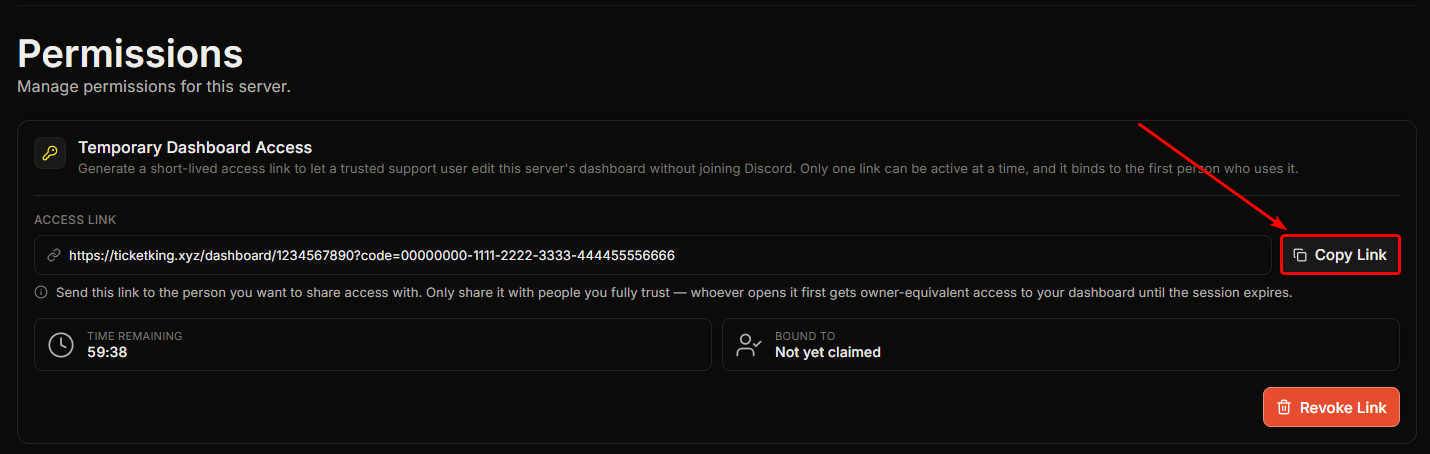
Temporary Dashboard Access lets you create a short-lived link that gives owner-level dashboard access to the first person who opens it. It is useful when you want a trusted friend or a Ticket King community helper to do a quick setup or fix something on your dashboard, without permanently adding them to a role.
## What to know first
* Only one link can be active at a time. Trying to make a second one shows an error.
* The link binds to the first person who opens it. After that, no one else can use it.
* The bound user cannot change dashboard permissions, even with full access. This stops a temporary visitor from making their access permanent.
## How to generate a link
On the **Permissions** page, in the **Temporary Dashboard Access** card:
{% stepper %}
{% step %}
### Pick a length
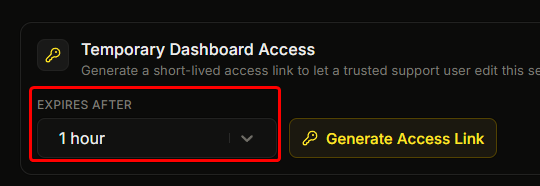
Pick a length from the **Expires After** dropdown.
{% endstep %}
{% step %}
### Generate the link
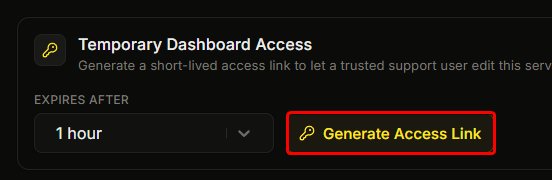
Click **Generate Access Link**.
{% endstep %}
{% step %}
### Confirm
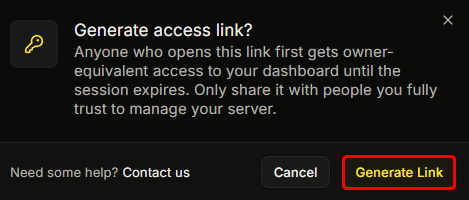
Confirm in the pop-up that appears.
{% endstep %}
{% step %}
### Copy the link
The link is created and copied to your clipboard.
{% endstep %}
{% endstepper %}
## Length options
| Option | |
| ---------- | ------- |
| 30 minutes | |
| 1 hour | Default |
| 3 hours | |
| 6 hours | |
Pick the shortest length that gets the job done.
## Sharing the link
Send the link in a Discord DM, never in a public channel. Anyone who has the link can claim it until it expires or you revoke it, so treat it like a password.
## After it is claimed
The "Bound To" tile changes from "Not yet claimed" to the person's name, and the link can no longer be claimed by anyone else. The bound user can now use your dashboard with owner-level access, except they cannot change dashboard permissions.
## Revoking
Click **Revoke Link** in the active-link card and confirm. Revoking is immediate. If the person is in the middle of using the dashboard, their next action ends it.
## When it expires
When the time runs out, their access ends automatically and they need a new link to continue.
## Who can generate a link
Only the server owner, a Discord Administrator, or a role with Full Access can generate a link. If you cannot, you will see: "Only the server owner or a role with full access can generate an access link."
## Recorded in the audit log
Generating, claiming, and revoking a temporary access link are all recorded in your audit log.
## Good practice
* Use the shortest length that works.
* Send the link by DM only.
* Revoke it when the work is done.
* Check the "Bound To" tile shows the person you sent it to. If not, someone else opened it first, so revoke it right away.
## Related
{% content-ref url="/pages/OB6VYmaGviEfP9787EQl" %}
[Giving a role dashboard access](/docs/permissions-and-your-support-team/giving-a-role-dashboard-access.md)
{% endcontent-ref %}
{% content-ref url="/pages/Nin30Dy0fPFzy7oflTml" %}
[What the audit log captures](/docs/audit-logs/what-it-captures.md)
{% endcontent-ref %}
---
# Agent Instructions
This documentation is published with GitBook. GitBook is the documentation platform designed so that both humans and AI agents can read, navigate, and reason over technical content effectively. Learn more at gitbook.com.
## Querying This Documentation
If you need additional information that is not directly available in this page, you can query the documentation dynamically by asking a question.
Perform an HTTP GET request on the current page URL with the `ask` query parameter, and the optional `goal` query parameter:
```
GET https://ticketking.xyz/docs/permissions-and-your-support-team/temporary-dashboard-access.md?ask=&goal=
```
`ask` is the immediate question: it should be specific, self-contained, and written in natural language.
`goal` is optional and describes the broader end goal you are ultimately trying to accomplish on behalf of the user. GitBook uses it to tailor the answer towards what is most useful for that goal.
The response will contain a direct answer to the question and relevant excerpts and sources from the documentation.
Use this mechanism when the answer is not explicitly present in the current page, you need clarification or additional context, or you want to retrieve related documentation sections.