> For the complete documentation index, see [llms.txt](https://ticketking.xyz/docs/llms.txt). Markdown versions of documentation pages are available by appending `.md` to page URLs; this page is available as [Markdown](https://ticketking.xyz/docs/permissions-and-your-support-team/permission-areas.md).
# Dashboard permission areas
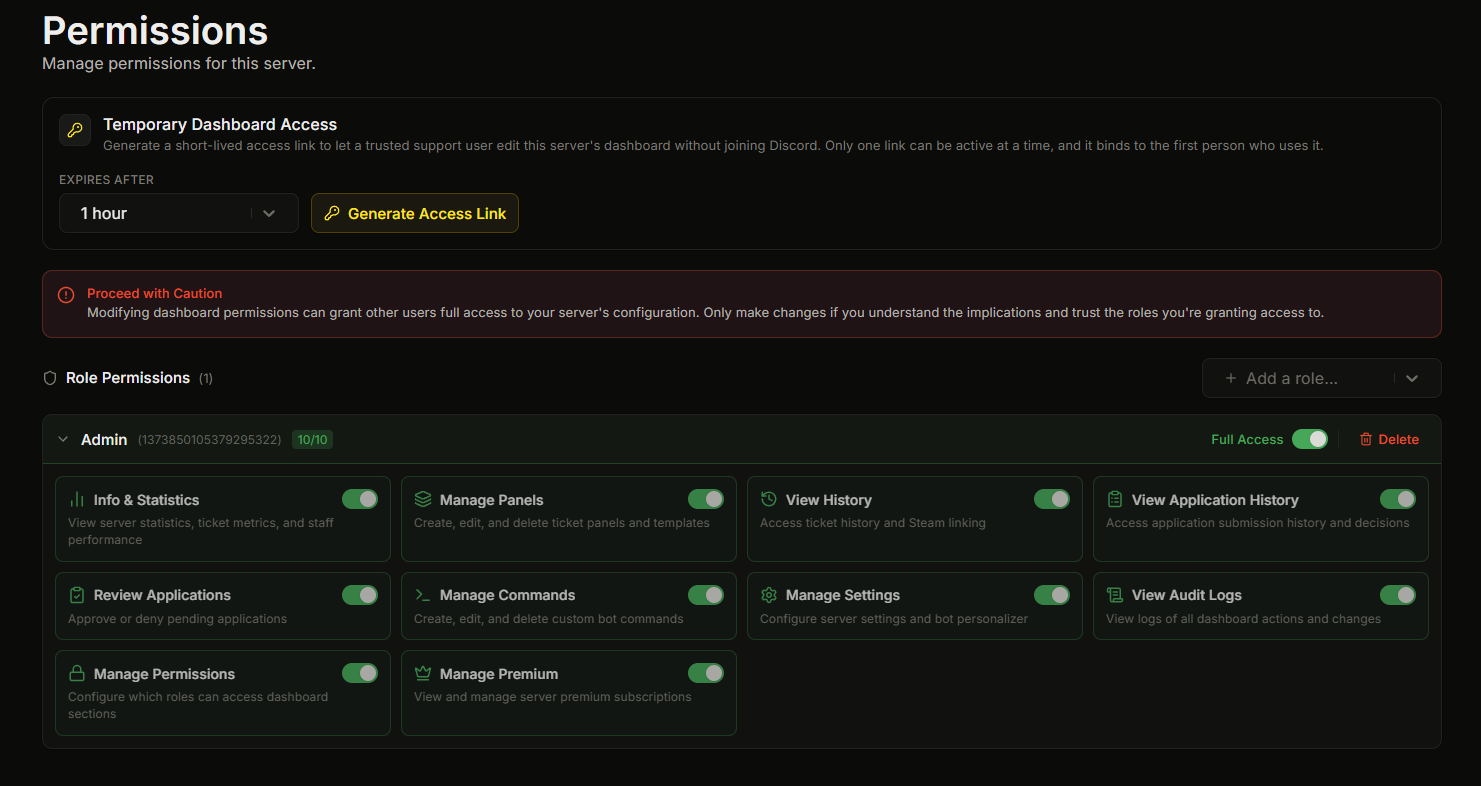
Every dashboard permission area, with the exact names from the dashboard.
The dashboard splits access into separate areas, listed below. You turn each one on or off per Discord role on the Permissions page. A role's card shows how many it has turned on.
| Area | What it lets the role do |
| ---------------------------- | -------------------------------------------------------------- |
| **Info & Statistics** | View server statistics, ticket metrics, and staff performance. |
| **Manage Panels** | Create, edit, and delete ticket panels and templates. |
| **View History** | Access ticket history and Steam linking. |
| **View Application History** | Access application submission history and decisions. |
| **Review Applications** | Approve or deny pending applications. |
| **Manage Commands** | Create, edit, and delete custom bot commands. |
| **Manage Settings** | Configure server settings and the Bot Personalizer. |
| **View Audit Logs** | View logs of all dashboard actions and changes. |
| **Manage Permissions** | Configure which roles can access dashboard sections. |
| **Manage Premium** | View and manage the server's premium subscription. |
## Notes on a few areas
**Manage Commands, Manage Premium, and the premium features.** Some areas control features that are Premium, such as Custom Commands, the Bot Personalizer, and Statistics. The permission itself is free to grant. The feature only works when the server is Premium.
**Manage Permissions is the most sensitive area.**
{% hint style="danger" %}
Anyone with **Manage Permissions** can grant any other area to any role, including their own. Treat it like granting Administrator. Give it only to people you fully trust.
{% endhint %}
A person using a Temporary Dashboard Access link can never get Manage Permissions, even with Full Access. This stops a temporary visitor from making their access permanent.
## The Full Access toggle
Each role card has a **Full Access** toggle that grants every area at once. When it is on, the individual toggles are shown as on and locked.
## Example role setups
| Role | Areas to turn on |
| -------------------- | -------------------------------------------------------------------------------- |
| Read-only support | Info & Statistics, View History |
| Standard moderator | Info & Statistics, Manage Panels, View History |
| Application reviewer | View Application History, Review Applications |
| Lead moderator | Info & Statistics, Manage Panels, View History, Manage Settings, View Audit Logs |
| Trusted admin | Full Access |
## Limits
* You can give dashboard permissions to up to 50 roles per server.
* `@everyone` and bot roles cannot be given permissions. They do not appear in the role picker.
Remember that the server owner and anyone with Administrator or Manage Server already have full access and do not need to be added here.
## Related
{% content-ref url="/pages/OB6VYmaGviEfP9787EQl" %}
[Giving a role dashboard access](/docs/permissions-and-your-support-team/giving-a-role-dashboard-access.md)
{% endcontent-ref %}
{% content-ref url="/pages/rnAynQ0SgRUc1zHeRvJO" %}
[Temporary Dashboard Access](/docs/permissions-and-your-support-team/temporary-dashboard-access.md)
{% endcontent-ref %}
---
# Agent Instructions
This documentation is published with GitBook. GitBook is the documentation platform designed so that both humans and AI agents can read, navigate, and reason over technical content effectively. Learn more at gitbook.com.
## Querying This Documentation
If you need additional information that is not directly available in this page, you can query the documentation dynamically by asking a question.
Perform an HTTP GET request on the current page URL with the `ask` query parameter, and the optional `goal` query parameter:
```
GET https://ticketking.xyz/docs/permissions-and-your-support-team/permission-areas.md?ask=&goal=
```
`ask` is the immediate question: it should be specific, self-contained, and written in natural language.
`goal` is optional and describes the broader end goal you are ultimately trying to accomplish on behalf of the user. GitBook uses it to tailor the answer towards what is most useful for that goal.
The response will contain a direct answer to the question and relevant excerpts and sources from the documentation.
Use this mechanism when the answer is not explicitly present in the current page, you need clarification or additional context, or you want to retrieve related documentation sections.