> For the complete documentation index, see [llms.txt](https://ticketking.xyz/docs/llms.txt). Markdown versions of documentation pages are available by appending `.md` to page URLs; this page is available as [Markdown](https://ticketking.xyz/docs/permissions-and-your-support-team/giving-a-role-dashboard-access.md).
# Giving a role dashboard access
Add a Discord role to dashboard access with the permissions you choose.
To let a Discord role configure Ticket King from the dashboard, add the role on the Permissions page and grant the permission areas it should have.
## Step-by-step
{% stepper %}
{% step %}
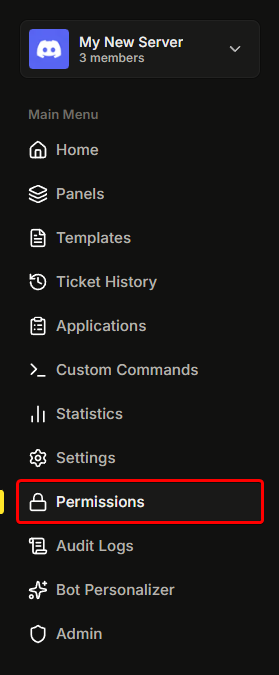
### Open the Permissions page
**Sidebar → Permissions**.
{% endstep %}
{% step %}
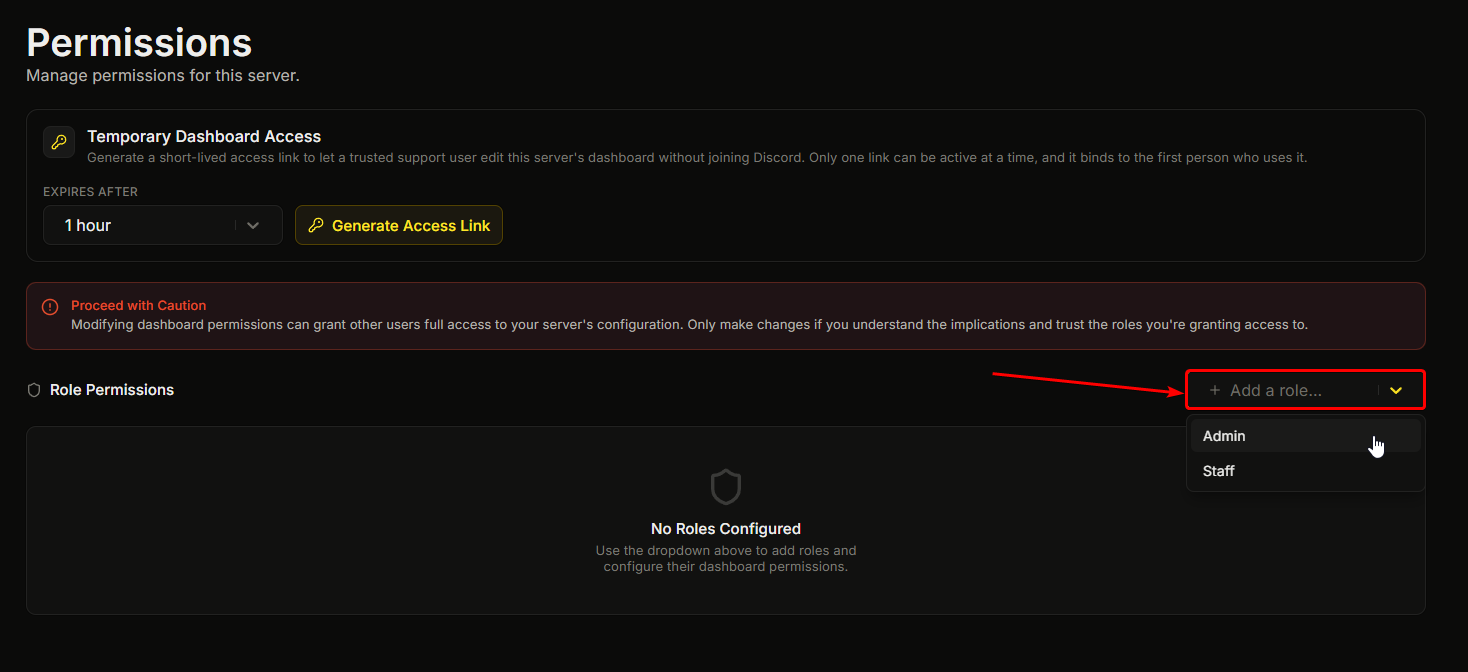
### Add a role
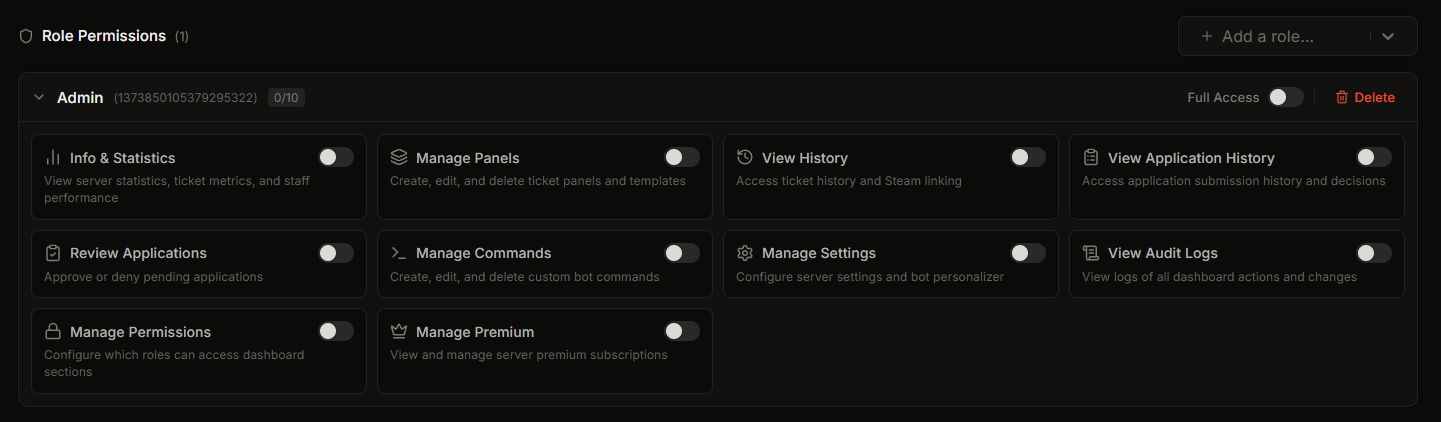
Use the **"Add a role..."** dropdown to pick a Discord role. The new role appears as a card with all permission toggles off.
{% endstep %}
{% step %}
### Choose the permissions
Either toggle **Full Access** (every area at once), or turn on individual permissions.
{% endstep %}
{% step %}
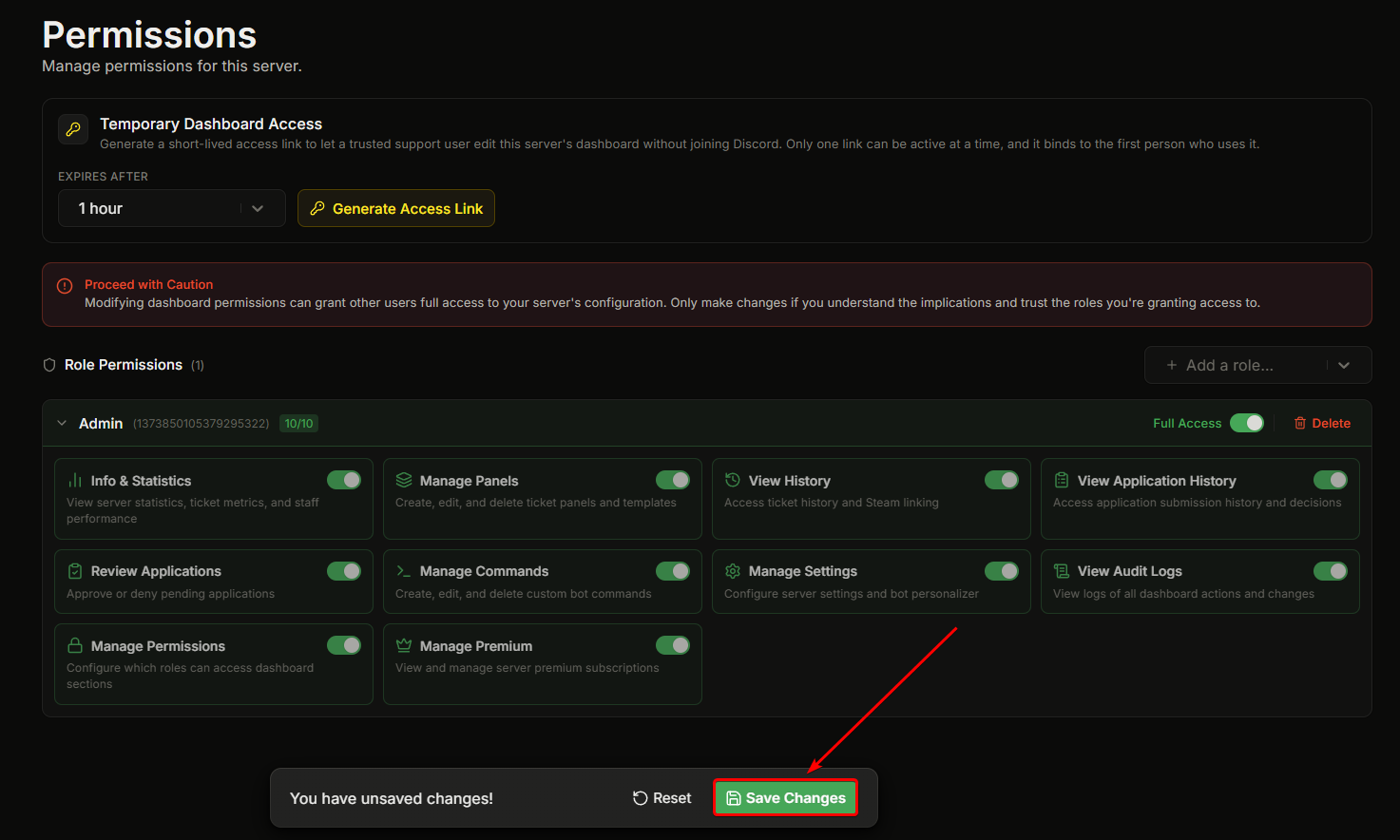
### Save your changes
The unsaved-changes bar appears at the bottom. Click **Save Changes**.
{% endstep %}
{% endstepper %}
## Save behavior
Changes are saved via an explicit **Save Changes** button. There's no auto-save.
If you try to navigate away with unsaved changes, the dashboard shows a confirmation pop-up asking if you want to leave without saving.
After saving, you'll see a success toast: *"Permissions saved successfully!"*
## Editing an existing role's permissions
Click the role's card to expand it. Change the toggles and save. The change takes effect immediately. The affected role sees the new sidebar on their next dashboard refresh.
## Removing a role
In the role's card, the red trash icon removes the role from dashboard access entirely. Members in the role can still sign in, but they will see no dashboard sections beyond Home.
## Per-role, not per-user
Ticket King grants by **Discord role**, not individual user. Anyone in the role gets the permissions. To grant access to a single person:
* Make a single-member role and grant that role dashboard access, OR
* Use [Temporary Dashboard Access](/docs/permissions-and-your-support-team/temporary-dashboard-access.md) for one-off needs.
## Multiple roles per user
If a user has multiple roles with dashboard access, they get the combined set of permissions. A user with both a Moderator role (Manage Panels) and an Auditor role (View Audit Logs) sees both Panels and Audit Logs.
## Limits
* **Maximum 50 roles** with custom dashboard permissions per server.
* `@everyone` and bot roles cannot be given permissions. They do not appear in the role picker.
* Each role's permission card shows a counter of how many areas are turned on.
## Warning banner
The Permissions page shows a persistent banner at the top:
> :triangle-exclamation: **Proceed with Caution**
>
> Modifying dashboard permissions can grant other users full access to your server's configuration. Only make changes if you understand the implications and trust the roles you're granting access to.
This is intentional. Granting Manage Permissions to a role means anyone in that role can grant any other permission. Be deliberate.
## Empty state
When no roles have custom permissions yet, the page shows a Shield icon with:
> **No Roles Configured**
>
> Use the dropdown above to add roles and configure their dashboard permissions.
This is normal for new installs. Server owners and Discord Administrators always have access regardless of this list.
## Who can edit this page
* Server owner (always).
* Anyone with Discord Administrator or Manage Server, through the bypass.
* Anyone with the Manage Permissions dashboard permission. The one exception is a person using a Temporary Dashboard Access link, who can never get this permission.
## Related
{% content-ref url="/pages/RK4hI1VK3OmRDu2Okj2Y" %}
[Dashboard permission areas](/docs/permissions-and-your-support-team/permission-areas.md)
{% endcontent-ref %}
{% content-ref url="/pages/rnAynQ0SgRUc1zHeRvJO" %}
[Temporary Dashboard Access](/docs/permissions-and-your-support-team/temporary-dashboard-access.md)
{% endcontent-ref %}
---
# Agent Instructions
This documentation is published with GitBook. GitBook is the documentation platform designed so that both humans and AI agents can read, navigate, and reason over technical content effectively. Learn more at gitbook.com.
## Querying This Documentation
If you need additional information that is not directly available in this page, you can query the documentation dynamically by asking a question.
Perform an HTTP GET request on the current page URL with the `ask` query parameter, and the optional `goal` query parameter:
```
GET https://ticketking.xyz/docs/permissions-and-your-support-team/giving-a-role-dashboard-access.md?ask=&goal=
```
`ask` is the immediate question: it should be specific, self-contained, and written in natural language.
`goal` is optional and describes the broader end goal you are ultimately trying to accomplish on behalf of the user. GitBook uses it to tailor the answer towards what is most useful for that goal.
The response will contain a direct answer to the question and relevant excerpts and sources from the documentation.
Use this mechanism when the answer is not explicitly present in the current page, you need clarification or additional context, or you want to retrieve related documentation sections.