> For the complete documentation index, see [llms.txt](https://ticketking.xyz/docs/llms.txt). Markdown versions of documentation pages are available by appending `.md` to page URLs; this page is available as [Markdown](https://ticketking.xyz/docs/panels/save-a-panel-as-a-template.md).
# Save a panel as a template
Save your panel design once, reuse it forever.
Templates save a fully configured panel design as a reusable starting point. You can use a template to start a new panel for another channel, or share it with another server using a share code.
## When templates are useful
* **Multiple servers** with similar support setups. Build once, share into each.
* **A/B testing.** Save the current design, experiment, restore if needed.
* **New community prep.** Build a panel offline, save as template, set it live on launch.
* **Backup.** A template is a safety net before risky edits.
## Saving a template
From the **Panels** page:
{% stepper %}
{% step %}
### Find the panel
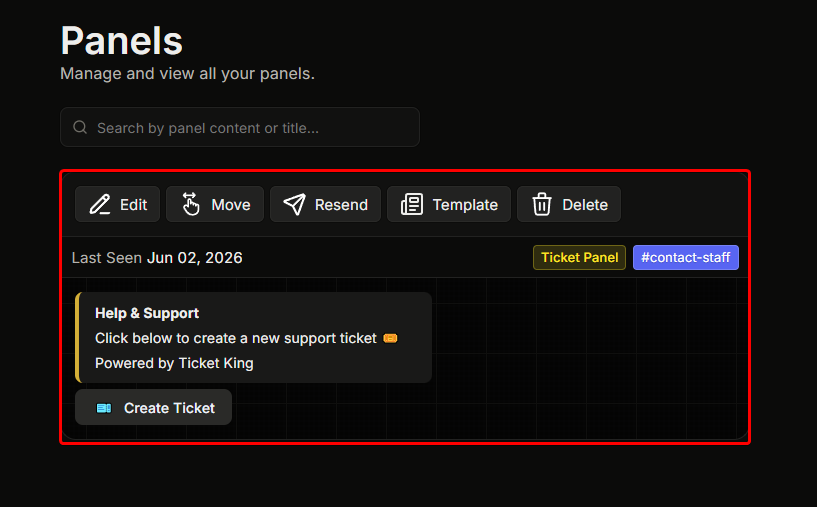
Find the panel you want to save.
{% endstep %}
{% step %}
### Click Template
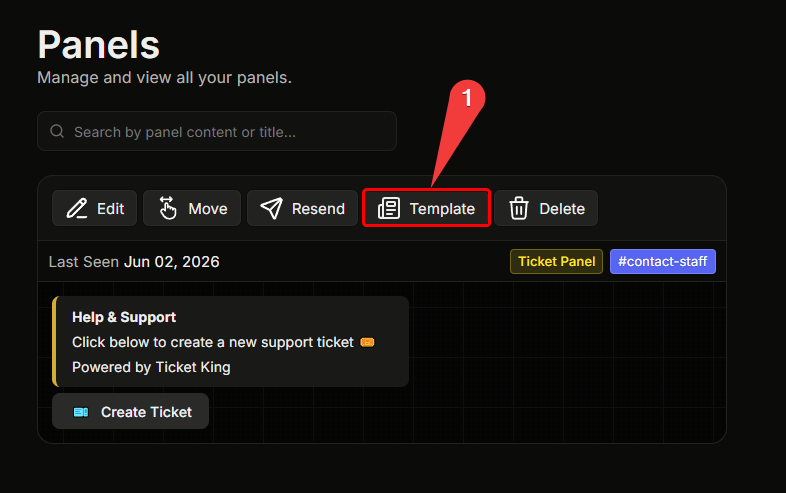
On the panel card, click **Template**.
{% endstep %}
{% step %}
### Name the template
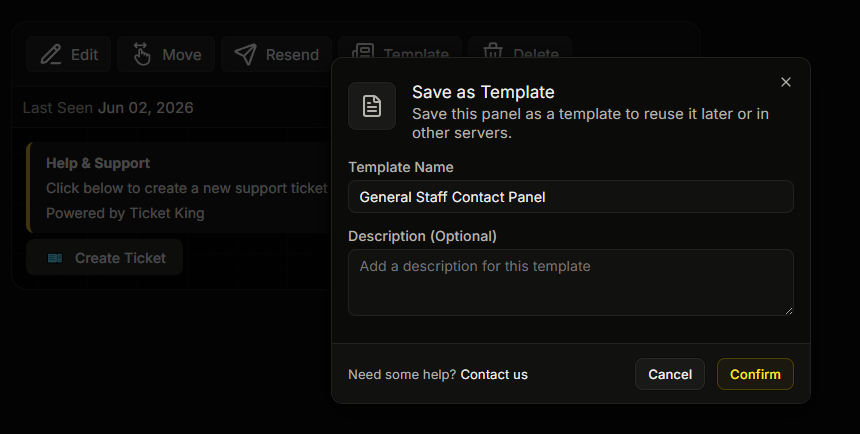
In the **Save as Template** window, enter a **Template Name** (required) and an optional **Description**.
{% endstep %}
{% step %}
### Confirm
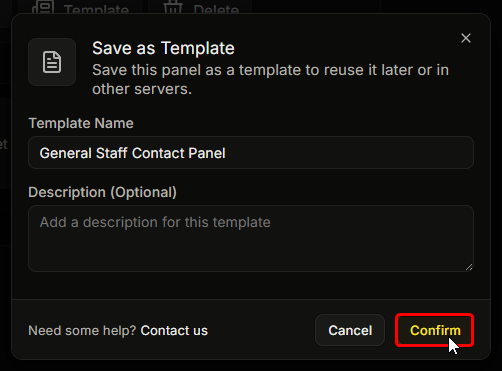
Click to confirm. The panel is saved as a template and you are taken to the [Templates](/docs/panels/templates.md) page, where it now appears.
{% endstep %}
{% endstepper %}
## Using a template
On the [Templates](/docs/panels/templates.md) page, click **Use Template** on the template you want. This starts a new panel pre-filled with the saved design. The full creation wizard is skipped. You are only asked to pick the channel to send the panel to before you land in the editor.
Have a share code from another server? You don't need to import it as a template first. On the **Panels** page, click **Use Share Code** and paste the code — the same pre-filled flow starts, and nothing is saved to your Templates page (so it doesn't use a template slot).
You can edit anything before saving. A template is a starting point, not a contract.
## What a template captures
* Embed (title, description, color, image, fields, footer).
* Buttons / dropdown menus.
* Per-option settings.
* Panel-wide defaults.
* Form questions.
## What a template does **not** capture
* The Discord channel the panel was in.
* Specific Discord roles (templates use role placeholders. When you apply, you map placeholders to actual roles).
* The specific Discord category for tickets.
Roles and channels are per-server identifiers and don't transfer cleanly.
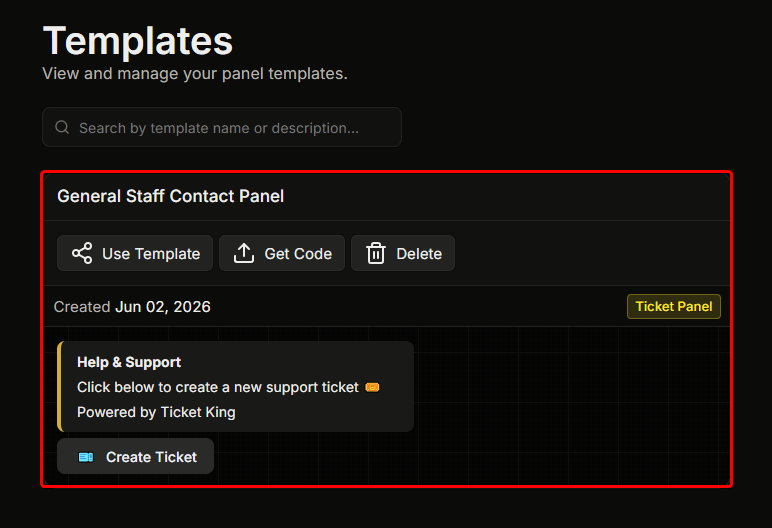
## Sharing a template with another server
Sharing is **free**. You share a template across servers with a **share code** that the other server pastes in:
{% stepper %}
{% step %}
### Find the template to share
On your **Templates** page, find the template you want to share.
{% endstep %}
{% step %}
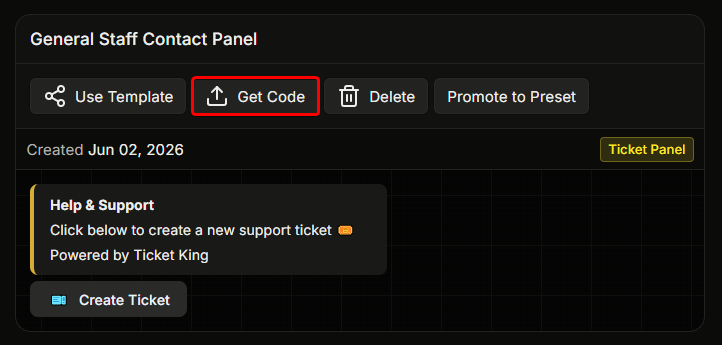
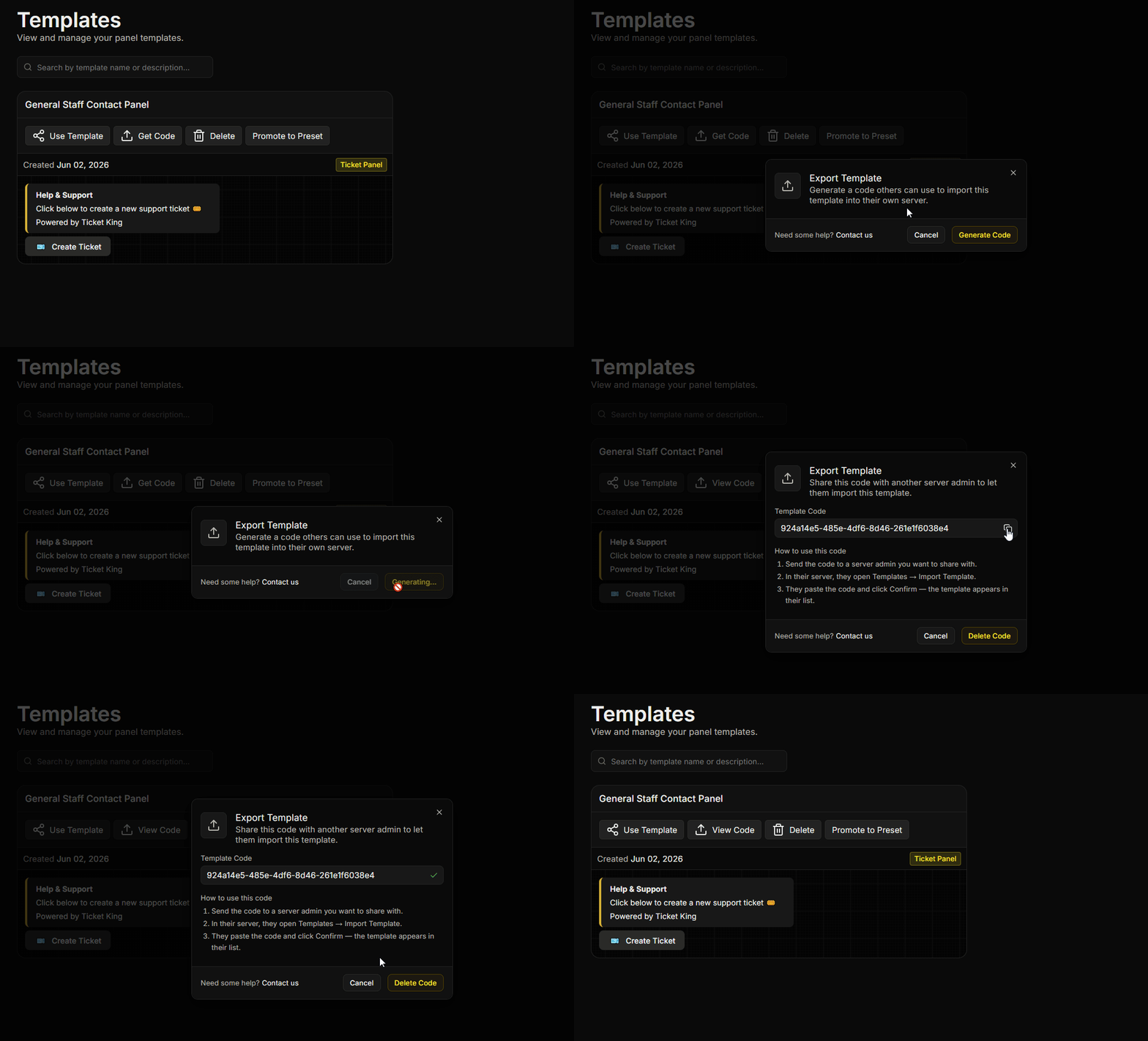
### Open the Export Template window
Click **Get Code** (it reads **View Code** if a code already exists). The **Export Template** window opens.
{% endstep %}
{% step %}
### Generate and copy the code
Click **Generate Code**, then copy the **Template Code**.
{% endstep %}
{% step %}
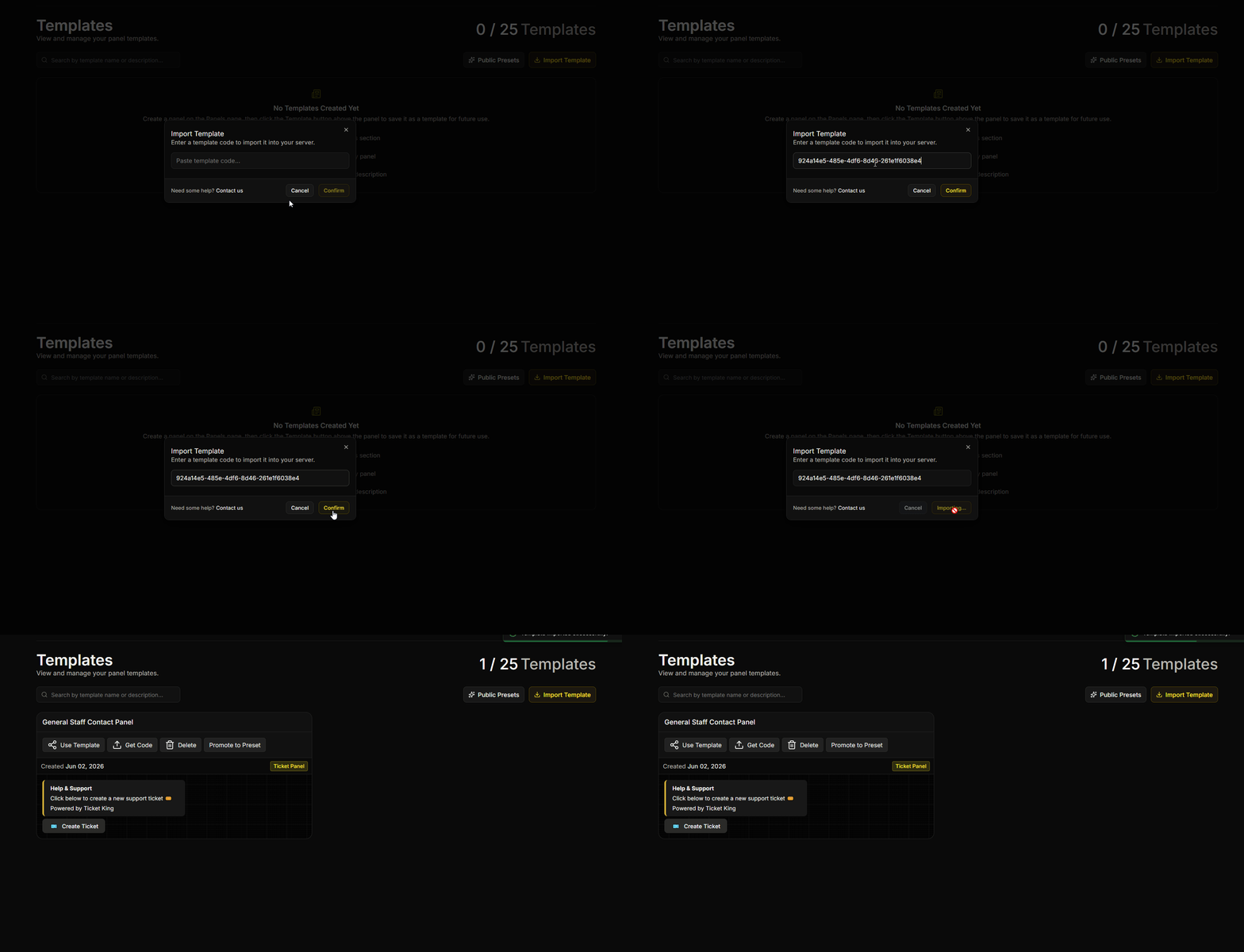
### Use the code on the destination server
In the destination server's dashboard you have two options:
* **Keep it as a template:** open Templates and click **Import Template**, paste the code, then click **Confirm**. The template appears in the destination server, ready to use.
* **Create a panel right away:** open **Panels** and click **Use Share Code**, paste the code, then click **Continue**. The panel editor opens pre-filled with the design — no template is saved and no template slot is used.
{% endstep %}
{% endstepper %}
The source server can delete the code at any time from the same **Export Template** window. Copies already imported into other servers keep working.
→ [Templates](/docs/panels/templates.md)
## Limits
* **Free:** 1 saved template per server.
* **Premium:** 25 saved templates per server.
## Related
{% content-ref url="/pages/R8NFg7M0JfMv91zYkHQI" %}
[Templates](/docs/panels/templates.md)
{% endcontent-ref %}
{% content-ref url="/pages/ic8mhJahTYnRJuissPyd" %}
[Public Presets](/docs/panels/public-presets.md)
{% endcontent-ref %}
---
# Agent Instructions
This documentation is published with GitBook. GitBook is the documentation platform designed so that both humans and AI agents can read, navigate, and reason over technical content effectively. Learn more at gitbook.com.
## Querying This Documentation
If you need additional information that is not directly available in this page, you can query the documentation dynamically by asking a question.
Perform an HTTP GET request on the current page URL with the `ask` query parameter, and the optional `goal` query parameter:
```
GET https://ticketking.xyz/docs/panels/save-a-panel-as-a-template.md?ask=&goal=
```
`ask` is the immediate question: it should be specific, self-contained, and written in natural language.
`goal` is optional and describes the broader end goal you are ultimately trying to accomplish on behalf of the user. GitBook uses it to tailor the answer towards what is most useful for that goal.
The response will contain a direct answer to the question and relevant excerpts and sources from the documentation.
Use this mechanism when the answer is not explicitly present in the current page, you need clarification or additional context, or you want to retrieve related documentation sections.