# Panels overview

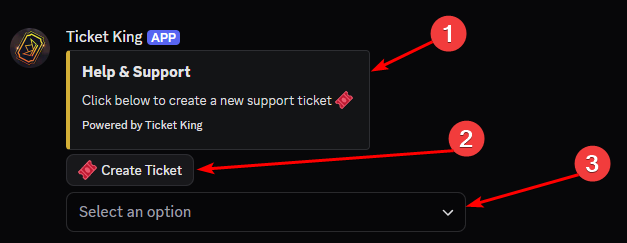
A **panel** is the message Ticket King posts in your server that members interact with to open a ticket (or submit an application).

Other parts of the bot, such as settings, logs, transcripts, and customization, support what panels do.

<figure><img src="/files/KnPaxSMX22vmtWulUz2x" alt="A finished panel as it appears in a Discord channel"><figcaption></figcaption></figure>

## The anatomy of a panel

Every panel has three layers:

### 1. The embed(s)

The visible card members see. Title, description, color, optional image, thumbnail, footer. Up to **10 embeds per panel** (Discord cap). You design these in the panel editor's embed sub-panel.

→ [Edit the embed](/docs/panels/edit-the-embed.md)

### 2. The interactive components

What members click. Three flavors:

* **Buttons.** One per action a member can take. A panel holds up to 5 rows of up to 5 buttons, so up to 25 buttons in total.
* **Select menus** (dropdowns). The member picks from a list. One select menu fills a whole row, and each can hold up to 25 options. Good when you want a single tidy list rather than many buttons.
* **Link buttons.** Open a website for the member instead of opening a ticket.

A panel can use up to **5 component rows total**. Each row is either up to 5 buttons OR a single select menu.

### 3. The options

Each button (and each select-menu entry) is an **option**. Each option has its own per-option settings: category, support roles, welcome message, form, and so on.

This is the most important concept: **every option is independently configurable.** Whether an option is a button or a select-menu entry, each one can open tickets in a different category, with a different support team, with different form questions. A single panel can hold many options across its rows, so one panel can route members to several different ticket types.

## The two kinds of panel

{% columns %}
{% column %}

### Ticket panel

Clicking a button (or picking a select option) **opens a ticket channel or thread**, optionally after the member fills in a short form.

Pick this for general support, bug reports, or role requests, anywhere you want a conversation as soon as the member acts.
{% endcolumn %}

{% column %}

### Application panel

Clicking the button opens a **pop-up form**. The submission goes to your reviewer queue and **no channel is created**. Your team approves or denies it, with automatic role grants on approve.

Pick this for staff applications, partner applications, or role applications.

→ [Applications overview](/docs/applications/overview.md)
{% endcolumn %}
{% endcolumns %}

## Panel limits

* **Free:** up to **10 panels** per server.
* **Premium:** **unlimited panels** per server.
* **Templates:** 1 free, 25 premium per server.

→ [Panel limits](/docs/panels/panel-limits.md)

## When to create one panel vs many

{% tabs %}
{% tab title="One panel, multiple options" %}
**Better when:** every flow belongs in the same channel and reads as part of the same offering.

* "Open a Ticket" panel with buttons for `🐛 Bug Report`, `❓ Question`, `💡 Suggestion`, `🤝 Partnership`.
* Each button can still go to its own category, with its own support role, with its own form.

This is the most common pattern.
{% endtab %}

{% tab title="Multiple separate panels" %}
**Better when:** panels live in different channels or target different audiences.

* `#staff-tickets` for one team, `#member-support` for everyone.
* Separate staff-applications panel from partner-applications panel.
* Per-language panels (`#support-en`, `#support-es`).
  {% endtab %}
  {% endtabs %}

## What members see

When a member clicks a panel button with **no form**:

1. The bot creates a new channel/thread.
2. (Optional) Pings the support role(s).
3. Posts the welcome embed.

With **a form**:

1. A Discord pop-up form opens with up to 5 questions.
2. After submit, the channel opens with the answers in the welcome embed.

If the member already has a ticket open and the per-user cap is 1 (default), they get a polite "you already have a ticket open" message.

→ [Limits on open tickets](/docs/tickets/limits-on-open-tickets.md)

## The pages in this section

<table data-view="cards"><thead><tr><th></th><th></th><th></th></tr></thead><tbody><tr><td><i class="fa-ticket">:ticket:</i> <strong>Create a Ticket Panel</strong></td><td>The creation wizard walkthrough.</td><td><a href="/pages/QOJInlm2JUTNQsxghkKF">Create a Ticket Panel</a></td></tr><tr><td><i class="fa-clipboard-list">:clipboard-list:</i> <strong>Create an Application Panel</strong></td><td>How application panels differ.</td><td><a href="/pages/6JTPTdW19MhSD9tqoyAc">Create an Application Panel</a></td></tr><tr><td><i class="fa-pen-to-square">:pen-to-square:</i> <strong>Edit a panel</strong></td><td>The panel editor and its two panes.</td><td><a href="/pages/MnNlapEBadgE2YEMX8KI">Edit a panel</a></td></tr><tr><td><i class="fa-window-maximize">:window-maximize:</i> <strong>Edit the embed</strong></td><td>Title, description, color, image, footer.</td><td><a href="/pages/987R9qKqqc69cNg6Jakh">Edit the embed</a></td></tr><tr><td><i class="fa-square-plus">:square-plus:</i> <strong>Edit a button</strong></td><td>Label, color, emoji.</td><td><a href="/pages/26CaDdu7xwN1Wh12EuWh">Edit a button</a></td></tr><tr><td><i class="fa-list-ul">:list-ul:</i> <strong>Edit a select menu</strong></td><td>Placeholder, options.</td><td><a href="/pages/1ijVqHSdPUi3QNTKWmgb">Edit a select menu</a></td></tr><tr><td><i class="fa-link">:link:</i> <strong>Edit a link button</strong></td><td>For sending members to an external website.</td><td><a href="/pages/TyX8OQsEgLmomnZLDu7N">Edit a link button</a></td></tr><tr><td><i class="fa-sliders">:sliders:</i> <strong>Panel-wide defaults</strong></td><td>Set values once at the panel level.</td><td><a href="/pages/lReMpkp1b1eGwoyCCw1X">Panel-wide defaults</a></td></tr><tr><td><i class="fa-gear">:gear:</i> <strong>Per-option settings</strong></td><td>Every setting on a single button or option.</td><td><a href="/pages/aHGH6BOJh48aZHUVoiWW">Per-option settings</a></td></tr><tr><td><i class="fa-copy">:copy:</i> <strong>Templates</strong></td><td>Save panel designs and reuse them.</td><td><a href="/pages/R8NFg7M0JfMv91zYkHQI">Templates</a></td></tr><tr><td><i class="fa-wand-magic-sparkles">:wand-magic-sparkles:</i> <strong>Public Presets</strong></td><td>Curated starter designs.</td><td><a href="/pages/ic8mhJahTYnRJuissPyd">Public Presets</a></td></tr><tr><td><i class="fa-ruler">:ruler:</i> <strong>Panel limits</strong></td><td>Caps that apply to panels.</td><td><a href="/pages/pbpPkSOpGXKKb0wl3JHx">Panel limits</a></td></tr></tbody></table>


---

# Agent Instructions: Querying This Documentation

If you need additional information that is not directly available in this page, you can query the documentation dynamically by asking a question.

Perform an HTTP GET request on the current page URL with the `ask` query parameter:

```
GET https://ticketking.xyz/docs/panels/overview.md?ask=<question>
```

The question should be specific, self-contained, and written in natural language.
The response will contain a direct answer to the question and relevant excerpts and sources from the documentation.

Use this mechanism when the answer is not explicitly present in the current page, you need clarification or additional context, or you want to retrieve related documentation sections.