> For the complete documentation index, see [llms.txt](https://ticketking.xyz/docs/llms.txt). Markdown versions of documentation pages are available by appending `.md` to page URLs; this page is available as [Markdown](https://ticketking.xyz/docs/panels/move-a-panel.md).
# Move a panel to another channel
Move the panel message to a different channel without recreating it.
If you created a panel in `#tickets` but want it in `#support`, you do not need to recreate it. You move it. The bot posts the panel message in the new channel and removes the old message.
## The move action
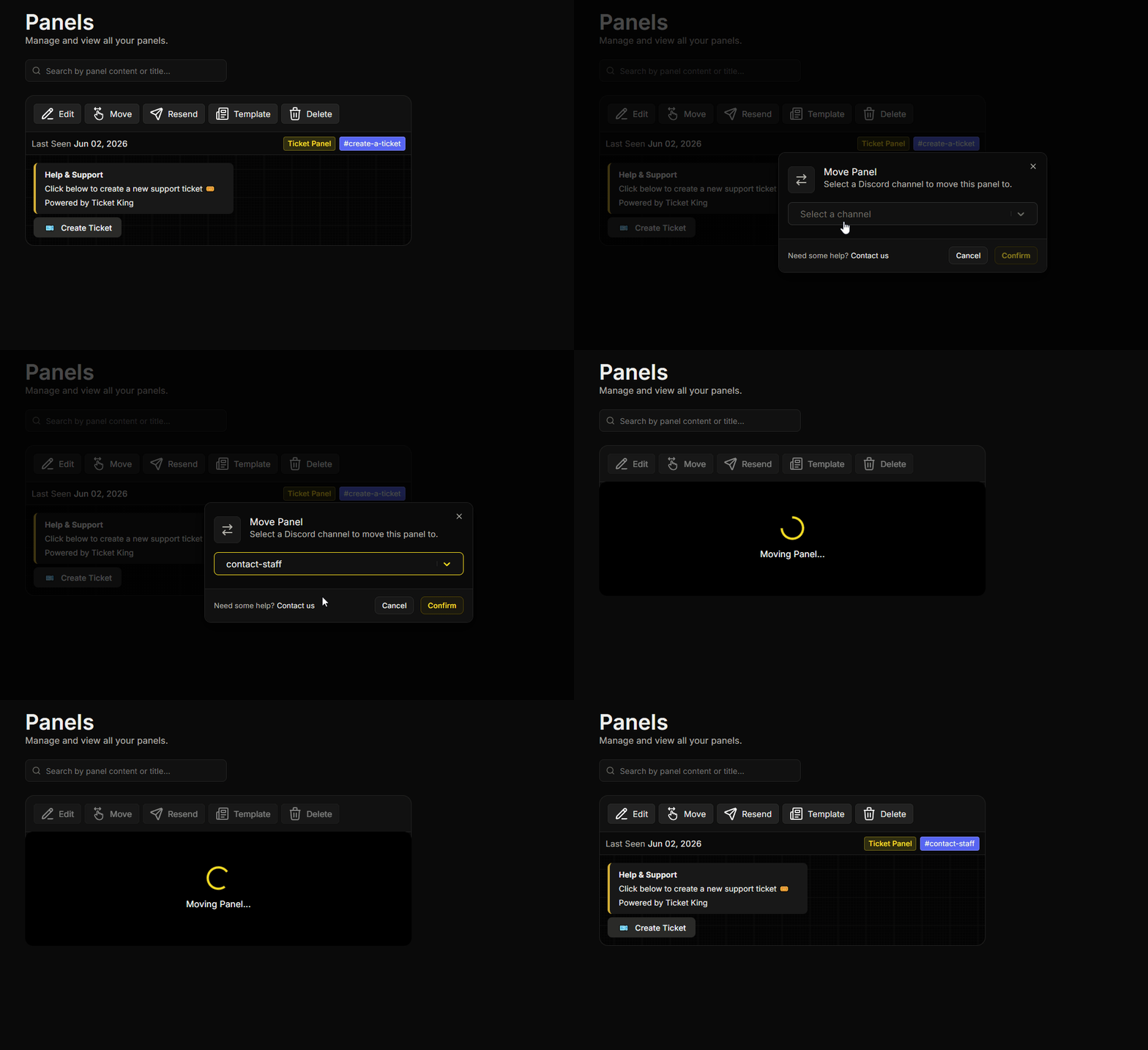
From the **Panels** page:
1. Find the panel you want to move.
2. On the panel card, click **Move**.
3. In the **Move Panel** window, pick the new channel from the **Select a channel** dropdown. You can choose a text channel or a thread.
4. Click to confirm.
What happens:
* A fresh copy of the panel is **posted** in the new channel.
* The old panel message in the original channel is **deleted**.
* All settings, options, and history stay intact.
## What's preserved
* The panel's options and per-option settings.
* Currently-open tickets opened from this panel.
* Templates saved from this panel.
* The full audit history.
## What changes
* The Discord message ID for the panel changes (because it's a new message).
* If you had pinned the old message, the pin is lost. Pin the new message if you want it pinned.
## Permissions required
For the move to succeed, the bot needs to be able to post in the new channel. That means **View Channel**, **Send Messages**, and **Embed Links** there.
If the bot cannot send in the chosen channel, the move is refused and the dashboard shows the error "I don't have permission to send messages in that channel." Fix the bot's permissions in that channel, then try the move again.
To remove the old message, the bot also needs to be able to see and delete messages in the original channel. If it cannot, the move still completes in the new channel, but the old message may be left behind for you to delete by hand.
## When the panel's original channel is gone
If the Discord channel the panel lived in has been deleted, you'll see:
> :triangle-exclamation: **Channel Not Found**
>
> The channel this panel was in has been deleted from your Discord server. To continue editing, move the panel to a new channel first.
Use the panel card's **Move** button to pick a new channel. Once the panel has a valid channel again, you can edit it normally.
## Common issues
{% hint style="warning" %}
**The old panel message was not deleted.** The bot could not delete it (it may have lost access to the old channel), or the message was removed by hand before the move. Delete the leftover message yourself if needed.
{% endhint %}
{% hint style="info" %}
**Moving a panel does not change the ticket category.** Categories are a separate setting in Panel Defaults. To also send new tickets to a different category, edit Default Categories.
{% endhint %}
## Related
{% content-ref url="/pages/jDFPOxmrJa875EV9kgc1" %}
[Resend a panel](/docs/panels/resend-a-panel.md)
{% endcontent-ref %}
---
# Agent Instructions
This documentation is published with GitBook. GitBook is the documentation platform designed so that both humans and AI agents can read, navigate, and reason over technical content effectively. Learn more at gitbook.com.
## Querying This Documentation
If you need additional information that is not directly available in this page, you can query the documentation dynamically by asking a question.
Perform an HTTP GET request on the current page URL with the `ask` query parameter, and the optional `goal` query parameter:
```
GET https://ticketking.xyz/docs/panels/move-a-panel.md?ask=&goal=
```
`ask` is the immediate question: it should be specific, self-contained, and written in natural language.
`goal` is optional and describes the broader end goal you are ultimately trying to accomplish on behalf of the user. GitBook uses it to tailor the answer towards what is most useful for that goal.
The response will contain a direct answer to the question and relevant excerpts and sources from the documentation.
Use this mechanism when the answer is not explicitly present in the current page, you need clarification or additional context, or you want to retrieve related documentation sections.