> For the complete documentation index, see [llms.txt](https://ticketking.xyz/docs/llms.txt). Markdown versions of documentation pages are available by appending `.md` to page URLs; this page is available as [Markdown](https://ticketking.xyz/docs/panels/edit-the-embed.md).
# Edit the embed
Title, description, color, fields, image, and footer for a panel embed.
A panel can have up to **10 embeds** (Discord's cap). Each embed has its own customization.
## Opening the embed editor
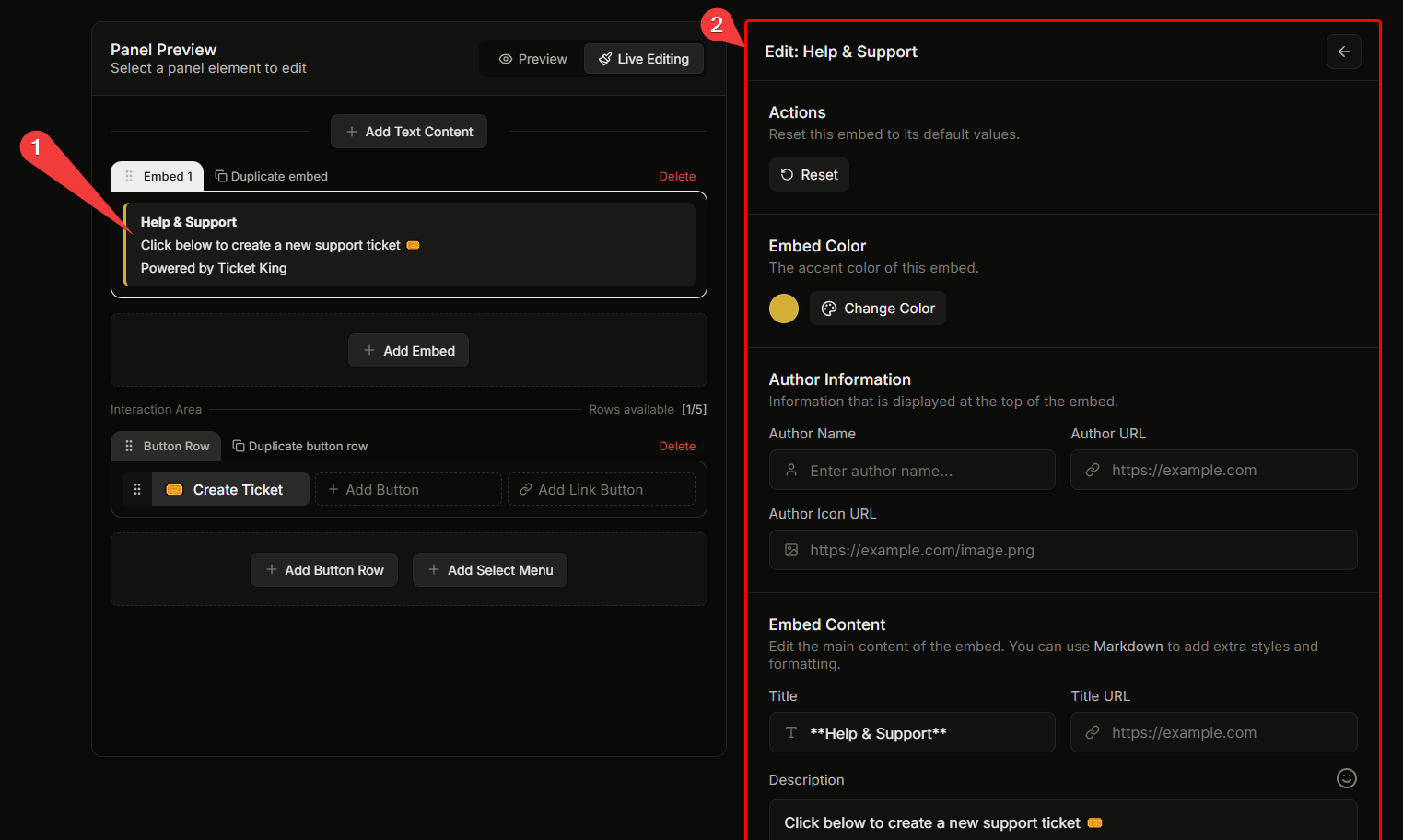
In the panel editor's left preview, **click the embed** to open the editor in the right pane.
## Sections in the editor
### Actions
A **Reset** button that reverts this embed to defaults.
### Embed Color
The accent stripe down the left of the embed.
* **Default:** `#d4af37` (Ticket King gold), or your server embed color if you have set one.
* **Input:** a color picker popover. You can type a hex color code, and a circular swatch shows a preview.
### Embed fields (top-level)
| Field | Cap | Notes |
| ------------------- | --------------- | ------------------------------------- |
| **Title** | 256 characters | Bold line at top. |
| **Description** | 4096 characters | Body text. Supports Discord markdown. |
| **URL** | 2048 characters | Makes the title clickable. |
| **Author name** | 256 characters | Small line above the title. |
| **Author URL** | 2048 characters | Makes the author name clickable. |
| **Author icon URL** | 2048 characters | Small icon next to author name. |
| **Footer text** | 2048 characters | Small line at the bottom. |
| **Footer icon URL** | 2048 characters | Small icon next to footer text. |
| **Image URL** | 2048 characters | Large banner at the bottom. |
| **Thumbnail URL** | 2048 characters | Small square at the top-right. |
### Embed fields (the list)
Below the main fields, you can add named field-value pairs that appear in a grid below the description:
| Field | Cap |
| ---------------- | ----------------------------------------------------------- |
| Field **name** | 256 characters |
| Field **value** | 1024 characters |
| Field **inline** | toggle (renders side-by-side instead of full-width when on) |
Fields are drag-reorderable.
## Total embed limits
Discord's caps that apply across all embed properties:
* **Total characters across one embed:** 6000 (Discord cap).
* **Total embeds per panel message:** 10 (Discord cap).
The dashboard counts and warns you when you approach these.
## Markdown support in description
Discord-flavored markdown is supported in `description`:
* `**bold**`, `*italic*`, `__underline__`, `~~strikethrough~~`
* `[link text](https://url)` for clickable links
* `>` for blockquotes
* Triple-backtick code blocks
* `# H1`, `## H2`, `### H3` headings
## Inserting an emoji into text
Type `:` in any text field and the dashboard's emoji autocomplete appears. Pick the emoji you want.
## Variables in panel content (above-embed message)
A panel can also have a **message content** field above the embeds (Discord supports a content + up to 10 embeds in a single message). Its cap is **2000 characters**.
This message content is separate from the embed. It is the plain text that appears above the embeds in the panel message.
## Inheriting from server defaults
Some embed fields can inherit from server-wide defaults:
* **Color** uses the [server embed color](/docs/customization-and-branding/server-embed-color.md) if you leave it blank.
You'll generally want to set the color server-wide and let panels inherit, so visual identity stays consistent.
## Saving
Edits are tracked by the panel's overall Unsaved Changes Bar. Hit **Save** to apply.
## Related
{% content-ref url="/pages/gV3NEl5Zm3vFMXMjYyck" %}
[The server embed color](/docs/customization-and-branding/server-embed-color.md)
{% endcontent-ref %}
---
# Agent Instructions
This documentation is published with GitBook. GitBook is the documentation platform designed so that both humans and AI agents can read, navigate, and reason over technical content effectively. Learn more at gitbook.com.
## Querying This Documentation
If you need additional information that is not directly available in this page, you can query the documentation dynamically by asking a question.
Perform an HTTP GET request on the current page URL with the `ask` query parameter, and the optional `goal` query parameter:
```
GET https://ticketking.xyz/docs/panels/edit-the-embed.md?ask=&goal=
```
`ask` is the immediate question: it should be specific, self-contained, and written in natural language.
`goal` is optional and describes the broader end goal you are ultimately trying to accomplish on behalf of the user. GitBook uses it to tailor the answer towards what is most useful for that goal.
The response will contain a direct answer to the question and relevant excerpts and sources from the documentation.
Use this mechanism when the answer is not explicitly present in the current page, you need clarification or additional context, or you want to retrieve related documentation sections.