> For the complete documentation index, see [llms.txt](https://ticketking.xyz/docs/llms.txt). Markdown versions of documentation pages are available by appending `.md` to page URLs; this page is available as [Markdown](https://ticketking.xyz/docs/panels/edit-a-panel.md).
# Edit a panel
The panel editor, its two panes, and how saving works.
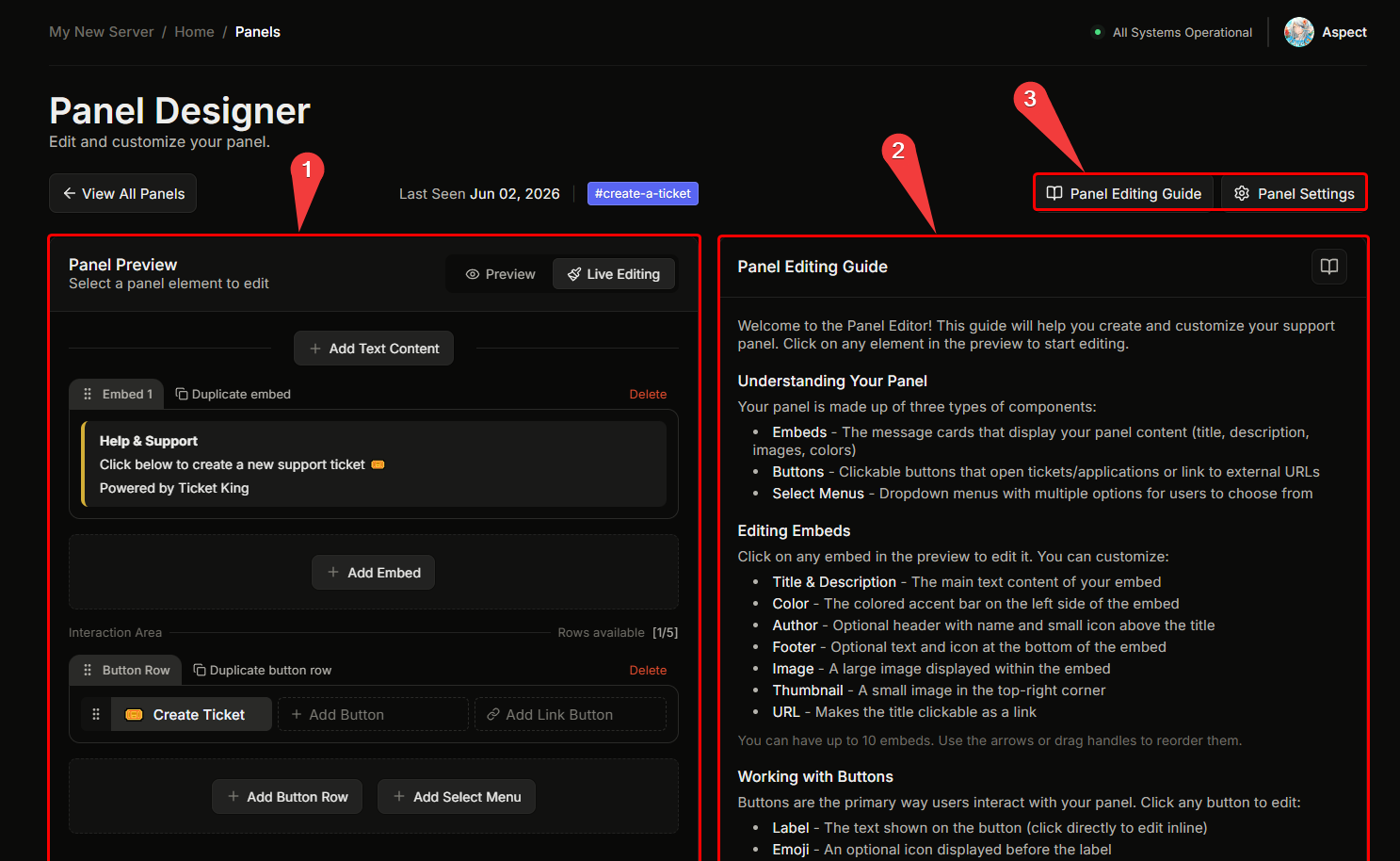
The Panel Designer has two main panes:
* **Left pane.** A top bar with the channel link, then a **live preview** of the panel as it will render in Discord.
* **Right pane.** A context-aware editor. What appears depends on what is selected.
## How the editor works
The left pane is a live preview of your panel as it will look in Discord. To edit any part of it, click that part in the preview. Clicking a component on the left opens its editor on the right: clicking an embed opens the embed editor, clicking a button opens that button's settings, and so on. The gear icon opens the panel-wide defaults.
The send channel is set during the creation wizard, so a new panel already has a channel by the time you reach the editor. To move it to a different channel later, see [Move a panel](/docs/panels/move-a-panel.md).
## Saving
Your changes are not live until you save. When you have unsaved edits, a bar appears at the bottom with **Save** and **Reset**. Save applies your edits, and Reset discards them. If you try to leave with unsaved edits, the dashboard asks you to confirm first.
If a required field is missing, the Save button stays disabled until you fill it in.
## Will editing disturb open tickets?
**No.** Edits to a panel only affect the panel message and **future** ticket openings. Tickets currently open continue exactly as they were.
## Will I need to resend the panel after editing?
**No.** The panel message in Discord auto-updates when you save. Resending is only needed if the panel message was deleted.
→ [Resend a panel](/docs/panels/resend-a-panel.md)
## Related
{% content-ref url="/pages/987R9qKqqc69cNg6Jakh" %}
[Edit the embed](/docs/panels/edit-the-embed.md)
{% endcontent-ref %}
{% content-ref url="/pages/26CaDdu7xwN1Wh12EuWh" %}
[Edit a button](/docs/panels/edit-a-button.md)
{% endcontent-ref %}
{% content-ref url="/pages/aHGH6BOJh48aZHUVoiWW" %}
[Per-option settings](/docs/panels/per-option-settings.md)
{% endcontent-ref %}
---
# Agent Instructions
This documentation is published with GitBook. GitBook is the documentation platform designed so that both humans and AI agents can read, navigate, and reason over technical content effectively. Learn more at gitbook.com.
## Querying This Documentation
If you need additional information that is not directly available in this page, you can query the documentation dynamically by asking a question.
Perform an HTTP GET request on the current page URL with the `ask` query parameter, and the optional `goal` query parameter:
```
GET https://ticketking.xyz/docs/panels/edit-a-panel.md?ask=&goal=
```
`ask` is the immediate question: it should be specific, self-contained, and written in natural language.
`goal` is optional and describes the broader end goal you are ultimately trying to accomplish on behalf of the user. GitBook uses it to tailor the answer towards what is most useful for that goal.
The response will contain a direct answer to the question and relevant excerpts and sources from the documentation.
Use this mechanism when the answer is not explicitly present in the current page, you need clarification or additional context, or you want to retrieve related documentation sections.