> For the complete documentation index, see [llms.txt](https://ticketking.xyz/docs/llms.txt). Markdown versions of documentation pages are available by appending `.md` to page URLs; this page is available as [Markdown](https://ticketking.xyz/docs/panels/edit-a-button.md).
# Edit a button
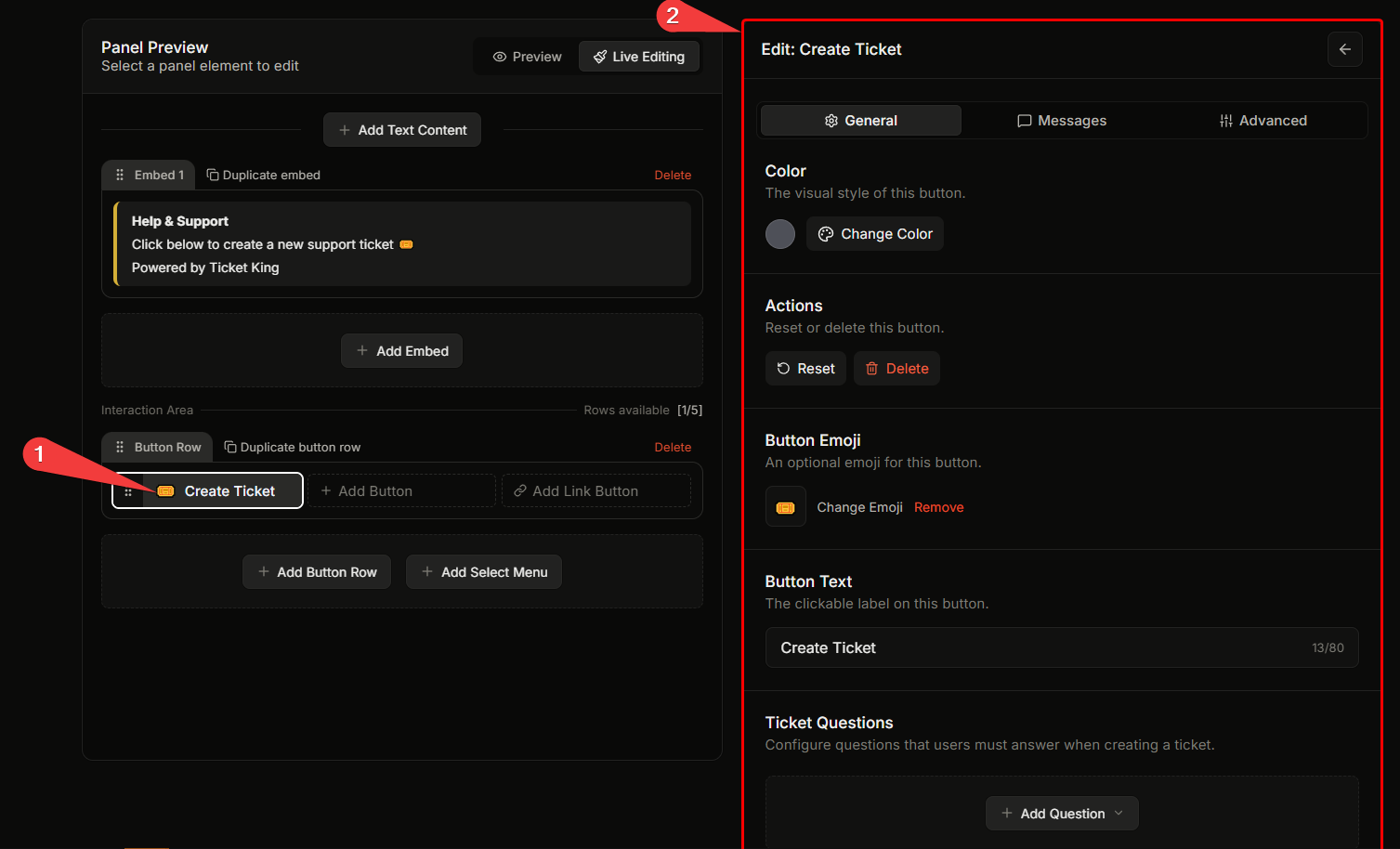
Per-button visual customization (label, color, emoji). Each button is also an option with its own settings.
Each button on a panel is one **option** members can pick. This page covers the button's visual customization (label, color, emoji). For everything else a button does, such as what category its tickets go to, which support role gets pinged, the welcome message, and the form, see [Per-option settings](/docs/panels/per-option-settings.md).
## Button visual fields
### Button Text
The text on the button. Up to **80 characters**, but practical labels are under 20.
Good labels are verbs or short phrases: "Open Ticket", "Report a Bug", "Apply for Staff."
### Color (style)
Discord buttons come in four colors. Pick whichever you like from the four swatches:
| Style | Color |
| ------------- | ------- |
| **Primary** | Blurple |
| **Secondary** | Grey |
| **Success** | Green |
| **Danger** | Red |
A new button defaults to **Secondary** (grey).
{% hint style="info" %}
**Link buttons are a separate type.** They open a website instead of opening a ticket and have a fixed grey style you cannot change. See [Edit a link button](/docs/panels/edit-a-link-button.md).
{% endhint %}
### Button Emoji
Optional emoji to the left of the label. Picked via the **Add Emoji** popover. Sources:
* Unicode emoji.
* Custom emoji from this server.
* Custom emoji from another server (requires Use External Emojis).
Good emojis communicate intent at a glance: 🎫 for tickets, 🐛 for bugs, 💡 for suggestions.
## Each button is also an option
Beyond visuals, each button has a full set of per-option settings that determine what happens when a member clicks it. The most common things to configure:
* **Option Status.** Enabled or Disabled. Disable a button without removing it.
* **Ticket Style.** Text Channel or Thread, overriding the panel default for this button.
* **Support Roles.** Who gets added and (with pings on) pinged when this button's ticket opens.
* **Custom Category.** Where this button's tickets land.
* **Custom Ticket Name.** How this button's channels are named.
* **Custom Embed Content.** A custom embed shown inside the ticket for this button. Free.
* **Form questions.** Up to 5 questions asked before the ticket opens, or up to 100 with multi-step forms on Premium.
* **Required Roles / Blocked Roles** (:crown: Premium). Gate who can use this button.
* **Steam ID Integration** (:crown: Premium). Require Steam linking before this button's tickets open.
See the full per-option settings page for every field:
{% content-ref url="/pages/aHGH6BOJh48aZHUVoiWW" %}
[Per-option settings](/docs/panels/per-option-settings.md)
{% endcontent-ref %}
→ [What option questions are (form questions)](/docs/forms/what-option-questions-are.md)
## Component layout
Discord allows **up to 5 component rows per panel**, and each button row holds up to **5 buttons**. So the maximum is 25 buttons across 5 rows. If you need many options, a dropdown menu is usually clearer than a wall of buttons.
→ [Edit a dropdown menu](/docs/panels/edit-a-dropdown-menu.md)
## Adding a new button
In the panel editor:
1. Click the panel's component area in the left preview.
2. Use the right pane to add a new button.
3. Set label, color, emoji.
4. Configure its per-option settings.
5. Save.
## Removing a button
Open the button's editor → **Actions** → **Delete** (red trash icon). Confirm.
{% hint style="danger" %}
**Removing a button does not close currently-open tickets** opened from it. Open tickets continue normally. Only future ticket openings are affected.
{% endhint %}
## Related
{% content-ref url="/pages/aHGH6BOJh48aZHUVoiWW" %}
[Per-option settings](/docs/panels/per-option-settings.md)
{% endcontent-ref %}
{% content-ref url="/pages/c6UW2VMU9iQNxRe1bN8C" %}
[Edit a dropdown menu](/docs/panels/edit-a-dropdown-menu.md)
{% endcontent-ref %}
{% content-ref url="/pages/TyX8OQsEgLmomnZLDu7N" %}
[Edit a link button](/docs/panels/edit-a-link-button.md)
{% endcontent-ref %}
---
# Agent Instructions
This documentation is published with GitBook. GitBook is the documentation platform designed so that both humans and AI agents can read, navigate, and reason over technical content effectively. Learn more at gitbook.com.
## Querying This Documentation
If you need additional information that is not directly available in this page, you can query the documentation dynamically by asking a question.
Perform an HTTP GET request on the current page URL with the `ask` query parameter, and the optional `goal` query parameter:
```
GET https://ticketking.xyz/docs/panels/edit-a-button.md?ask=&goal=
```
`ask` is the immediate question: it should be specific, self-contained, and written in natural language.
`goal` is optional and describes the broader end goal you are ultimately trying to accomplish on behalf of the user. GitBook uses it to tailor the answer towards what is most useful for that goal.
The response will contain a direct answer to the question and relevant excerpts and sources from the documentation.
Use this mechanism when the answer is not explicitly present in the current page, you need clarification or additional context, or you want to retrieve related documentation sections.