> For the complete documentation index, see [llms.txt](https://ticketking.xyz/docs/llms.txt). Markdown versions of documentation pages are available by appending `.md` to page URLs; this page is available as [Markdown](https://ticketking.xyz/docs/panels/create-an-application-panel.md).
# Create an Application Panel
The wizard for application panels, plus how they differ from ticket panels.
The wizard for application panels uses almost the same flow as ticket panels, with one important difference at Step 1: you pick **Application Panel** instead of Ticket Panel. Because application panels do not create channels, the **Ticket Style** step is not shown, so the wizard has 3 steps: Select Panel Type, Select Send Channel, then Configure Panel Defaults (optional).
## Starting the wizard
1. Sidebar, then **Panels**.
2. **+ New Panel**.
3. At Step 1, pick **Application Panel** (the right-hand card).
4. Continue.
{% stepper %}
{% step %}
### Step 1: Pick Application Panel
> Collect applications via pop-up forms. Staff can review, approve, or deny submissions.
{% endstep %}
{% step %}
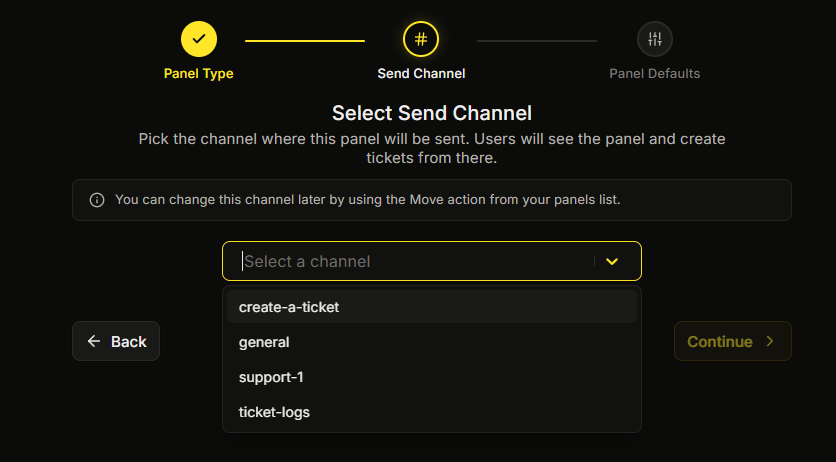
### Step 2: Select Send Channel
Pick the channel where the application panel message will be posted. You must pick a channel here before you can finish the wizard.
{% endstep %}
{% step %}
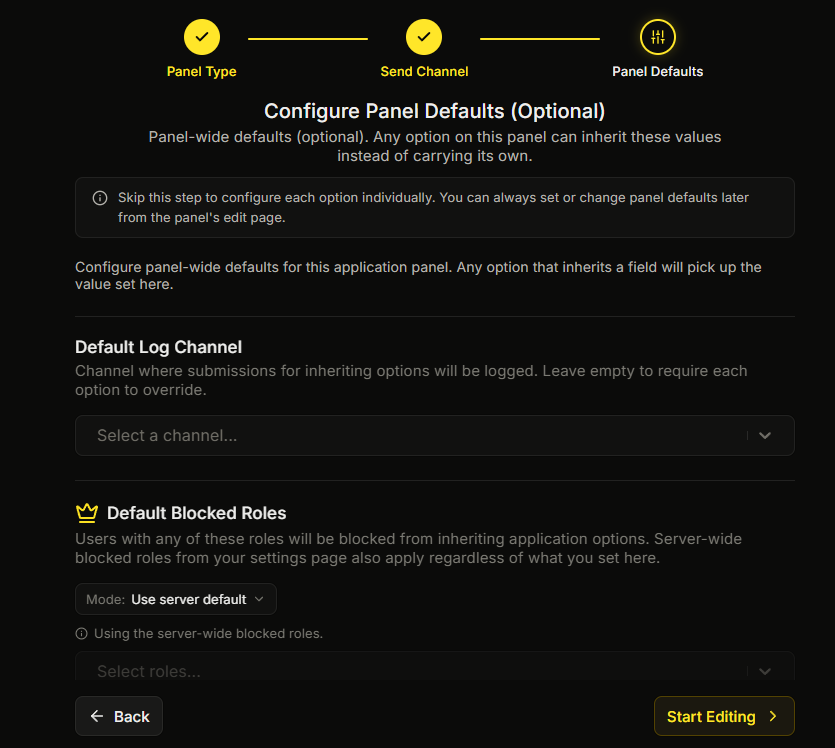
### Step 3: Configure Panel Defaults (Application variant)
For application panels, the Panel Defaults step exposes a smaller set of defaults than ticket panels:
| Field | Description | Is Premium? |
| -------------------------- | ---------------------------------------------------------------------------------------------------------------- | --------------------------------------- |
| **Default Log Channel** | Channel where submissions for inheriting options will be logged. Leave empty to require each option to override. | No (free) |
| **Default Blocked Roles** | Users with any of these roles will be blocked from inheriting application options. | :crown: Premium |
| **Default Required Roles** | Inheriting options will require any of these roles to apply. | :crown: Premium |
Set the **Default Log Channel** here unless every application option will override it. Without this set anywhere (panel default OR per-option override), submissions can't be logged and reviewers won't see them.
→ [Panel-wide defaults](/docs/panels/panel-wide-defaults.md)
{% endstep %}
{% endstepper %}
## After the wizard
You land in the panel editor with an empty embed and one default apply button. From here:
1. **Edit the embed.**
2. **Configure the apply button** (label, color, emoji).
3. **Configure the application option's settings.** This is the bulk of the work. See [Designing your application](/docs/applications/designing-your-application.md).
Application-option settings are laid out **flat** (not in tabs like ticket-option settings). The layout includes Application Type, Log Channel, Application Questions, Eligibility Requirements, Reapplication Settings, Granted Roles, Reviewer Roles, Required/Blocked Roles, Notifications, and Option Status.
## Key differences from ticket panels
| | Ticket panel | Application panel |
| ------------------ | ---------------------------------- | -------------------------------------------------- |
| Click outcome | Channel opens | Pop-up form opens. Submission goes to review queue |
| Per-option layout | General / Messages / Advanced tabs | Flat (no tabs) |
| Form questions | Up to 5 (same cap) | Up to 5 (same cap) |
| Auto-grant roles | No | Yes, on approve |
| Eligibility checks | Required/Blocked roles | + Account age + Server membership age |
| Outcome | Ticket closes | Approve or Deny |
→ [Applications overview](/docs/applications/overview.md)
## Related
{% content-ref url="/pages/XQsrUSeSCzERWqbhESgi" %}
[Applications overview](/docs/applications/overview.md)
{% endcontent-ref %}
{% content-ref url="/pages/EF0pKGpqjZw3SVUPhXC3" %}
[Designing your application](/docs/applications/designing-your-application.md)
{% endcontent-ref %}
---
# Agent Instructions
This documentation is published with GitBook. GitBook is the documentation platform designed so that both humans and AI agents can read, navigate, and reason over technical content effectively. Learn more at gitbook.com.
## Querying This Documentation
If you need additional information that is not directly available in this page, you can query the documentation dynamically by asking a question.
Perform an HTTP GET request on the current page URL with the `ask` query parameter, and the optional `goal` query parameter:
```
GET https://ticketking.xyz/docs/panels/create-an-application-panel.md?ask=&goal=
```
`ask` is the immediate question: it should be specific, self-contained, and written in natural language.
`goal` is optional and describes the broader end goal you are ultimately trying to accomplish on behalf of the user. GitBook uses it to tailor the answer towards what is most useful for that goal.
The response will contain a direct answer to the question and relevant excerpts and sources from the documentation.
Use this mechanism when the answer is not explicitly present in the current page, you need clarification or additional context, or you want to retrieve related documentation sections.