> For the complete documentation index, see [llms.txt](https://ticketking.xyz/docs/llms.txt). Markdown versions of documentation pages are available by appending `.md` to page URLs; this page is available as [Markdown](https://ticketking.xyz/docs/panels/create-a-ticket-panel.md).
# Create a Ticket Panel
The panel-creation wizard for ticket panels.
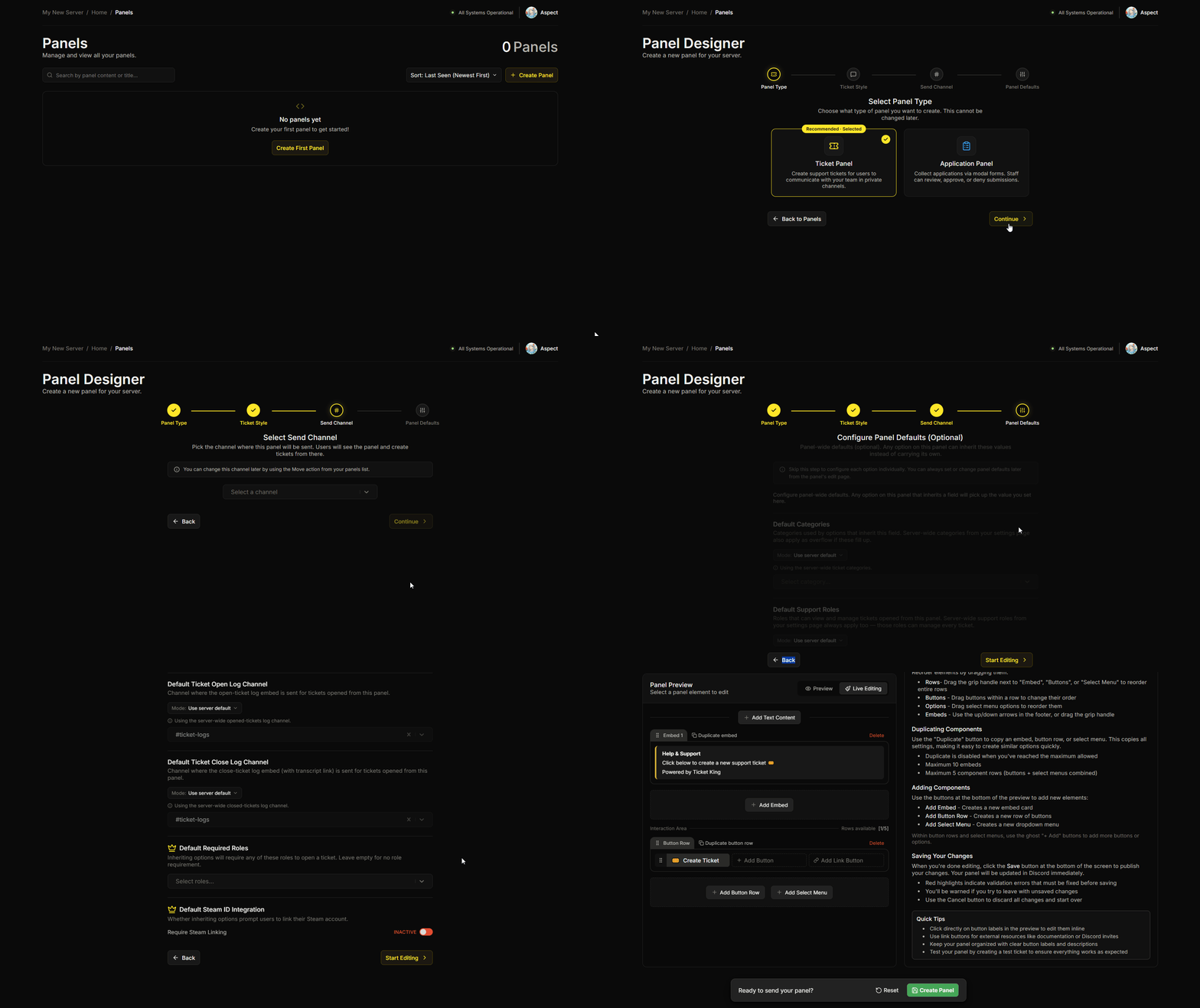
The ticket panel-creation wizard has **4 steps**: Select Panel Type, Select Default Ticket Style, Select Send Channel, then Configure Panel Defaults (optional).
For application panels, see [Create an Application Panel](/docs/panels/create-an-application-panel.md).
## Opening the wizard
In your dashboard sidebar:
1. **Panels**.
2. **+ New Panel**.
The Panel Designer opens with a stepper at the top showing the steps.
{% stepper %}
{% step %}
### Step 1: Select Panel Type
Two cards:
**Ticket Panel (Recommended · Selected by default)**
> Create support tickets for users to communicate with your team in private channels.
**Application Panel**
> Collect applications via pop-up forms. Staff can review, approve, or deny submissions.
Pick **Ticket Panel** and click **Continue**.
{% hint style="warning" %}
**This cannot be changed later.** A ticket panel can't be converted into an application panel after creation. To switch, delete and recreate.
{% endhint %}
{% endstep %}
{% step %}
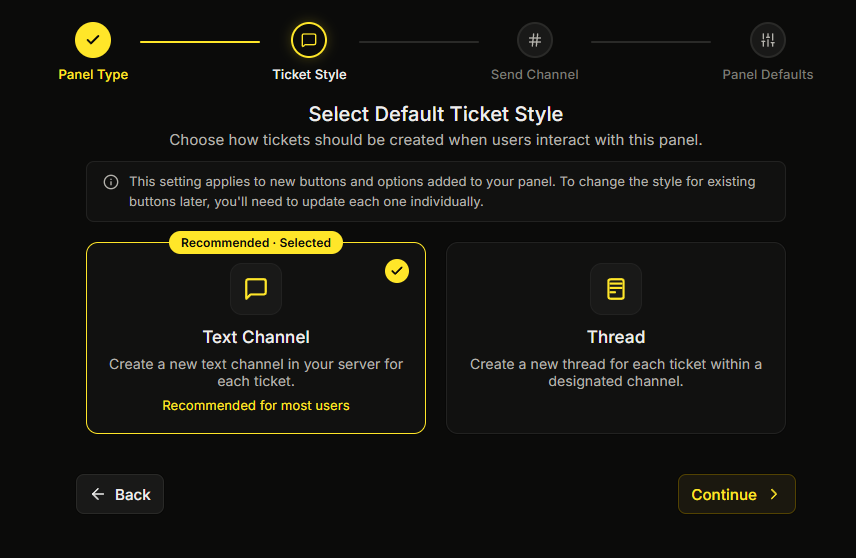
### Step 2: Select Default Ticket Style
Two cards:
**Text Channel (Recommended for most users)**
> Create a new text channel in your server for each ticket.
**Thread**
> Create a new thread for each ticket within a designated channel.
The wizard tells you:
> :circle-info: This setting applies to new buttons and options added to your panel. To change the style for existing buttons later, you'll need to update each one individually.
So this is the **panel-level default**. Each individual button or option can override it later in the per-option editor's General tab.
→ [Thread tickets vs channel tickets](/docs/tickets/thread-vs-channel.md)
{% endstep %}
{% step %}
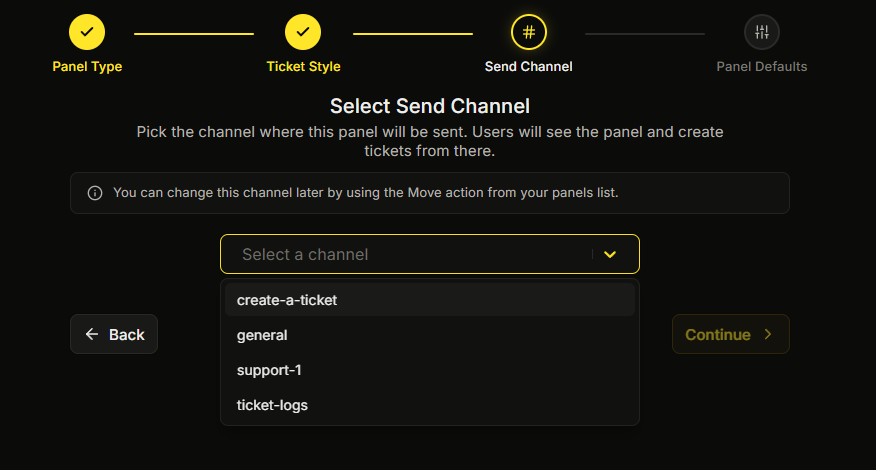
### Step 3: Select Send Channel
Pick the channel where the panel message will be posted. You can choose a text channel or a thread. You must pick a channel here before you can finish the wizard.
You can change this later by moving the panel. See [Move a panel](/docs/panels/move-a-panel.md).
{% endstep %}
{% step %}
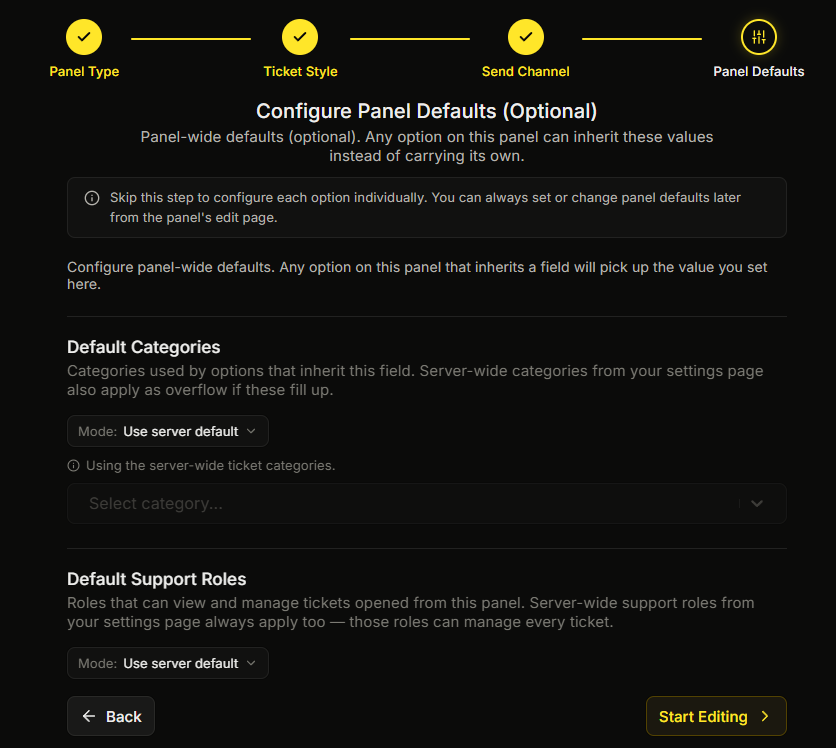
### Step 4: Configure Panel Defaults (Optional)
This is where you set values once at the panel level that every option can inherit. This step is optional. You can skip it and set the values later.
The fields available on this step (and again later in the panel editor's Panel Settings pane) are documented in [Panel-wide defaults](/docs/panels/panel-wide-defaults.md).
The wizard tells you:
> :circle-info: Skip this step to configure each option individually. You can always set or change panel defaults later from the panel's edit page.
If you do not want to set them yet, click **Start Editing**.
{% endstep %}
{% endstepper %}
## After the wizard
The wizard takes you straight into the panel editor with:
* An empty embed (you customize it).
* One default button (you customize it).
* The send channel you picked in the wizard.
You are now in the [Edit a panel](/docs/panels/edit-a-panel.md) flow.
## Recovering an unsaved draft
If you close the wizard partway through, your browser keeps the draft. On your next visit you see:
> **Recover unsaved changes?**
>
> You left unsaved edits on this panel \