> For the complete documentation index, see [llms.txt](https://ticketking.xyz/docs/llms.txt). Markdown versions of documentation pages are available by appending `.md` to page URLs; this page is available as [Markdown](https://ticketking.xyz/docs/getting-started/tour-the-dashboard.md).
# Tour the dashboard sidebar
Every section of the dashboard sidebar, what it controls, and who can see it.
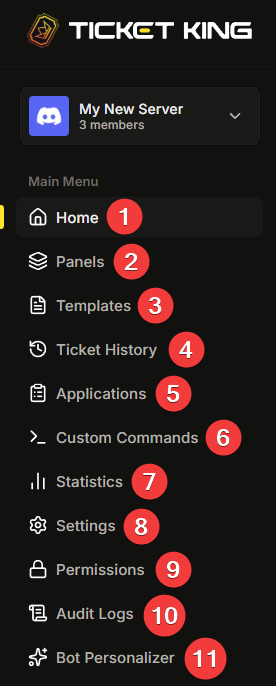
The dashboard sidebar lists every section of the bot you can configure for a single server. This page walks through what each one does so you know where to go for what.
## The sections
### Home
Your server's summary, including how many tickets are open right now and recent activity.
### Panels
The messages your members click to open tickets. This is where you will spend most of your setup time.
→ [Panels overview](/docs/panels/overview.md)
### Templates
Save a fully configured panel as a reusable template, or browse the public preset catalog and start a panel from one.
→ [Templates](/docs/panels/templates.md)
### Ticket History
Past and current tickets. Click into any ticket to see its details without leaving the dashboard.
→ [Browsing open and recent tickets](/docs/tickets-history/browsing-tickets.md)
### Applications
If you run application-style panels (membership, staff, partner, and so on), this is the review queue. Accept or deny submissions in one click.
→ [Applications overview](/docs/applications/overview.md)
### Custom Commands (Premium)
Commands the bot responds to with a message in your server. Useful for FAQ answers and scripted replies your staff repeats often. Premium.
→ [What custom commands are](/docs/custom-commands/overview.md)
### Steam Linking (Premium)
Manage members who have linked a Steam account, and require Steam linking on certain ticket options. This section only appears when Steam Linking is enabled. Premium.
### Statistics (Premium)
Charts and numbers on ticket volume, resolution time, and staff workload. Premium.
→ [Statistics](/docs/statistics/the-statistics-page.md)
### Settings
Server-wide settings: bot language, log channels, support roles, embed color, claiming, closing, and more. Everything that applies to the whole server lives here.
→ [The server embed color](/docs/customization-and-branding/server-embed-color.md)
### Permissions
Who on your team can see and change what. Permission areas you can grant per role, plus Temporary Dashboard Access.
→ [The two layers of permissions](/docs/permissions-and-your-support-team/two-layers.md)
### Audit Logs
A record of actions anyone takes, such as settings edits, panel edits, claims, and closes, with timestamps and who did it.
→ [What the audit log captures](/docs/audit-logs/what-it-captures.md)
### Bot Personalizer (Premium)
Give Ticket King a custom name, avatar, banner, and bio in your server only. Premium.
→ [Bot Personalizer](/docs/customization-and-branding/bot-personalizer.md)
## Who can see what
Not every section appears for every dashboard user. The sidebar is filtered by the **dashboard permissions** assigned to your roles in this server.
{% hint style="info" %}
**The server owner and anyone with Administrator or Manage Server see everything by default.** Other roles see only what they have been granted access to. If something is missing from your sidebar, ask your server's owner to grant your role the relevant permission area on the **Permissions** page.
{% endhint %}
The permission areas:
| Permission | Controls |
| ---------------------------- | ----------------------------------------------------------------- |
| **Info & Statistics** | Viewing server statistics, ticket metrics, and staff performance. |
| **Manage Panels** | Creating, editing, and deleting panels and templates. |
| **View History** | Ticket history and Steam linking. |
| **View Application History** | Application submission history and decisions. |
| **Review Applications** | Approving or denying pending applications. |
| **Manage Commands** | Creating, editing, and deleting custom commands. |
| **Manage Settings** | Server settings and the Bot Personalizer. |
| **View Audit Logs** | Reading audit log entries. |
| **Manage Permissions** | Configuring which roles can access dashboard sections. |
| **Manage Premium** | Viewing and managing the server's premium subscription. |
Full breakdown:
{% content-ref url="/pages/RK4hI1VK3OmRDu2Okj2Y" %}
[Dashboard permission areas](/docs/permissions-and-your-support-team/permission-areas.md)
{% endcontent-ref %}
## Switching servers and the bottom of the sidebar
At the top of the sidebar, the current server's name and icon are a dropdown. Click it to switch to another server you manage without going back to the picker. The dropdown also has an **Add Ticket King to Server** button.
At the bottom of the sidebar:
* **Restart Tutorial.** Replays the in-dashboard tutorial.
* **Get Premium** (or **Manage Premium** if the server already has it). Opens the Premium page.
## Mobile
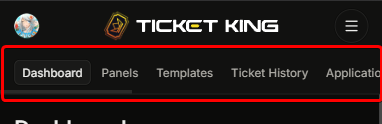
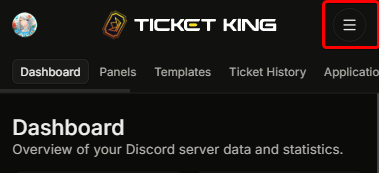
On mobile, you can reach the dashboard sections two ways.
**Scroll the page list.** Swipe left or right along the row of sections near the top of the page.
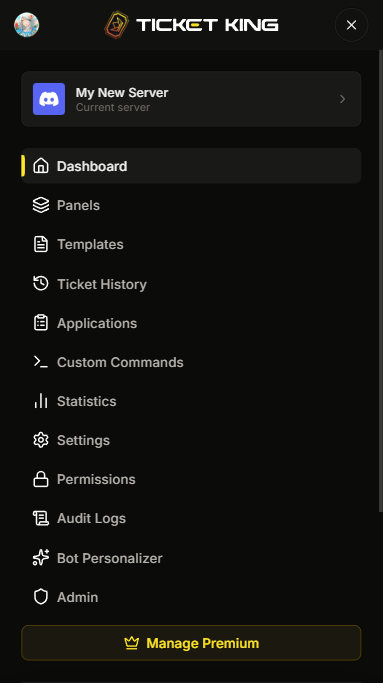
**Open the menu.** Tap the hamburger icon at the top-left to slide out the full sidebar.
Inside the menu.
## Next: build your first panel
{% content-ref url="/pages/1OZgi01Y6hIFxPIZJXoY" %}
[Build your first panel](/docs/getting-started/build-your-first-panel.md)
{% endcontent-ref %}
---
# Agent Instructions
This documentation is published with GitBook. GitBook is the documentation platform designed so that both humans and AI agents can read, navigate, and reason over technical content effectively. Learn more at gitbook.com.
## Querying This Documentation
If you need additional information that is not directly available in this page, you can query the documentation dynamically by asking a question.
Perform an HTTP GET request on the current page URL with the `ask` query parameter, and the optional `goal` query parameter:
```
GET https://ticketking.xyz/docs/getting-started/tour-the-dashboard.md?ask=&goal=
```
`ask` is the immediate question: it should be specific, self-contained, and written in natural language.
`goal` is optional and describes the broader end goal you are ultimately trying to accomplish on behalf of the user. GitBook uses it to tailor the answer towards what is most useful for that goal.
The response will contain a direct answer to the question and relevant excerpts and sources from the documentation.
Use this mechanism when the answer is not explicitly present in the current page, you need clarification or additional context, or you want to retrieve related documentation sections.