> For the complete documentation index, see [llms.txt](https://ticketking.xyz/docs/llms.txt). Markdown versions of documentation pages are available by appending `.md` to page URLs; this page is available as [Markdown](https://ticketking.xyz/docs/getting-started/pick-your-server.md).
# Pick your server
Reading the server picker and what each card state means.
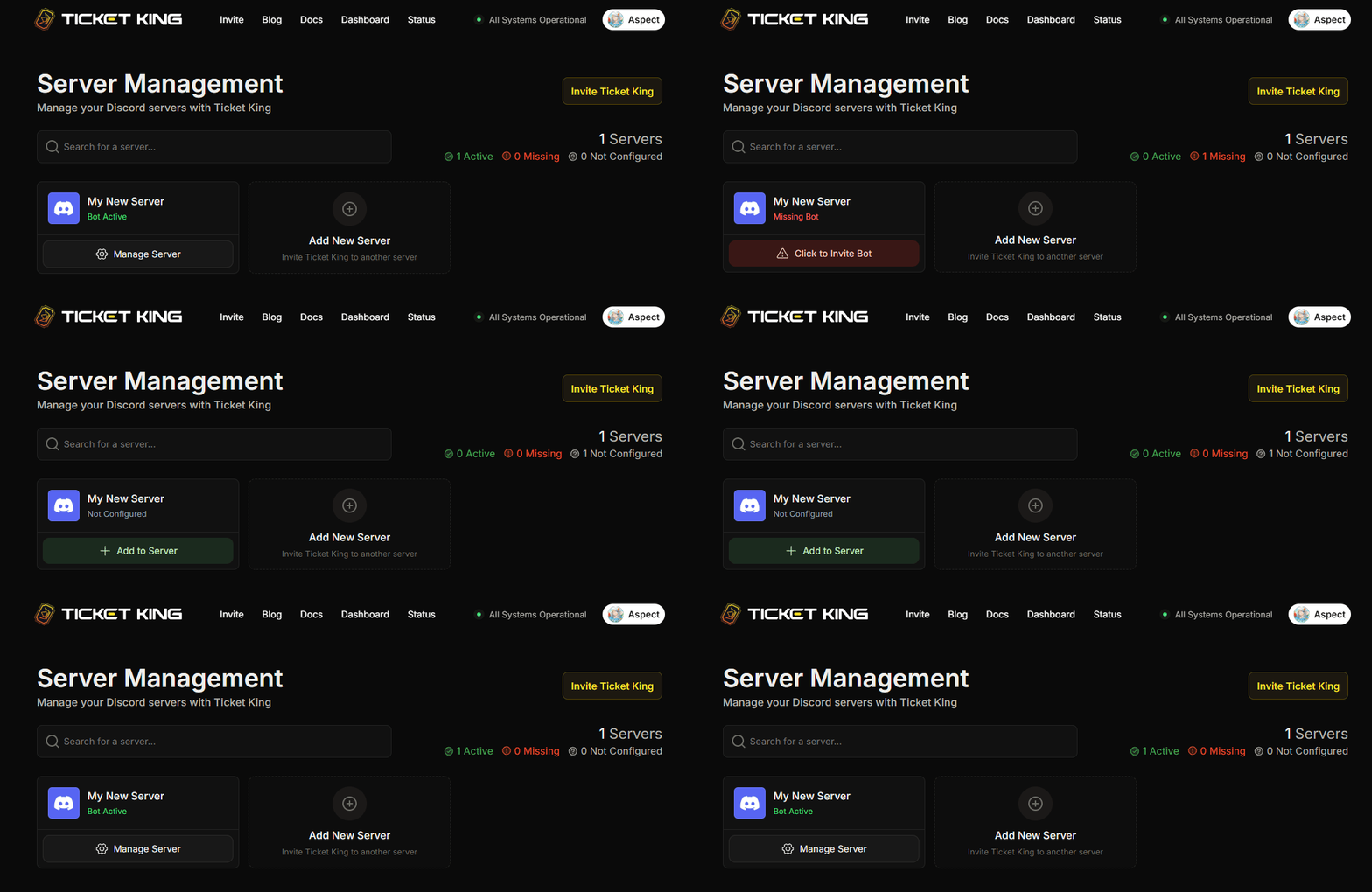
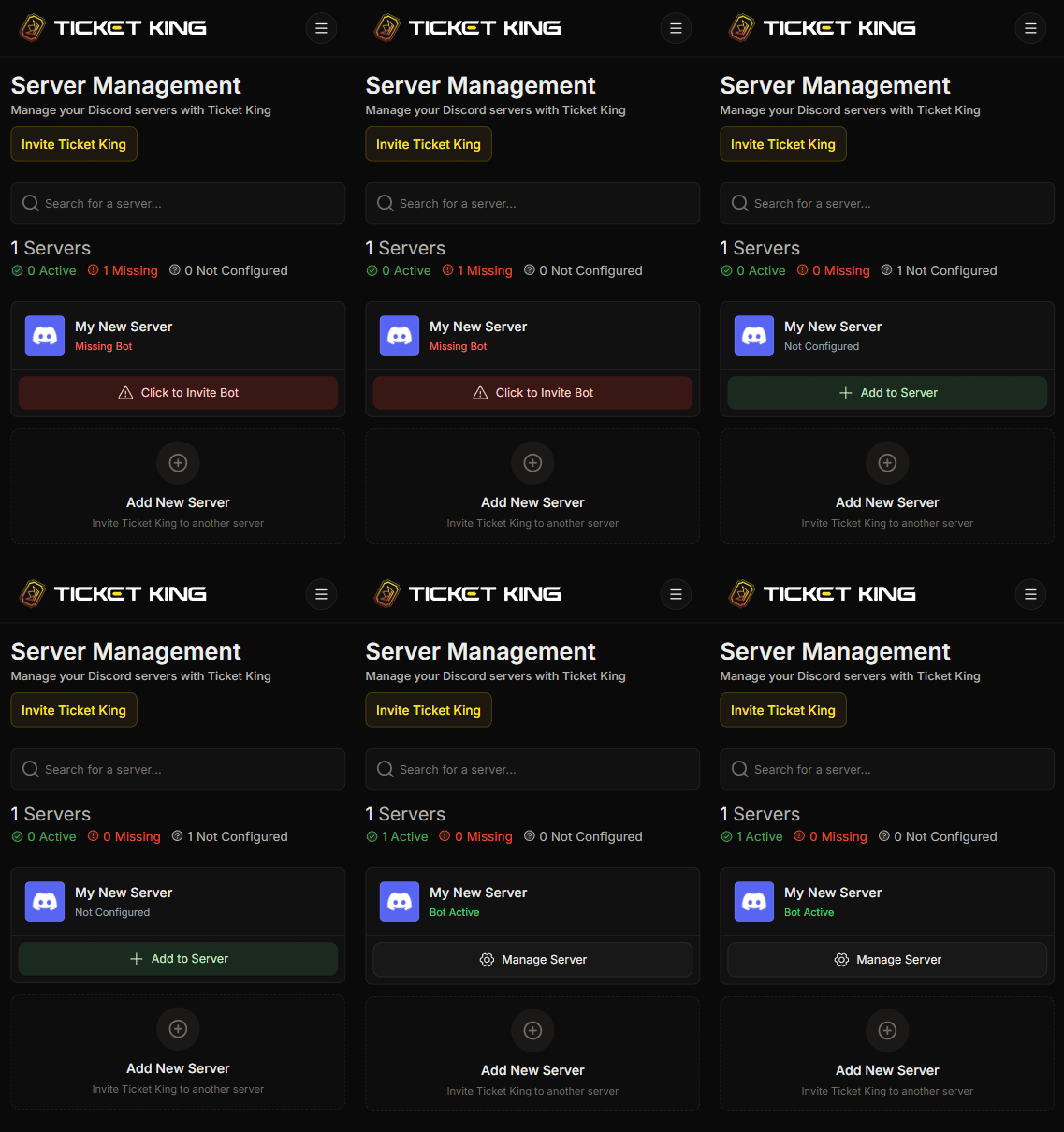
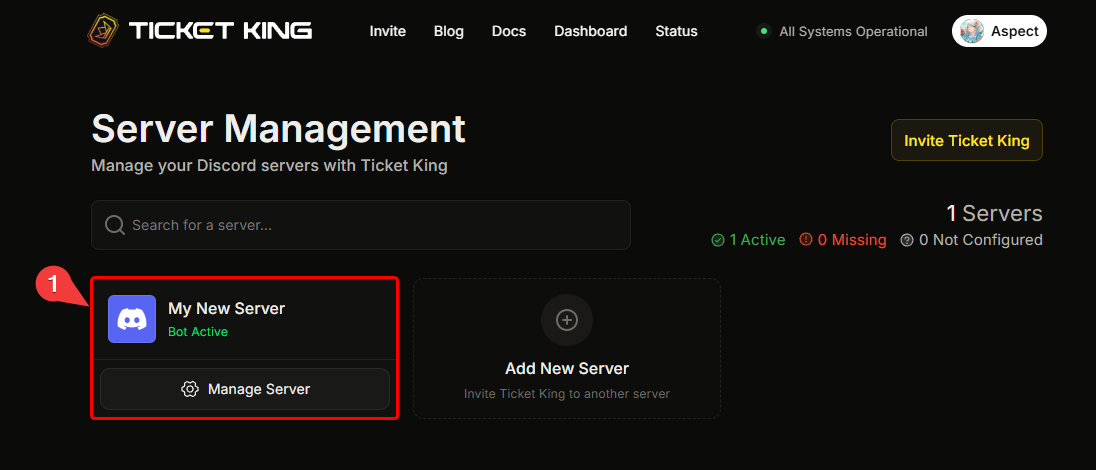
After signing in, the dashboard opens the **Server Management** page. It shows a grid of cards, one card per Discord server you have access to. Each card tells you whether Ticket King is ready to configure for that server.
{% stepper %}
{% step %}
### Sign in
Sign in with Discord at [ticketking.xyz](https://ticketking.xyz). Once you are signed in, the dashboard opens the **Server Management** page automatically.
{% endstep %}
{% step %}
### See your servers
The Server Management page shows a grid of cards, one card per Discord server you have access to. Each card tells you whether Ticket King is ready to configure for that server. The card states are explained in [The three card states](#the-three-card-states) below.
{% tabs %}
{% tab title="Desktop" %}
{% endtab %}
{% tab title="Mobile" %}
{% endtab %}
{% endtabs %}
{% endstep %}
{% step %}
### Pick one
Find the server you want and click its button. A server with Ticket King active reads **Manage Server**. Click it to open that server's dashboard.
{% endstep %}
{% endstepper %}
## The three card states
Each server card shows a status badge. There are three possible states.
### 🟢 Bot Active
Ticket King is in this server. The card's button reads **Manage Server**. Click it to open the dashboard for that server.
This is the state for every server you actively use.
### 🟡 Not Configured
Ticket King is in the server, but it has not been set up through the dashboard yet. The card's button reads **Add to Server**. Click it to authorize Ticket King for the server, then you can open and configure its dashboard.
**Common reason:** Someone else on your team invited the bot, but you are the first to configure it.
### 🔴 Missing Bot
You have permission to manage this server, but Ticket King is not in it. The card's button reads **Click to Invite Bot**. It takes you to the [invite flow](/docs/getting-started/invite-ticket-king.md) with that server pre-selected.
**Common reason:** You just removed the bot, or the bot used to be installed by someone who has since left.
## Servers You May Have Access To
Below the cards is a separate section, **Servers You May Have Access To**. These are servers where Ticket King is active and you are a member, but you do **not** have Administrator or Manage Server. If you have been granted dashboard access through a role, you can open them from here.
→ [Giving a role dashboard access](/docs/permissions-and-your-support-team/giving-a-role-dashboard-access.md)
## Searching
If you manage a lot of servers, the search bar at the top filters the cards by name as you type. Servers where Ticket King is active are listed first.
## What if my server isn't here?
Run through this checklist:
1. **Are you actually a member of that server?** If you left, the card disappears.
2. **Do you have Manage Server or Administrator on that server?** Without one of those (or being the owner) the server only appears under "Servers You May Have Access To", and only if a role has granted you dashboard access.
3. **Did you sign in less than a minute ago?** Discord's server list can take a short time to refresh. Wait, then reload.
4. **Is the server very large?** Discord limits how often the dashboard can ask for your server membership. Try again in a minute.
Still missing? Sign out and back in. That forces a fresh fetch from Discord.
## Next: tour the dashboard sidebar
{% content-ref url="/pages/bQdKXQ0bUQU3Ow1t5cCR" %}
[Tour the dashboard sidebar](/docs/getting-started/tour-the-dashboard.md)
{% endcontent-ref %}
---
# Agent Instructions
This documentation is published with GitBook. GitBook is the documentation platform designed so that both humans and AI agents can read, navigate, and reason over technical content effectively. Learn more at gitbook.com.
## Querying This Documentation
If you need additional information that is not directly available in this page, you can query the documentation dynamically by asking a question.
Perform an HTTP GET request on the current page URL with the `ask` query parameter, and the optional `goal` query parameter:
```
GET https://ticketking.xyz/docs/getting-started/pick-your-server.md?ask=&goal=
```
`ask` is the immediate question: it should be specific, self-contained, and written in natural language.
`goal` is optional and describes the broader end goal you are ultimately trying to accomplish on behalf of the user. GitBook uses it to tailor the answer towards what is most useful for that goal.
The response will contain a direct answer to the question and relevant excerpts and sources from the documentation.
Use this mechanism when the answer is not explicitly present in the current page, you need clarification or additional context, or you want to retrieve related documentation sections.