# Invite Ticket King to your server

This is the very first step. Once Ticket King is in your server, every other page in these docs becomes useful.

## The invite link

{% stepper %}
{% step %}

### Click the invite link

Click here to invite Ticket King:

<a href="https://ticketking.xyz/invite?via=docs" class="button primary" data-icon="robot">Add Ticket King to your server</a>

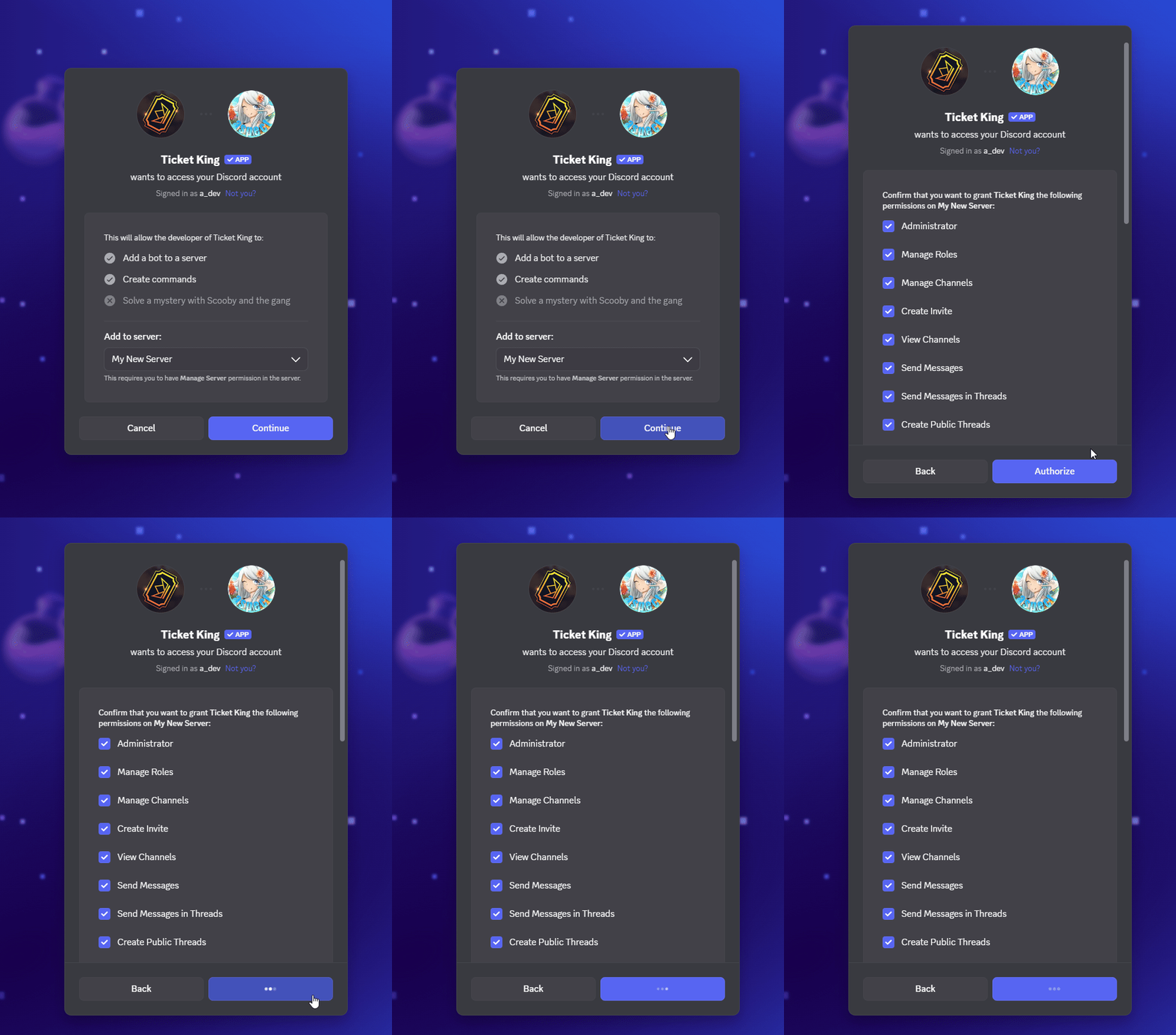
This opens Discord's standard "Add to Server" flow. You will be asked which server to add the bot to, then which permissions to grant.

<figure><img src="/files/OoMu8vohaYJG2tJAO9tm" alt="Inviting Ticket King and authorizing it for a server"><figcaption></figcaption></figure>
{% endstep %}

{% step %}

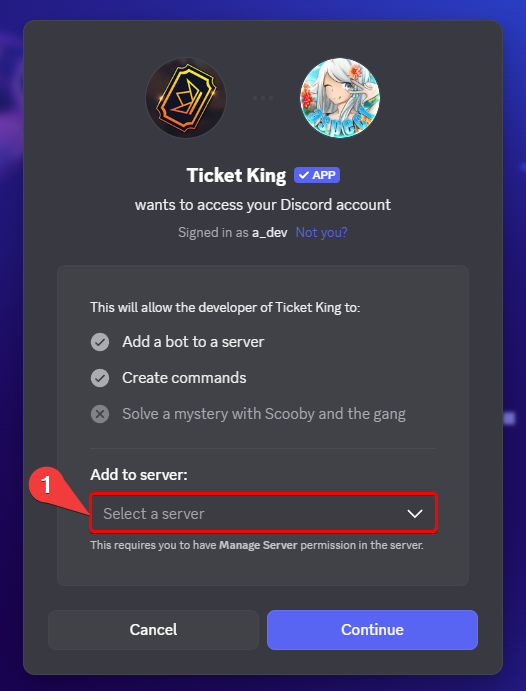
### Pick the server

Choose your server from Discord's "Add to Server" dropdown. Only servers where you have Manage Server or Administrator (or are the owner) appear in the list.

<figure><img src="/files/p9mi3Ph8b6k4qqrl51Gv" alt="Discord&#x27;s Add to Server screen with the server dropdown open"><figcaption></figcaption></figure>
{% endstep %}

{% step %}

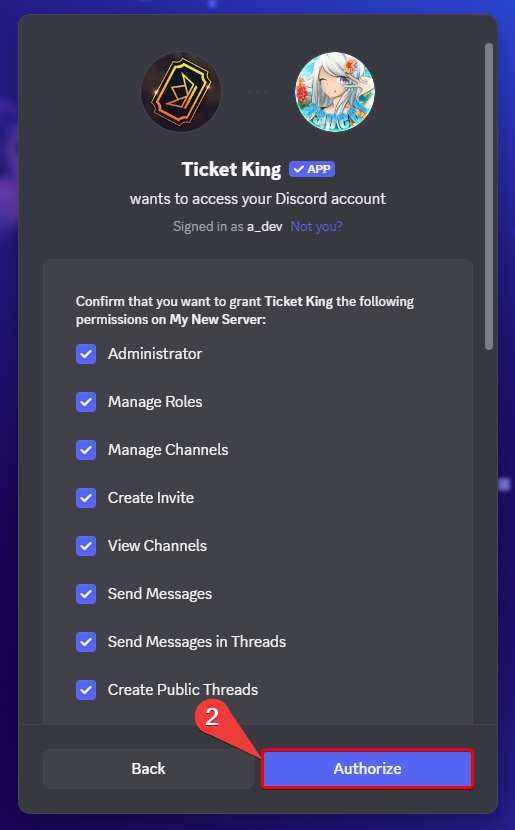
### Review and authorize the permissions

Discord shows the permissions Ticket King is requesting. Review them, then click **Authorize**. The recommended invite link includes Administrator as a convenience, which you can replace with the specific permissions below after inviting.

<figure><img src="/files/e0Kmv9Wtu30Jdbu5LkNA" alt="Discord&#x27;s permission screen for the invite with the Authorize button"><figcaption></figcaption></figure>
{% endstep %}

{% step %}

### The bot joins

After you authorize, Discord sends you back to ticketking.xyz and Ticket King joins your server. See [What happens the moment the bot joins](#what-happens-the-moment-the-bot-joins) below for what to expect next.
{% endstep %}
{% endstepper %}

## Who can add the bot

To add any bot to a Discord server you need a role with **Manage Server** OR **Administrator** (or be the server owner). If the server dropdown is empty or your server doesn't appear, that's why.

## What permissions Ticket King needs and why

The recommended invite link includes **Administrator**. This is a convenience, so every feature works right away and you never have to chase a missing permission. If you prefer, you can remove Administrator after inviting and grant the specific permissions below instead. The bot works either way.

<details>

<summary>See the full permission list and why each one is needed</summary>

<table><thead><tr><th width="240">Permission</th><th>Why Ticket King needs it</th></tr></thead><tbody><tr><td><strong>Administrator</strong></td><td>Included in the recommended invite as a convenience. It covers every permission below in one grant. Optional. You can replace it with the specific permissions in this table.</td></tr><tr><td><strong>Manage Channels</strong></td><td>To create the ticket channel (or thread) when a member opens a ticket, and to delete it on close if you have configured that.</td></tr><tr><td><strong>Manage Roles</strong></td><td>To give the ticket creator and any support roles access to the new ticket channel. Without this, members can open tickets but cannot see them.</td></tr><tr><td><strong>Manage Messages</strong></td><td>To delete the panel message if you move or resend it, and to clean up bot messages on ticket close.</td></tr><tr><td><strong>Manage Threads</strong>, <strong>Create Public Threads</strong> &#x26; <strong>Create Private Threads</strong></td><td>Needed if you use thread tickets or staff threads. Manage Threads also lets the bot close them.</td></tr><tr><td><strong>View Channel</strong></td><td>So the bot can see the channels you point it at: log channels, panel channels, and the tickets it creates.</td></tr><tr><td><strong>Send Messages</strong> &#x26; <strong>Send Messages in Threads</strong></td><td>To post the panel message, the ticket-opened embed, and any logs.</td></tr><tr><td><strong>Embed Links</strong></td><td>Ticket King's messages are almost entirely embeds. Without this, your panels show as plain text.</td></tr><tr><td><strong>Attach Files</strong></td><td>For posting transcripts in log channels.</td></tr><tr><td><strong>Read Message History</strong></td><td>To generate transcripts. Without this, transcripts are empty.</td></tr><tr><td><strong>Add Reactions</strong></td><td>For some interactive prompts.</td></tr><tr><td><strong>Use External Emojis</strong> &#x26; <strong>Use External Stickers</strong></td><td>So buttons, panels, and ticket messages can use emojis and stickers from other servers.</td></tr><tr><td><strong>Use Application Commands</strong></td><td>So Ticket King's slash commands work in your server.</td></tr><tr><td><strong>Mention @everyone, @here, and All Roles</strong></td><td>This permission covers pinging any role, including roles that are not set as mentionable. Ticket King needs it to ping your staff and support roles at the top of a new ticket. Most staff roles are not set as mentionable by default, so the bot needs this permission to ping them.</td></tr></tbody></table>

</details>

{% hint style="info" %}
**Want the full per-feature permission breakdown?** See [Permissions Ticket King needs in Discord](/docs/reference/discord-permissions.md) in the reference section.
{% endhint %}

## What happens the moment the bot joins

Right after authorizing the invite:

1. **Ticket King appears in your members list.** It gets a role named "Ticket King" automatically, with the permissions you granted. Do not delete this role.
2. **The bot posts a hello message in your system channel** (if Discord's system messages are enabled). It includes a link straight to your dashboard.
3. **Your server shows up in your dashboard** at [ticketking.xyz/dashboard](https://ticketking.xyz/dashboard) within a few seconds.

## Common issues

{% hint style="danger" %}
**The bot's role is below my support team's role.** Ticket King can only modify roles *lower* than its own role in the role list. If your support team has a role above Ticket King, the bot won't be able to add them to ticket channels.

**Fix:** Drag the "Ticket King" role above your support team's role in **Server Settings → Roles**.
{% endhint %}

{% hint style="warning" %}
**The bot joined but never posted in the system channel.** Either your server has system messages disabled, or the channel does not allow Ticket King to send messages. The bot is in the server either way. Open your dashboard at [ticketking.xyz/dashboard](https://ticketking.xyz/dashboard) to continue.
{% endhint %}


---

# Agent Instructions: Querying This Documentation

If you need additional information that is not directly available in this page, you can query the documentation dynamically by asking a question.

Perform an HTTP GET request on the current page URL with the `ask` query parameter:

```
GET https://ticketking.xyz/docs/getting-started/invite-ticket-king.md?ask=<question>
```

The question should be specific, self-contained, and written in natural language.
The response will contain a direct answer to the question and relevant excerpts and sources from the documentation.

Use this mechanism when the answer is not explicitly present in the current page, you need clarification or additional context, or you want to retrieve related documentation sections.