> For the complete documentation index, see [llms.txt](https://ticketking.xyz/docs/llms.txt). Markdown versions of documentation pages are available by appending `.md` to page URLs; this page is available as [Markdown](https://ticketking.xyz/docs/getting-started/build-your-first-panel.md).
# Build your first panel
From "I just invited the bot" to "members can open tickets", the fast path.
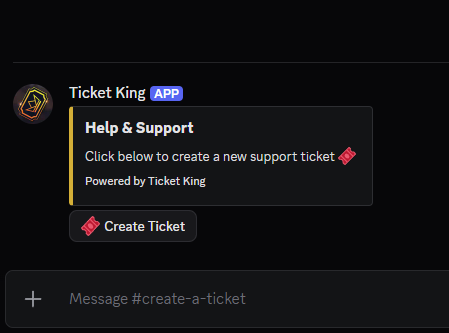
A **panel** is the message your members click to open a ticket. This page walks you from zero to a working panel in a few minutes.
{% hint style="info" %}
This is the quickest path. For every option, setting, and customization, see [Panels](/docs/panels/overview.md).
{% endhint %}
{% stepper %}
{% step %}
### Pick a channel for the panel
Decide which Discord channel will hold the panel message. Most servers make a dedicated channel like `#tickets` or `#support`. Set it so members can see it but not chat in it, and so the people who need support can reach it.
{% endstep %}
{% step %}
### Open the panel builder
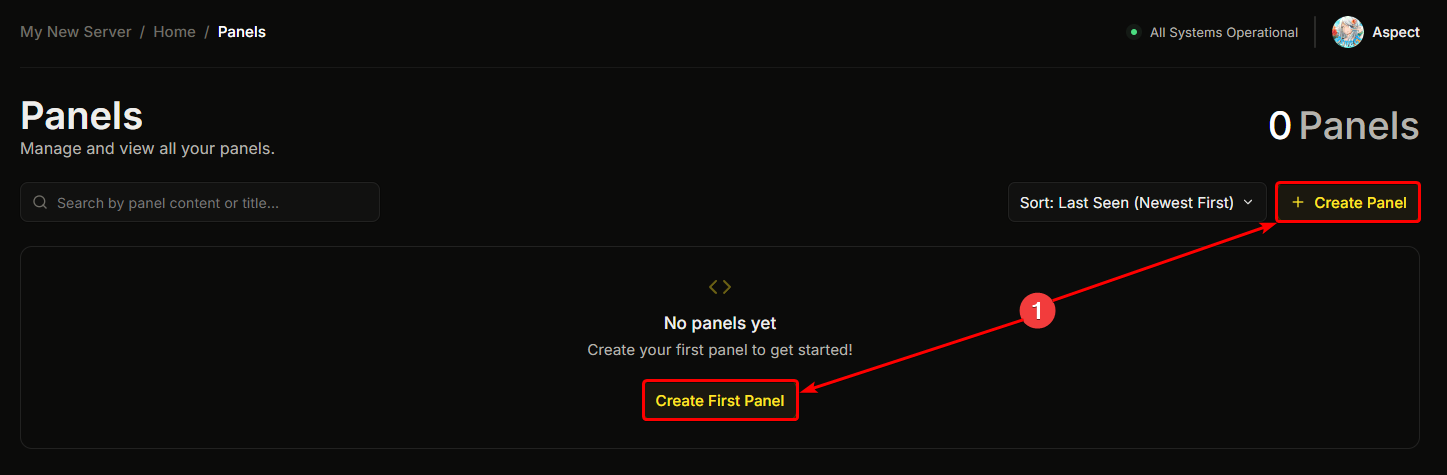
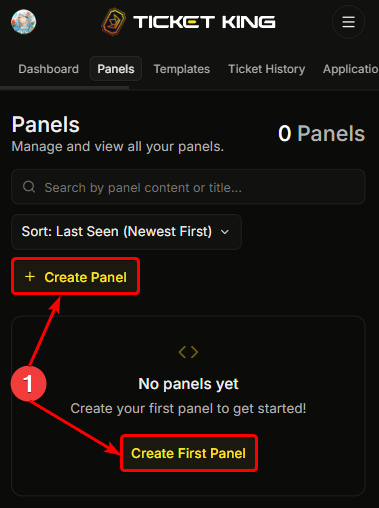
In the dashboard sidebar, go to **Panels**, then click **+ New Panel**.
{% tabs %}
{% tab title="Desktop" %}
{% endtab %}
{% tab title="Mobile" %}
{% endtab %}
{% endtabs %}
{% endstep %}
{% step %}
### Walk through the wizard
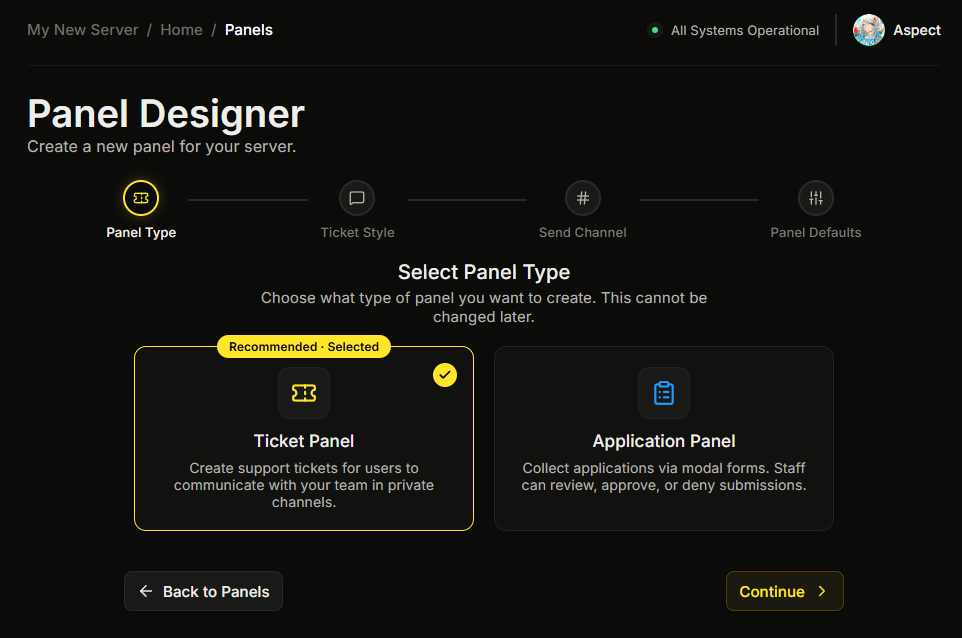
The builder asks you a few quick questions. The defaults are fine for your first panel, so you can click straight through.
* **Panel Type.** Ticket Panel (the default) or Application Panel. You cannot change this later.
* **Ticket Style.** Text Channel (the default) or Thread. This step appears for ticket panels only.
* **Send Channel.** The channel where the panel message gets posted. Pick the channel from step 1.
* **Panel Defaults.** Optional values every option inherits. You can skip this and set it later.
→ [Create a Ticket Panel](/docs/panels/create-a-ticket-panel.md)
{% endstep %}
{% step %}
### Customize the panel (optional)
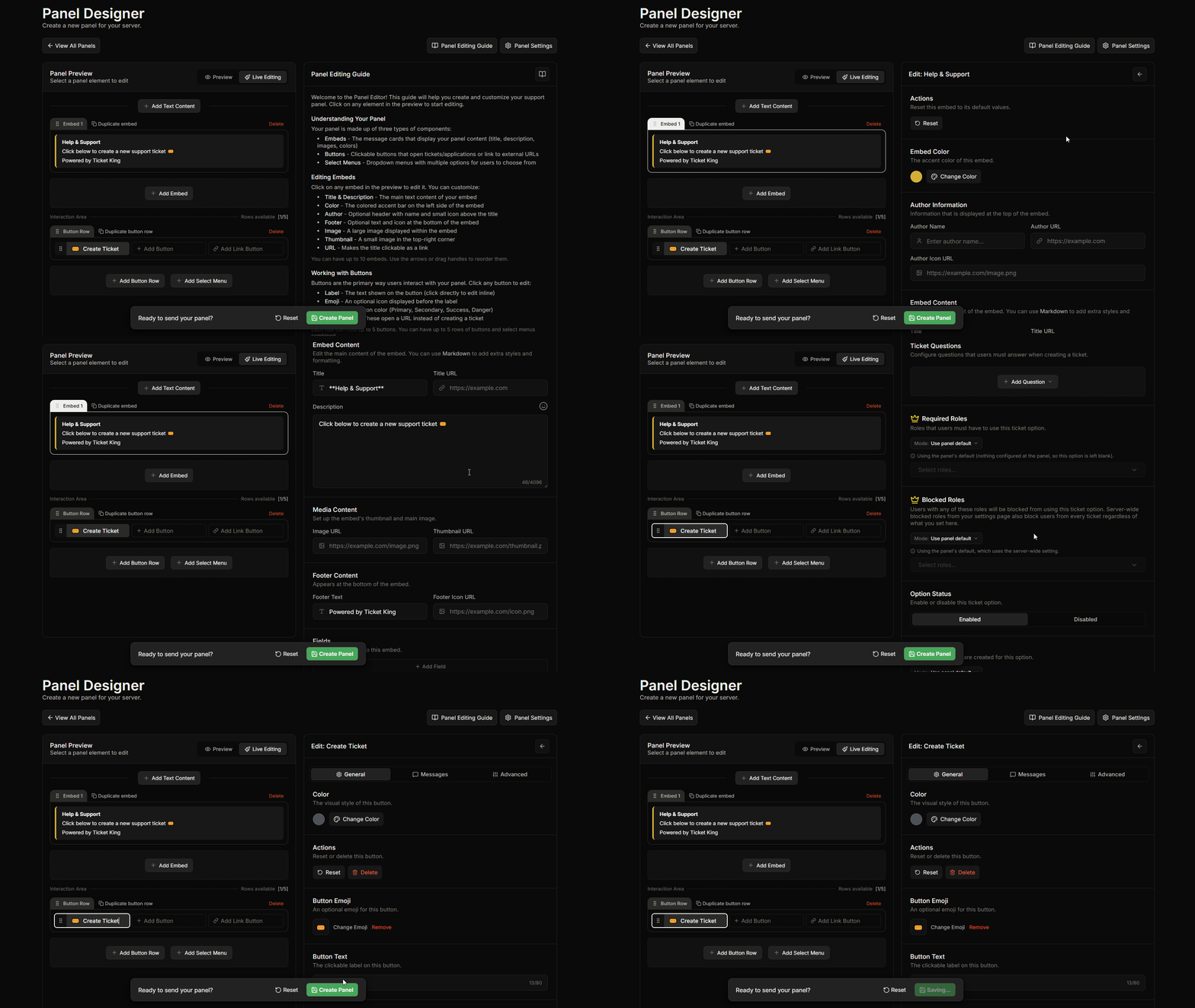
In the editor you can change the embed (title, description, color, image, footer), the button (label, color, emoji), and per-option settings (category, support role, form questions). The defaults work for a first panel, so this step is optional.
→ [Edit a panel](/docs/panels/edit-a-panel.md)
{% endstep %}
{% step %}
### Save
Click **Save**. The bot posts the panel in the channel you chose. You now have a working ticket system.
{% endstep %}
{% step %}
### Add your support team
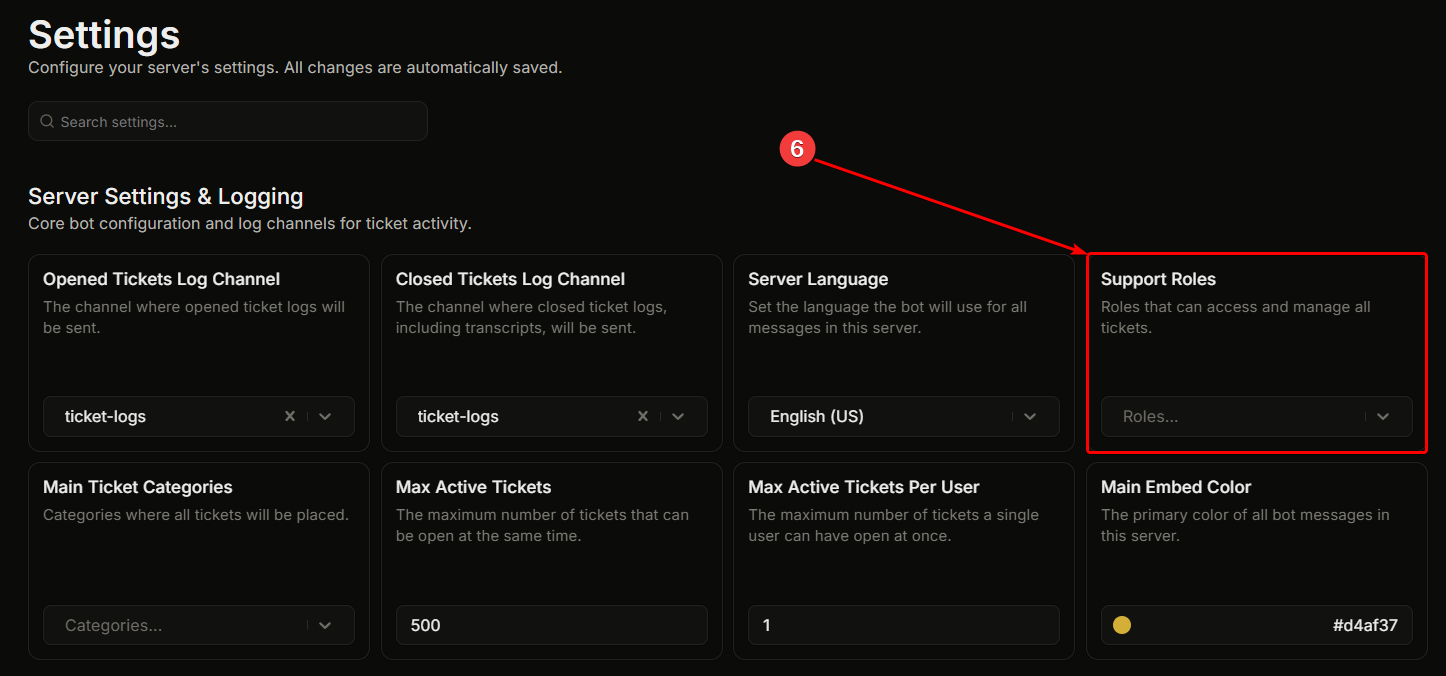
Without a support role, only the server owner and members with Administrator or Manage Server can see new tickets. To let your team in, go to **Settings**, then **Support Roles**, and add your team's Discord role. The setting saves on its own.
→ [Support roles](/docs/permissions-and-your-support-team/support-roles.md)
{% endstep %}
{% endstepper %}
## Test it like a member
Before you announce your new ticket system, open a ticket yourself to make sure it works end to end.
{% content-ref url="/pages/cYk2VAJGady119Ni5kQY" %}
[Test it like a member](/docs/getting-started/test-it-like-a-member.md)
{% endcontent-ref %}
## Common issues
{% hint style="danger" %}
**The button shows "This interaction failed" or nothing happens at all.** When this happens, the bot never received your click, or it could not reply. The usual causes are:
* The bot is offline. Check the [status page](/docs/get-help-and-community/status-page.md), then try again in a moment.
* The bot is no longer in your server. Another bot, such as an anti-raid bot, may have removed it. Re-invite Ticket King with the [invite link](https://ticketking.xyz/invite?via=docs).
* The bot cannot see the channel the panel is in. Make sure the Ticket King role has View Channel in that channel.
If the bot instead replies with an error message, that message is telling you what is wrong, so follow it. For example, if it says it is missing a permission, grant that permission to the Ticket King role.
{% endhint %}
{% hint style="warning" %}
**A ticket opens, but my support team cannot see it.** Either you have not added a support role yet (see the last step above), or the Ticket King role sits below your support role in Discord. Drag the Ticket King role above your support roles in **Server Settings**, then **Roles**, so the bot can give them access.
{% endhint %}
---
# Agent Instructions
This documentation is published with GitBook. GitBook is the documentation platform designed so that both humans and AI agents can read, navigate, and reason over technical content effectively. Learn more at gitbook.com.
## Querying This Documentation
If you need additional information that is not directly available in this page, you can query the documentation dynamically by asking a question.
Perform an HTTP GET request on the current page URL with the `ask` query parameter, and the optional `goal` query parameter:
```
GET https://ticketking.xyz/docs/getting-started/build-your-first-panel.md?ask=&goal=
```
`ask` is the immediate question: it should be specific, self-contained, and written in natural language.
`goal` is optional and describes the broader end goal you are ultimately trying to accomplish on behalf of the user. GitBook uses it to tailor the answer towards what is most useful for that goal.
The response will contain a direct answer to the question and relevant excerpts and sources from the documentation.
Use this mechanism when the answer is not explicitly present in the current page, you need clarification or additional context, or you want to retrieve related documentation sections.