> For the complete documentation index, see [llms.txt](https://ticketking.xyz/docs/llms.txt). Markdown versions of documentation pages are available by appending `.md` to page URLs; this page is available as [Markdown](https://ticketking.xyz/docs/fr/premium/subscribing.md).
# S’abonner
Comment passer un serveur en Premium.
Les abonnements sont gérés via votre **tableau de bord sur ticketking.xyz**.
Ouvrez Premium dans votre tableau de bord
## Étape par étape
{% stepper %}
{% step %}
### Ouvrez la page Premium
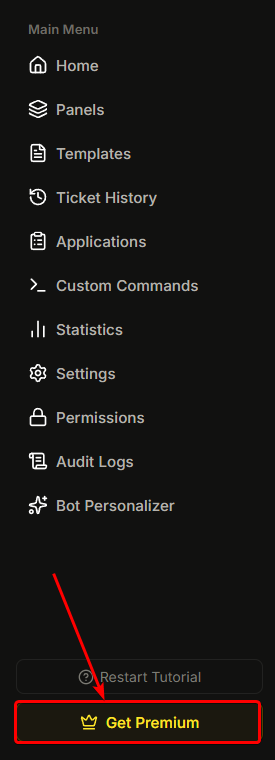
**Barre latérale → Premium** (ou cliquez sur « Gérer Premium » en bas de n'importe quelle page du tableau de bord).
{% endstep %}
{% step %}
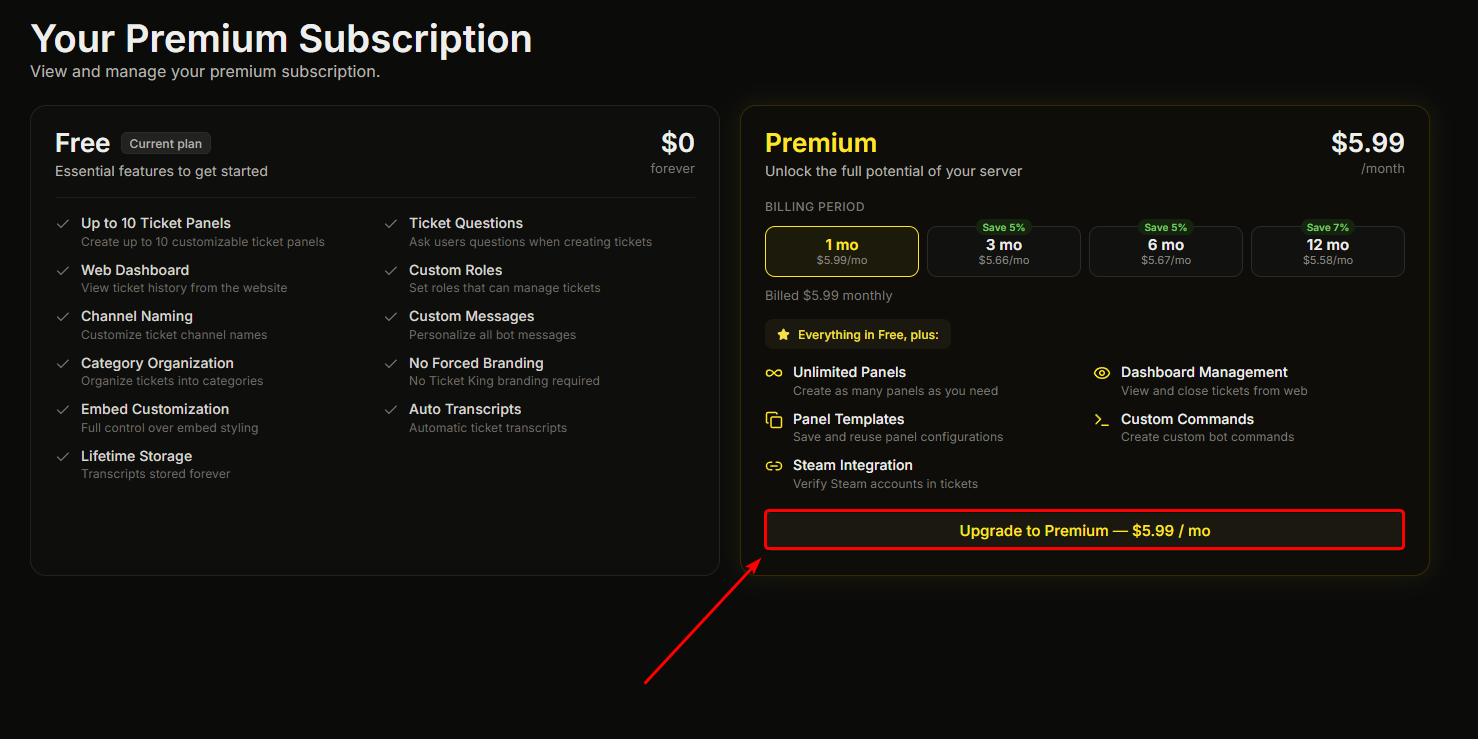
### Cliquez sur Passer à Premium
Cliquez sur le **Passer à Premium** bouton.
{% endstep %}
{% step %}
### Finalisez le paiement
Vous êtes redirigé vers un paiement sécurisé proposé par notre prestataire de paiement, soit sous forme de fenêtre contextuelle, soit via une redirection. Suivez les instructions pour saisir vos informations de paiement et finaliser l'achat.
{% endstep %}
{% step %}
### Retournez au tableau de bord
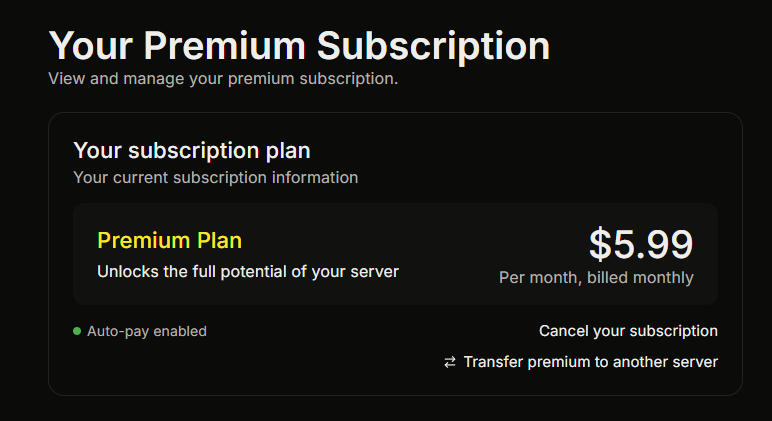
Vous êtes renvoyé vers la page Premium, qui confirme que votre paiement a bien été effectué et attend l'activation de Premium.
{% endstep %}
{% step %}
### Premium s'active
En général, en moins d'une minute, la page Premium indique que Premium est actif et les fonctionnalités Premium se déverrouillent sur l'ensemble du serveur.
{% endstep %}
{% endstepper %}
## Autorisations pour s'abonner
Vous devez disposer de l'autorisation **Gérer Premium** sur le tableau de bord, ou être le propriétaire du serveur / administrateur Discord.
## Ce qui s'active immédiatement après l'achat
En quelques minutes :
* Les pages Premium de votre tableau de bord (Statistiques, Liaison Steam, Commandes personnalisées, Personnaliseur de bot) se déverrouillent.
* Les fonctionnalités du panneau réservées à Premium commencent à s'appliquer (rôles requis, invites de liaison Steam, etc.).
* Le Personnaliseur de bot se réapplique automatiquement si vous en avez configuré un.
## Si Premium ne s'active pas dans les 5 minutes
C'est rare, mais si vous finalisez le paiement et ne voyez pas Premium s'activer :
1. Actualisez le tableau de bord.
2. Vérifiez la page Premium. Elle devrait indiquer que votre abonnement est actif.
3. Si ce n'est pas le cas, contactez . L'équipe peut le résoudre rapidement.
## S'abonner pour plusieurs serveurs
Vous pouvez vous abonner à plusieurs serveurs, chacun avec son propre abonnement. Gérez-les tous depuis [ticketking.xyz/user/subscriptions](https://ticketking.xyz/user/subscriptions).
Vous pouvez aussi **transférer** un abonnement actif d'un serveur à un autre, depuis la page Premium du serveur ou depuis votre page des abonnements.
→ [Gérer votre abonnement](https://ticketking.xyz/docs/fr/premium/managing-your-subscription.md)
## Connexes
{% content-ref url="/pages/c894fd2c0a7b089203b4740902af131b602b565f" %}
[Gérer votre abonnement](https://ticketking.xyz/docs/fr/premium/managing-your-subscription.md)
{% endcontent-ref %}
---
# Agent Instructions
This documentation is published with GitBook. GitBook is the documentation platform designed so that both humans and AI agents can read, navigate, and reason over technical content effectively. Learn more at gitbook.com.
## Querying This Documentation
If you need additional information that is not directly available in this page, you can query the documentation by asking a question.
Perform an HTTP GET request on the following URL with the `ask` and `goal` query parameters:
```
GET https://ticketking.xyz/docs/fr/premium/subscribing.md?ask=&goal=
```
`ask` is the immediate question: it should be specific, self-contained, and written in natural language.
`goal` is what the user is ultimately trying to achieve, the reason they need the answer. Sharing it helps GitBook give you a better, more relevant answer. A goal is most helpful when it describes the outcome the user wants rather than restating the question. For example, with `ask=how do I create an API token`, a goal like `automate deployments from our CI pipeline` lets GitBook tailor the answer to that use case.
The response will contain a direct answer to the question and relevant excerpts and sources from the documentation.
Use this mechanism when the answer is not explicitly present in the current page, you need clarification or additional context, or you want to retrieve related documentation sections.