> For the complete documentation index, see [llms.txt](https://ticketking.xyz/docs/llms.txt). Markdown versions of documentation pages are available by appending `.md` to page URLs; this page is available as [Markdown](https://ticketking.xyz/docs/forms/what-option-questions-are.md).
# What option questions are
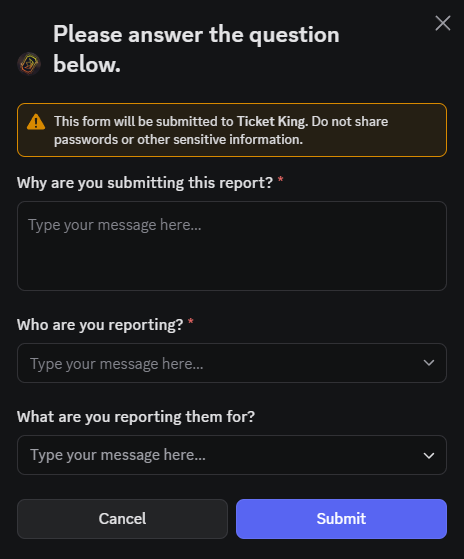
A pop-up form that appears before a ticket opens, with context the member types in.
When a member clicks a panel button or picks a select option, you can have a **form** appear first. The form is a Discord pop-up form, a small dialog holding **5 questions** at a time. The member fills it in and submits it, and then the ticket opens with their answers placed in the opening embed.
The same form system is used for both ticket panels and application panels. The builder, the question types, and the form-length limits are the same.
## Why forms matter
Without forms, staff have to ask the same opening questions in every ticket, such as the member's username, the game mode, or the error message, and the member answers them one at a time. Forms gather that context before the ticket opens.
Staff then see a ticket that already has the answers in the opening embed.
## Where forms attach
Forms attach to a **panel option**, which is a button or a dropdown-menu entry, not to a panel as a whole. Each option has its own list of questions.
Different ticket types need different questions. A "Bug Report" form asks for reproduction steps, an "Account Help" form asks for a username, and a "Partnership" form asks for a company name. Each set of questions lives on its own option.
## How many questions you can ask
**5 per option on the free plan, up to 100 on premium.** This applies to both ticket panels and application panels.
A single pop-up always holds 5 questions — that part is Discord's limit and never changes. Premium lifts the cap on the form as a whole, so a longer form becomes a **multi-step form**.
→ [How many questions a form can ask](/docs/forms/questions-per-form.md)
## Where answers end up
The member's answers are pasted into the **opening embed's description** in the new ticket channel, formatted as:
```
****
****
```
For **applications**, the same answers are also stored with the application in the Applications dashboard and shown in the log-channel embed.
There is no separate answers thread or pinned answers message. The opening embed is where the answers appear.
## Where to set them up
In the panel editor:
1. Open the option you want to add a form to.
2. In the questions section, click **Add Question**. On a ticket option this section is called **Ticket Questions**. On an application option it is called **Application Questions**.
3. Pick a question type. See [Question types](/docs/forms/question-types.md).
4. Fill in the question text, the placeholder, the Required toggle, the Active toggle, and any type-specific settings.
5. Repeat for as many questions as your plan allows.
6. Save.
→ [Question types](/docs/forms/question-types.md)
## What members see
When a member clicks a button with a form attached:
1. The Discord pop-up form appears immediately (no channel created yet).
2. They fill in each field.
3. They click **Submit**.
4. The channel opens with their answers already in the opening embed.
If they dismiss the pop-up without submitting, no ticket is created. They can click the button again to retry.
## Active and Inactive questions
Each question has an **Active / Inactive** toggle. Inactive questions stay saved on the option but do not appear in the pop-up.
Use Inactive when:
* You want to turn off a question for now without deleting it.
* You are testing different versions of a question.
* You are preparing a question for later, such as "what event are you asking about?", and do not want it live yet.
Set the question back to Active to bring it back into the pop-up.
## Drag to reorder
Questions appear in the pop-up in the order you save them. You can drag the handle on each question card to reorder them. Reorder, then save, and members see the new order the next time they open the form.
## Related
{% content-ref url="/pages/7CkCeZCrgltqb0qqKg5z" %}
[Question types](/docs/forms/question-types.md)
{% endcontent-ref %}
{% content-ref url="/pages/Vk5NU9To4x2h6lTil8fF" %}
[Required vs optional questions](/docs/forms/required-vs-optional.md)
{% endcontent-ref %}
{% content-ref url="/pages/XQsrUSeSCzERWqbhESgi" %}
[Applications overview](/docs/applications/overview.md)
{% endcontent-ref %}
---
# Agent Instructions
This documentation is published with GitBook. GitBook is the documentation platform designed so that both humans and AI agents can read, navigate, and reason over technical content effectively. Learn more at gitbook.com.
## Querying This Documentation
If you need additional information that is not directly available in this page, you can query the documentation dynamically by asking a question.
Perform an HTTP GET request on the current page URL with the `ask` query parameter, and the optional `goal` query parameter:
```
GET https://ticketking.xyz/docs/forms/what-option-questions-are.md?ask=&goal=
```
`ask` is the immediate question: it should be specific, self-contained, and written in natural language.
`goal` is optional and describes the broader end goal you are ultimately trying to accomplish on behalf of the user. GitBook uses it to tailor the answer towards what is most useful for that goal.
The response will contain a direct answer to the question and relevant excerpts and sources from the documentation.
Use this mechanism when the answer is not explicitly present in the current page, you need clarification or additional context, or you want to retrieve related documentation sections.