> For the complete documentation index, see [llms.txt](https://ticketking.xyz/docs/llms.txt). Markdown versions of documentation pages are available by appending `.md` to page URLs; this page is available as [Markdown](https://ticketking.xyz/docs/forms/question-types.md).
# Question types
Every form question type, what each is, what it caps at, and what answers look like.
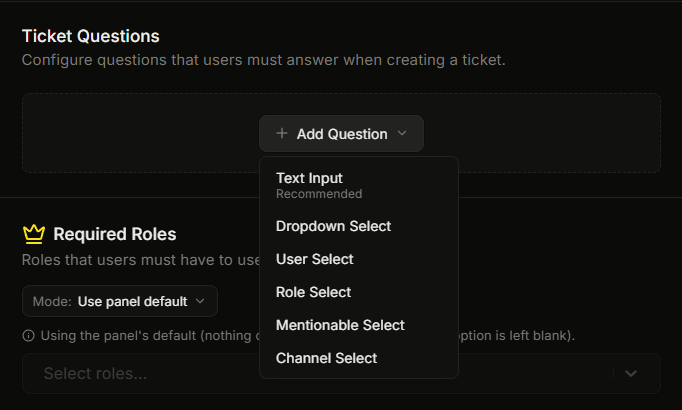
Ticket King forms support several question types. Each behaves differently in the Discord pop-up form and produces a different answer in the opening embed.
The types are **Text Input**, **Dropdown Select**, **User Select**, **Role Select**, **Mentionable Select**, and **Channel Select**.
## 1. Text Input
A free-text field. It has two styles, picked per question:
* **Short Answer** is a single line, for names, IDs, and short codes.
* **Paragraph** is multi-line and expandable, for descriptions and reproduction steps. This is the default.
### Type-specific settings
| Setting | Range |
| -------------- | --------------------------------------------- |
| Style | Short Answer or Paragraph (default Paragraph) |
| Minimum length | 0 to 4000 (default 0) |
| Maximum length | 1 to 4000 (default 500) |
### What the answer looks like
By default the member's text shows as plain text, with any markdown in their answer escaped so it appears literally:
```
**Username?**
Aspect
```
You can instead wrap answers in inline code — which makes them tap-to-copy on mobile — by turning on **Code-Wrap Question Responses** in [Ticket Style and Claiming](/docs/settings/ticket-style-and-claiming.md). With it on, the same answer looks like this:
```
**Username?**
`Aspect`
```
## 2. Dropdown Select
A list of choices you set in advance. The member picks one, or more if you allow it.
### Type-specific settings
| Setting | Range |
| -------------- | ------------------------------------------------------------------------------------ |
| Choices | Up to 25, each with a label, a value, an optional description, and an optional emoji |
| Minimum values | 0 to 25 (how many they must pick, default 0) |
| Maximum values | 1 to 25 (how many they can pick, default 1) |
A typical Dropdown Select has 3 to 10 choices, with minimum and maximum both set to 1, so the member picks exactly one.
### What the answer looks like
```
**Severity?**
Critical
```
If you allow multiple picks, the chosen labels are joined with commas.
## 3. User Select
A picker for Discord users.
### Type-specific settings
| Setting | Range |
| -------------- | ------------------- |
| Minimum values | 0 to 25 (default 0) |
| Maximum values | 1 to 25 (default 1) |
### What the answer looks like
Discord user mentions:
```
**Who else was involved?**
<@1234567890>, <@9876543210>
```
## 4. Role Select
A picker for Discord roles.
### Type-specific settings
The same as User Select. Minimum values 0 to 25 (default 0), maximum values 1 to 25 (default 1).
### What the answer looks like
Discord role mentions:
```
**Which role does this affect?**
<@&1234567890>
```
## 5. Mentionable Select
A picker that accepts either users or roles. Use it when the answer could be either one.
### Type-specific settings
The same as User Select and Role Select.
### What the answer looks like
Mentions for the picked users or roles. Both are shown in the user-mention style:
```
**Who should review this?**
<@1234567890>, <@9876543210>
```
## 6. Channel Select
A picker for Discord channels.
### Type-specific settings
| Setting | Range or values |
| ---------------------- | ------------------------------------------------------------------------------------------------------------------------------------------------------------ |
| Minimum values | 0 to 25 (default 0) |
| Maximum values | 1 to 25 (default 1) |
| Filter by channel type | Pick any of: Text Channels, Voice Channels, Categories, Announcement Channels, News Threads, Public Threads, Private Threads, Stage Channels, Forum Channels |
The channel-type filter limits which channels appear in the picker. Leave it empty to allow every channel type. Pick "Text Channels" only to restrict it to text channels.
### What the answer looks like
Discord channel mentions:
```
**Which channel is broken?**
<#1234567890>
```
## Per-question fields (across all types)
In addition to type-specific settings, every question has these fields:
| Field | Type | Cap or default |
| --------------------- | ----------- | ------------------------------------------------------------------------------ |
| Question type | choice | Picked once when you add the question. It cannot be changed after. |
| **Question** | text | max **45 characters**. The form label members read. |
| **Placeholder** | text | max **100 characters**. The grey hint inside the input. |
| **Required** | toggle | default **off**. Turn it on to make the question required. |
| **Active / Inactive** | toggle | default Active. Inactive questions stay saved but do not appear in the pop-up. |
| Position | drag handle | reorderable |
## Adding a question
In the panel editor, open an option and find the questions section. On a ticket option it is called **Ticket Questions**. On an application option it is called **Application Questions**.
1. Click **Add Question**.
2. Pick the type from the menu.
3. Type the question text (max 45 characters).
4. Add placeholder text if you want (max 100 characters).
5. Turn Required on if the member must answer this question. It starts off.
6. Fill in the type-specific settings, such as the length range for text, the choices for a dropdown, or the channel-type filter for a channel select.
7. Save.
The Add Question button disappears at 100 questions, the hard ceiling on every plan. On the free plan you can pass 5, but only the first 5 are ever asked.
## Reordering
Drag the handle on the left of a question up or down, then save. The pop-up shows the new order the next time a member opens the form.
## Related
{% content-ref url="/pages/eyS8zUa5kfFnrQCQeO98" %}
[Filtering channel select by channel type](/docs/forms/filtering-channel-select.md)
{% endcontent-ref %}
{% content-ref url="/pages/Vk5NU9To4x2h6lTil8fF" %}
[Required vs optional questions](/docs/forms/required-vs-optional.md)
{% endcontent-ref %}
{% content-ref url="/pages/sKx3wXFEeprzMsumYDjp" %}
[How many questions a form can ask](/docs/forms/questions-per-form.md)
{% endcontent-ref %}
---
# Agent Instructions
This documentation is published with GitBook. GitBook is the documentation platform designed so that both humans and AI agents can read, navigate, and reason over technical content effectively. Learn more at gitbook.com.
## Querying This Documentation
If you need additional information that is not directly available in this page, you can query the documentation dynamically by asking a question.
Perform an HTTP GET request on the current page URL with the `ask` query parameter, and the optional `goal` query parameter:
```
GET https://ticketking.xyz/docs/forms/question-types.md?ask=&goal=
```
`ask` is the immediate question: it should be specific, self-contained, and written in natural language.
`goal` is optional and describes the broader end goal you are ultimately trying to accomplish on behalf of the user. GitBook uses it to tailor the answer towards what is most useful for that goal.
The response will contain a direct answer to the question and relevant excerpts and sources from the documentation.
Use this mechanism when the answer is not explicitly present in the current page, you need clarification or additional context, or you want to retrieve related documentation sections.