> For the complete documentation index, see [llms.txt](https://ticketking.xyz/docs/llms.txt). Markdown versions of documentation pages are available by appending `.md` to page URLs; this page is available as [Markdown](https://ticketking.xyz/docs/es/vinculacion-de-steam/turning-it-on.md).
# Activar Steam Linking
Cómo activar Steam Linking para tu servidor.
:crown: **Función premium.** Steam Linking tiene dos pasos.
{% stepper %}
{% step %}
### Paso 1. Tener premium
Steam Linking forma parte de premium. Una vez que tu servidor tenga premium, Steam Linking estará disponible en unos minutos.
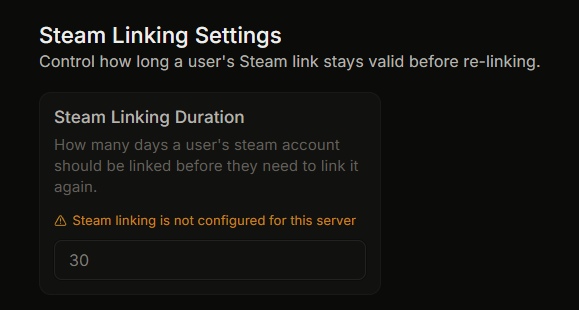
Hasta entonces, el **Duración de la vinculación de Steam** campo en la página de Configuración está deshabilitado con el motivo *"Steam linking no está configurado para este servidor"*.
{% endstep %}
{% step %}
### Paso 2. Requerirlo en cada opción que quieras restringir
Incluso con premium, ninguna opción del panel requiere vinculación por defecto. La activas para cada opción que elijas.
Para cada opción del panel que quieras restringir detrás de Steam linking:
1. Abre el editor del panel.
2. Haz clic en el botón o la opción.
3. Ve a **Pestaña Avanzado**.
4. Busca **Integración de Steam ID**.
5. Activa el **Requerir Steam Linking** interruptor.
6. Guarda.
También puedes establecer esto como valor predeterminado del panel en **Valores predeterminados del panel**, en **Integración predeterminada de Steam ID**. Luego, las opciones individuales pueden anular el valor predeterminado.
{% endstep %}
{% endstepper %}
## Qué sucede después de activarlo
* Cuando un miembro hace clic en la opción del panel, el bot primero comprueba si tiene un enlace de Steam válido.
* Si no lo tienen, el bot les pide que enlacen usando un botón. Solo pueden abrir el ticket después de enlazarse.
* Su ID de Steam pasa a estar disponible como un `{STEAM_ID}` marcador de posición. Puedes usarlo en:
* El nombre personalizado del ticket, por ejemplo `bug-{TICKET_NUMBER}-{STEAM_ID}`.
* El contenido del embed del ticket.
* El mensaje del hilo del personal.
## Desactivarlo
Activa el **Requerir Steam Linking** desactiva el interruptor en la opción, o en los valores predeterminados del panel. Los nuevos tickets no requerirán vinculación. Los miembros que ya se vincularon conservan su enlace.
## Si termina premium
Si tu servidor pasa de premium de nuevo a gratuito:
* Steam Linking deja de funcionar.
* Los miembros que ya se vincularon conservan su Steam ID almacenado.
* El `{STEAM_ID}` el marcador de posición deja de rellenarse.
* La página del panel de Steam Linking queda bloqueada.
Cuando el premium regrese, los enlaces anteriores volverán a funcionar.
## Relacionado
{% content-ref url="/pages/b565b6e43b91106fde848c2e0b1cf0d0d708cc91" %}
[Qué hace Steam Linking](https://ticketking.xyz/docs/es/vinculacion-de-steam/overview.md)
{% endcontent-ref %}
{% content-ref url="/pages/20731d8d382856495020a4244ac601d8382e54ec" %}
[La configuración de duración del enlace](https://ticketking.xyz/docs/es/vinculacion-de-steam/link-duration.md)
{% endcontent-ref %}
---
# Agent Instructions
This documentation is published with GitBook. GitBook is the documentation platform designed so that both humans and AI agents can read, navigate, and reason over technical content effectively. Learn more at gitbook.com.
## Querying This Documentation
If you need additional information that is not directly available in this page, you can query the documentation by asking a question.
Perform an HTTP GET request on the following URL with the `ask` and `goal` query parameters:
```
GET https://ticketking.xyz/docs/es/vinculacion-de-steam/turning-it-on.md?ask=&goal=
```
`ask` is the immediate question: it should be specific, self-contained, and written in natural language.
`goal` is what the user is ultimately trying to achieve, the reason they need the answer. Sharing it helps GitBook give you a better, more relevant answer. A goal is most helpful when it describes the outcome the user wants rather than restating the question. For example, with `ask=how do I create an API token`, a goal like `automate deployments from our CI pipeline` lets GitBook tailor the answer to that use case.
The response will contain a direct answer to the question and relevant excerpts and sources from the documentation.
Use this mechanism when the answer is not explicitly present in the current page, you need clarification or additional context, or you want to retrieve related documentation sections.