> For the complete documentation index, see [llms.txt](https://ticketking.xyz/docs/llms.txt). Markdown versions of documentation pages are available by appending `.md` to page URLs; this page is available as [Markdown](https://ticketking.xyz/docs/applications/the-applications-page.md).
# The Applications page
The dashboard review queue for reading, filtering, and acting on applications.
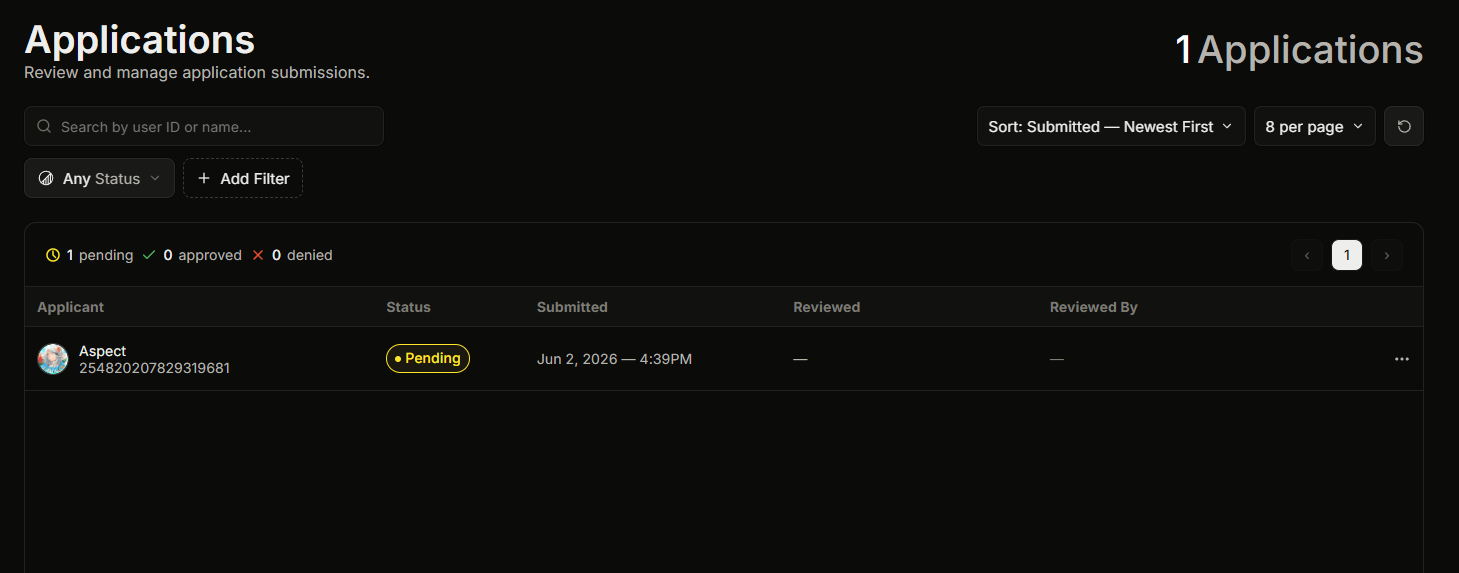
Sidebar → **Applications** opens the review queue. This page shows every submission for every application panel on your server.
You can filter the queue by status (pending, approved, denied), by date, and by reviewer, and search by a member's user ID or name. The page shows how many applications are pending, approved, and denied at a glance, so you can see your review backlog.
Click any application to open its details.
## Application Details window
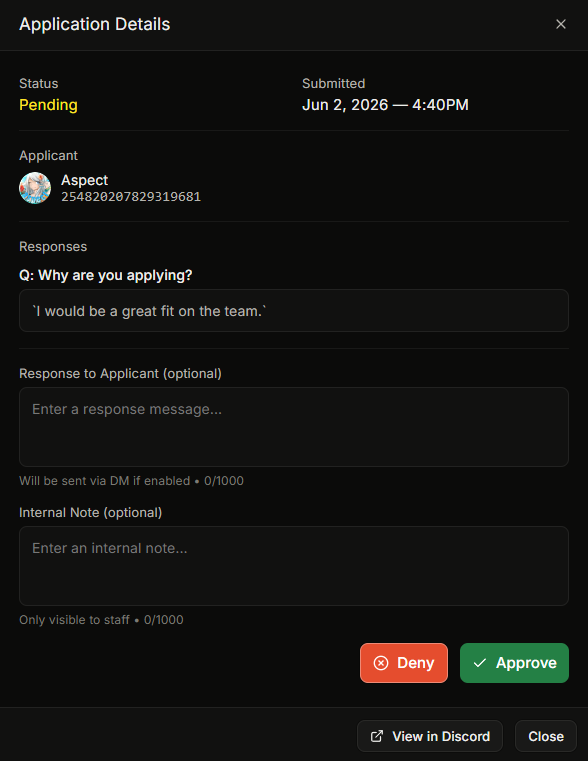
Shows:
* Every answer, with the question label in bold and the member's answer below it.
* Applicant info, including avatar, name, account creation date, and server-membership date.
* Decision details, including the reviewer, the time, the public reason, and the internal note, if the application has been decided.
Pending applications also show **Approve** (green) and **Deny** (red) buttons.
### Approving or denying from the dashboard
Click Approve or Deny. A small pop-up opens:
* **Reason** (max 1000 characters). Sent to the applicant in the DM if **DM Result to Applicant** is on for the option.
* **Note** (max 1000 characters). Internal only. It is never sent to the applicant.
On submit, Ticket King:
1. Records the decision on the application.
2. Disables the buttons on the log embed and updates the status badge.
3. On approve, grants the option's Granted Roles and removes its Roles to Remove.
4. DMs the applicant if the option has DM Result to Applicant on.
5. Writes an audit log entry.
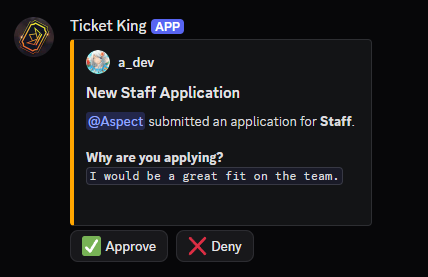
## Approving or denying from the log channel
The log embed in your configured log channel has Approve and Deny buttons. They behave the same as the dashboard, and clicking one opens the same decision pop-up.
The reviewer must have a role listed in the application option's **Reviewer Roles**. If they do not, the buttons return an error.
## Permissions to use this page
To see the page, you need the **View Application History** dashboard permission. The server owner and anyone with Administrator or Manage Server can also see it.
To approve or deny, you need the **Review Applications** dashboard permission for the dashboard buttons, or a role listed in the option's Reviewer Roles for the log-channel buttons.
## Related
{% content-ref url="/pages/XQsrUSeSCzERWqbhESgi" %}
[Applications overview](/docs/applications/overview.md)
{% endcontent-ref %}
{% content-ref url="/pages/EF0pKGpqjZw3SVUPhXC3" %}
[Designing your application](/docs/applications/designing-your-application.md)
{% endcontent-ref %}
---
# Agent Instructions
This documentation is published with GitBook. GitBook is the documentation platform designed so that both humans and AI agents can read, navigate, and reason over technical content effectively. Learn more at gitbook.com.
## Querying This Documentation
If you need additional information that is not directly available in this page, you can query the documentation dynamically by asking a question.
Perform an HTTP GET request on the current page URL with the `ask` query parameter, and the optional `goal` query parameter:
```
GET https://ticketking.xyz/docs/applications/the-applications-page.md?ask=&goal=
```
`ask` is the immediate question: it should be specific, self-contained, and written in natural language.
`goal` is optional and describes the broader end goal you are ultimately trying to accomplish on behalf of the user. GitBook uses it to tailor the answer towards what is most useful for that goal.
The response will contain a direct answer to the question and relevant excerpts and sources from the documentation.
Use this mechanism when the answer is not explicitly present in the current page, you need clarification or additional context, or you want to retrieve related documentation sections.