> For the complete documentation index, see [llms.txt](https://ticketking.xyz/docs/llms.txt). Markdown versions of documentation pages are available by appending `.md` to page URLs; this page is available as [Markdown](https://ticketking.xyz/docs/applications/overview.md).
# Applications overview
A review-style alternative to ticket panels for applications and signups.
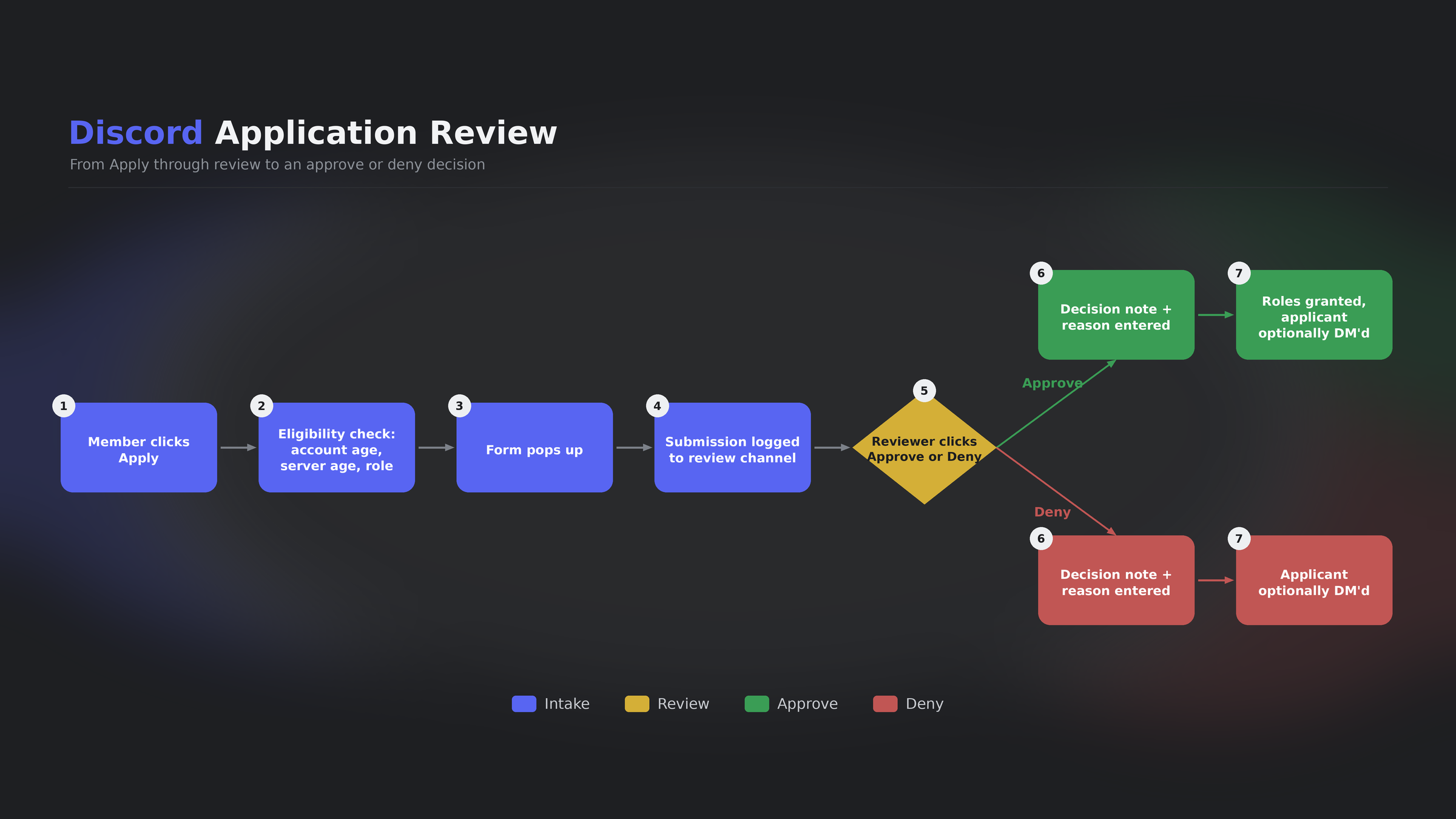
An **application** is like a ticket, but with a review step in between. Instead of opening a channel when a member clicks the button, Ticket King collects their form answers and logs them in a review channel. Reviewers then click **Approve** or **Deny**.
## When to use applications instead of tickets
Pick applications when:
* You want to review and approve before talking.
* You would rather not create a channel per applicant.
* You want roles granted automatically on approve.
* You want a structured review process with reviewer notes.
Common use cases are staff applications, partner applications, role-grant requests, and admissions for invite-gated communities.
## When to stay with tickets
Stay with ticket panels when:
* You want to start a conversation right away.
* The decision is to help the member, not to approve or deny them.
* You do not have a structured intake.
## How applications differ from tickets
| | Ticket panel | Application panel |
| ------------------------------ | ----------------------------------------------------------------------------------------------------------------- | ------------------------------------------------------------------- |
| When the member clicks | A pop-up form appears if set, then a channel opens | A pop-up form opens |
| Where the conversation happens | In the channel | There is no channel by default. It is review-only |
| Where it lives | A Discord channel | An entry in the Applications dashboard and a log embed in a channel |
| Max questions | 5 (one form) | 5 (the same single-form limit) |
| Grant roles automatically | No | Yes, on approve |
| Eligibility gating | Per option, with Required Roles :crown: and Blocked Roles :crown: | Per option, plus account age and server-membership age |
| Outcome | The ticket closes | Approve or Deny |
| DM the member on outcome | A DM on close, optional | A DM on decision, optional, one toggle |
## Form length is the same as tickets
Applications and tickets use the same form system, so they get the same limits: **5 questions on the free plan, up to 100 on premium**.
Past 5 questions, premium applications become **multi-step forms**. Applications are the place this matters most: a staff or whitelist application is usually longer than a support ticket.
See [How many questions a form can ask](/docs/forms/questions-per-form.md).
## The full applicant experience
From the applicant's point of view:
1. **Click the apply button.**
2. **Eligibility check.** If they do not meet the account age, server-membership age, or required-role rules, they get a block message and cannot continue.
3. **Form opens.** Up to 5 questions, or a multi-step form of up to 100 on premium.
4. **Submit.** They get a confirmation that the application was submitted.
5. **Wait.** A reviewer acts on it in the dashboard or with the Approve and Deny buttons in the log channel.
6. **Outcome.** If **DM Result to Applicant** is on, which is the default, Ticket King DMs them a result with the reviewer's reason. The reason is the public part of the decision pop-up.
## The reviewer experience
There are two places to review applications:
### In the log channel
Every submission posts a log embed with **Approve** (green) and **Deny** (red) buttons. A reviewer clicks one, and a small pop-up opens asking for an optional **reason** (max 1000 characters, can be DM'd to the applicant) and an optional **note** (max 1000 characters, internal only). On submit, the decision is recorded.
### In the dashboard
Open **Applications** in the sidebar. This is a queue of every submission, and you can filter and search it. Click any submission to see the answers, then act on it. The review queue is free.
→ [The Applications page](/docs/applications/the-applications-page.md)
## What you configure
Per application option:
* **Application Type.** A text label that shows as the form title.
* **Log Channel.** Where submissions are posted. This is required. Without it, submissions cannot be logged and reviewers will not see them.
* **Application Questions.** Up to 5.
* **Eligibility.** Minimum account age and minimum server-membership age.
* **Reapplication.** The Allow Reapplication toggle and a Cooldown Period in days.
* **Granted Roles.** The roles granted on approve.
* **Roles to Remove.** The roles taken away on approve, for example a "pending" holding role.
* **Reviewer Roles.** Who can approve or deny.
* **Required Roles** :crown: **and Blocked Roles** :crown:**.** The same per-option role gating as tickets.
* **DM Result to Applicant.** Whether to DM the applicant on the decision.
→ [Designing your application](/docs/applications/designing-your-application.md)
## Related
{% content-ref url="/pages/EF0pKGpqjZw3SVUPhXC3" %}
[Designing your application](/docs/applications/designing-your-application.md)
{% endcontent-ref %}
{% content-ref url="/pages/SY2AogFi0IChBYDf6uOE" %}
[The Applications page](/docs/applications/the-applications-page.md)
{% endcontent-ref %}
{% content-ref url="/pages/6JTPTdW19MhSD9tqoyAc" %}
[Create an Application Panel](/docs/panels/create-an-application-panel.md)
{% endcontent-ref %}
---
# Agent Instructions
This documentation is published with GitBook. GitBook is the documentation platform designed so that both humans and AI agents can read, navigate, and reason over technical content effectively. Learn more at gitbook.com.
## Querying This Documentation
If you need additional information that is not directly available in this page, you can query the documentation dynamically by asking a question.
Perform an HTTP GET request on the current page URL with the `ask` query parameter, and the optional `goal` query parameter:
```
GET https://ticketking.xyz/docs/applications/overview.md?ask=&goal=
```
`ask` is the immediate question: it should be specific, self-contained, and written in natural language.
`goal` is optional and describes the broader end goal you are ultimately trying to accomplish on behalf of the user. GitBook uses it to tailor the answer towards what is most useful for that goal.
The response will contain a direct answer to the question and relevant excerpts and sources from the documentation.
Use this mechanism when the answer is not explicitly present in the current page, you need clarification or additional context, or you want to retrieve related documentation sections.