> For the complete documentation index, see [llms.txt](https://ticketking.xyz/docs/llms.txt). Markdown versions of documentation pages are available by appending `.md` to page URLs; this page is available as [Markdown](https://ticketking.xyz/docs/applications/designing-your-application.md).
# Designing your application
Every field on an application option, in the order you will meet them.
The application-option editor uses a flat layout, with every field on one page. Ticket options use General, Messages, and Advanced tabs instead.
This walkthrough goes top to bottom.
## Application Type
A text label, up to **50 characters**.
This is the form title members see when they click the apply button. Examples are "Staff Application", "Partner Application", and "Role Request".
It is required. The dashboard marks it with an asterisk and will not let you save the option until you fill it in.
## Log Channel
This is required. Without it, no one can review submissions.
It is a channel select. It sets where submitted applications are posted as embeds, with Approve and Deny buttons. You can set it to inherit from the panel default or override it.
If the panel default is not set and this is set to inherit, you see a note that no panel default is set, that this option must be overridden, and that otherwise applications cannot be submitted. Set the channel, then save.
## Application Questions
Up to **5 questions** on the free plan, or up to **100** on Premium. This uses the same form system as ticket forms.
→ [Question types](/docs/forms/question-types.md)
The form title is your Application Type from above. The body is your questions.
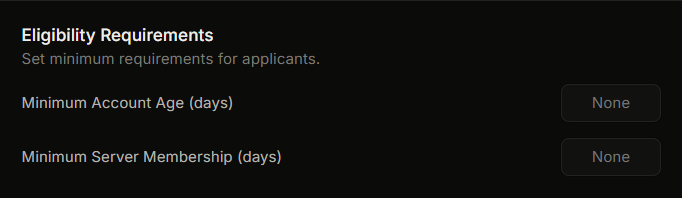
## Eligibility Requirements
Block applications from accounts that do not qualify, before they start the form.
| Field | Type | Range | Default |
| ------------------------------------ | ------ | -------- | ---------- |
| **Minimum Account Age (days)** | number | 0 to 365 | None (off) |
| **Minimum Server Membership (days)** | number | 0 to 365 | None (off) |
If a member does not meet a rule, they get a block message that names the unmet rule and the required number of days:
* Account too new: a message that their Discord account must be at least N days old to submit an application.
* Not in the server long enough: a message that they must be a member of the server for at least N days to submit an application.
## Reapplication Settings
What happens if a member's application is decided and they want to apply again.
| Field | Type | Behavior |
| -------------------------- | ------------------- | ---------------------------------------------------------------------------------------------------------------------------------------------------------- |
| **Allow Reapplication** | toggle (default on) | When off, a member who has submitted once cannot submit again at all, and the cooldown does not matter. |
| **Cooldown Period (days)** | number, 0 to 365 | Shown only when Allow Reapplication is on. After a decision, the member must wait this many days before submitting another application to the same option. |
A common setup is Allow Reapplication on with a 7-day cooldown. This gives serious applicants a way back without allowing spam.
## Granted Roles
A multi-role selector. When an application is approved, Ticket King adds these roles to the applicant.
Common patterns:
* Staff application: grant the "Staff" or "Moderator" role.
* Partner application: grant "Partner".
* Role-grant application: grant whichever role they applied for.
{% hint style="warning" %}
Ticket King's bot role must sit above every Granted Role in Discord's role list. If a Granted Role is above the bot's role, the role grant does not work. Drag Ticket King up in **Server Settings, Roles**.
{% endhint %}
## Roles to Remove
A multi-role selector. When an application is approved, Ticket King removes these roles from the applicant. It is the opposite of Granted Roles, and the two work together in one step.
A common use is an "applicant" or "pending" holding role. When someone applies they get the holding role, and when you approve them, Ticket King removes the holding role and adds their new role at the same time.
The bot's role must sit above every role you list here, the same as with Granted Roles.
## Reviewer Roles
A multi-role selector. Only members with at least one of these roles can approve or deny applications with the log-channel buttons.
This is separate from dashboard permissions. To act on applications, a reviewer needs one of these:
* At least one of these reviewer roles, to use the log-channel buttons.
* The Review Applications dashboard permission, to approve or deny from the dashboard. The server owner and anyone with Administrator or Manage Server can also do this.
Most servers set the same role for both.
## Required Roles (Premium)
A multi-role selector that can inherit from the panel default or be overridden. The applicant must have at least one of these roles to submit. This is a :crown: Premium feature.
## Blocked Roles (Premium)
A multi-role selector that can inherit from the panel default or be overridden. Members with any of these roles cannot submit. This is a :crown: Premium feature.
Your server-wide Blocked Roles setting also applies here, and it blocks every command, not just this option.
## Notifications
| Field | Type | Behavior |
| -------------------------- | ------------------- | ----------------------------------------------------------------------------------------------------------------------------------------------------------------------------------------------- |
| **DM Result to Applicant** | toggle (default on) | When on, Ticket King DMs the applicant after the decision. The DM includes the application type, the status (approved or denied), and the **reason** the reviewer typed in the decision pop-up. |
There is no separate accept message and deny message. One toggle controls whether a DM goes out, and the content is built from the reviewer's reason and the status.
If the applicant has DMs turned off, the DM does not arrive. The decision is still recorded.
## Option Status
Enabled or Disabled. It turns this option on or off without removing the whole panel.
## Save
The dashboard shows an unsaved-changes bar at the bottom when you edit something. Click **Save** to apply your changes. The editor does not auto-save, so you must save yourself.
## Related
{% content-ref url="/pages/SY2AogFi0IChBYDf6uOE" %}
[The Applications page](/docs/applications/the-applications-page.md)
{% endcontent-ref %}
{% content-ref url="/pages/kp7qOI8EbdJjHcyutklh" %}
[Application limits and constraints](/docs/applications/limits-and-constraints.md)
{% endcontent-ref %}
---
# Agent Instructions
This documentation is published with GitBook. GitBook is the documentation platform designed so that both humans and AI agents can read, navigate, and reason over technical content effectively. Learn more at gitbook.com.
## Querying This Documentation
If you need additional information that is not directly available in this page, you can query the documentation dynamically by asking a question.
Perform an HTTP GET request on the current page URL with the `ask` query parameter, and the optional `goal` query parameter:
```
GET https://ticketking.xyz/docs/applications/designing-your-application.md?ask=&goal=
```
`ask` is the immediate question: it should be specific, self-contained, and written in natural language.
`goal` is optional and describes the broader end goal you are ultimately trying to accomplish on behalf of the user. GitBook uses it to tailor the answer towards what is most useful for that goal.
The response will contain a direct answer to the question and relevant excerpts and sources from the documentation.
Use this mechanism when the answer is not explicitly present in the current page, you need clarification or additional context, or you want to retrieve related documentation sections.